
Web Link Settings
The Web Link Access Profile provides secure access to SaaS applications and websites through a centralized portal, using Thinfinity® Workspace authentication protocols. This allows users to access corporate web apps without the need to manage individual logins for each service.
Reference
For details on how to create a Web Link Access Profile, see Web Link Access Profile.
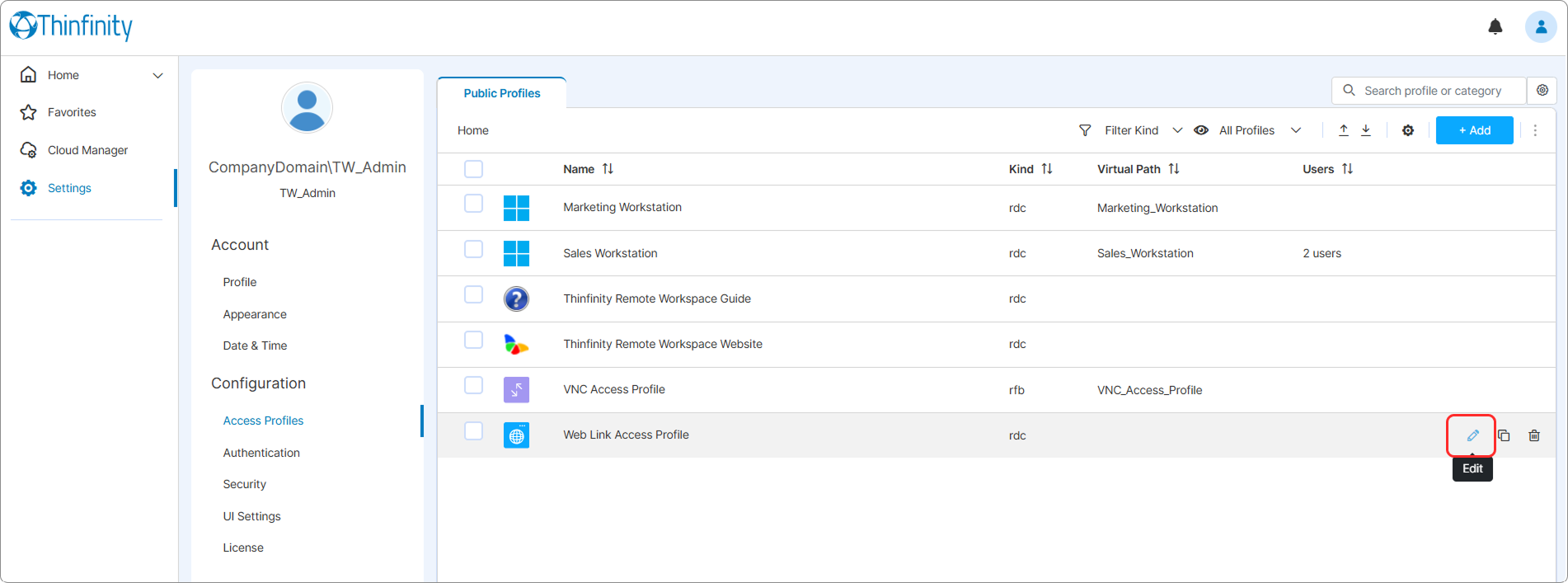
To access a Web Link Access Profile settings: From the user menu select Settings then Access Profiles and in the Public Profiles tab, select the Edit icon of the Access Profile you want to edit.
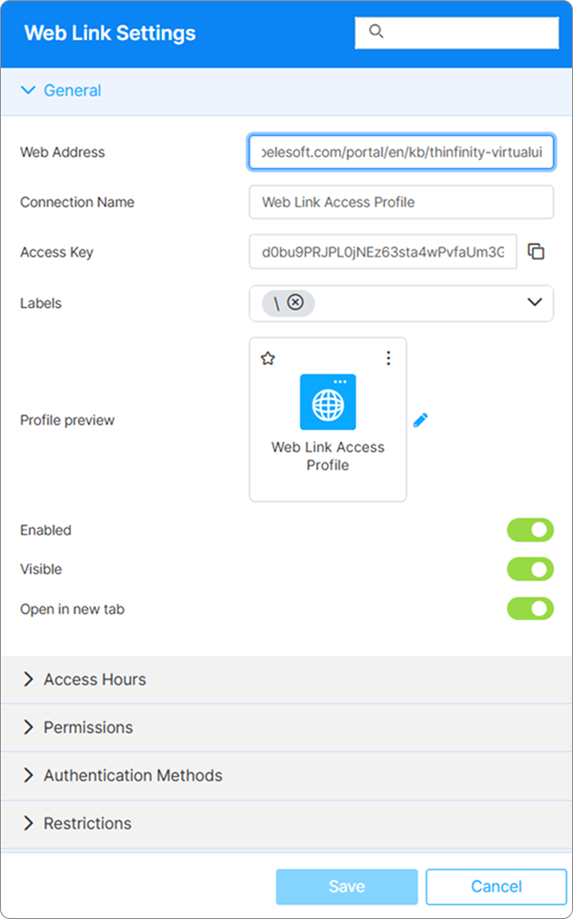
The following options are available in the Web Link Settings menu.
| Option | Description |
|---|---|
| Search field | The search field at the top of the Settings menu allows searching a specific parameter by its name. |
| Web Address | Displays the web address of the App that the profile will access. |
| Connection Name | The friendly name shown on the Access Profile’s card in the home-page list and on the browser tab when the profile is open. |
| Labels | Access Profiles can be organized into groups (labels) for which you can collectively manage the permissions settings. This field shows the names of the groups (or labels) that the current profile is a part of. For details, see Labels. |
| Profile preview | Use this button to customize the appearance of your Access Profile by choosing an image. Selecting the image will open the Customize Profile dialog window where you can select one of the available images or upload one from your computer. |
| Enabled | When on (default), the Access Profile is available. When off, direct URLs no longer route to it and the profile disappears from the home-page card list. |
| Visible | When on (default), the Access Profile appears on the home-page card list for users who have permission to it. When off, the card is hidden, but users with the direct URL can still open the profile. |
| Open in new tab | When on, launching this Access Profile opens it in a new browser tab. When off (default), it opens in the current tab. |
Reference
For details on the options available in the access and permissions tabs, see Access Control Settings.