
Connection Toolbar
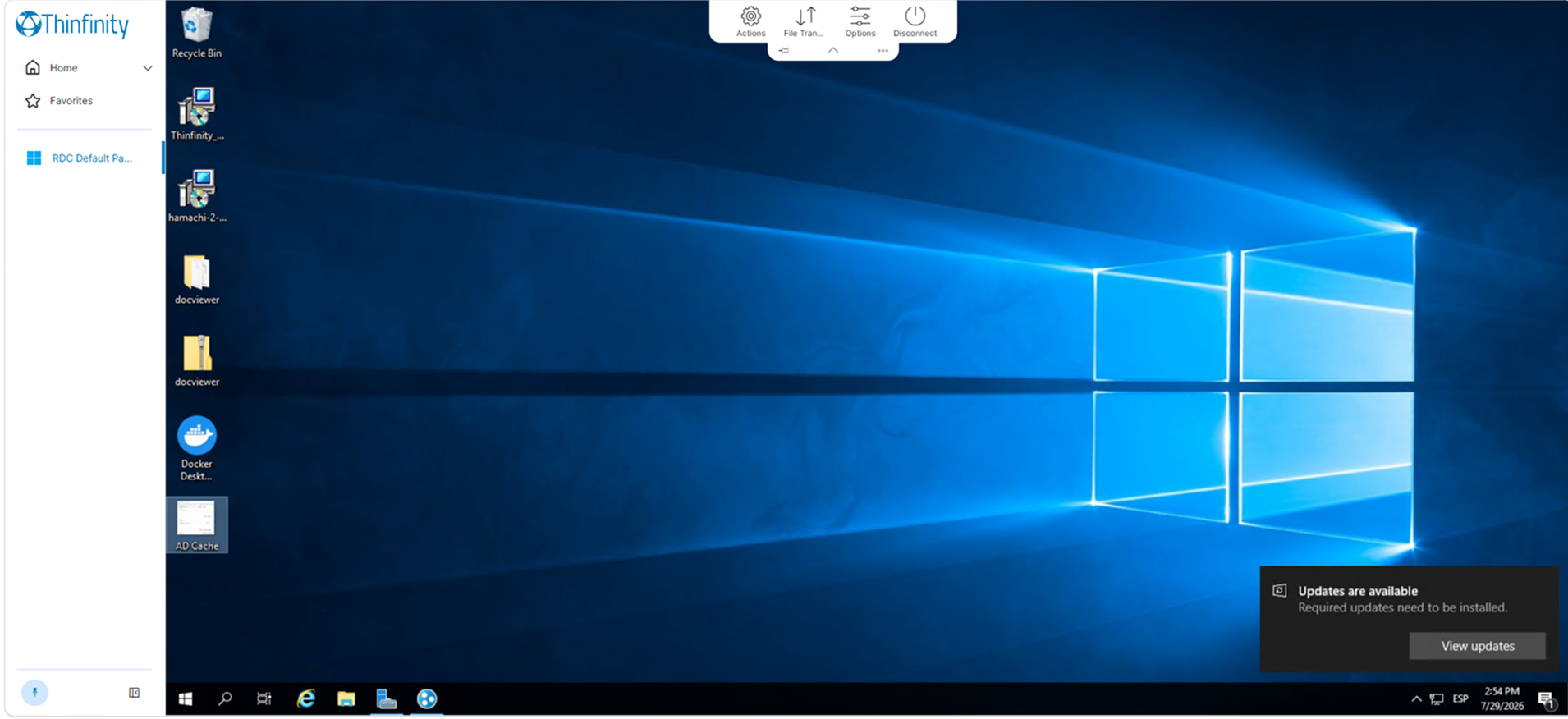
The connection toolbar is the control surface Thinfinity® Workspace renders over a remote resource once a connection is established. It groups the commands available during a session: session actions, file transfer, display and input options, connection diagnostics, and disconnection.
The connection toolbar appears in RDC, RemoteApp, VNC, Thinfinity VNC and Terminal sessions. z/Scope sessions present their own toolbar. RBI sessions render a reduced toolbar holding only Disconnect and — when the profile has file upload enabled — a File Transfer group with Upload. VirtualUI, Web App, Web Link and Web Folder sessions do not render a toolbar.
Which commands the toolbar exposes depends on the connection type: not every command documented in this article appears in every session.
Presentations
The connection toolbar has two presentations, both drawing on the same set of commands.
The toolbar itself renders the pinned commands as buttons over the session. It can be collapsed, expanded, and moved to any edge of the session area.
The Toolbar panel opens from the ellipsis control on the toolbar, along the right of the session — regardless of which edge the toolbar itself is docked to — and lists every available command. Each group expands to show the commands it holds, and each row carries the controls that determine what appears on the toolbar, so the panel is both the complete listing and the surface where the toolbar’s contents are configured.
Command availability is the same in both presentations. A command withheld by a permission or by the administrative configuration is unavailable from the toolbar and from the panel alike.
Connection Toolbar States
The connection toolbar occupies one of two states.
Expanded: the pinned commands are visible as labeled buttons, with a narrow strip below them holding the pin control and the ellipsis control.
Collapsed: the toolbar recedes to leave the remote resource unobstructed. Pointer interaction with the toolbar area expands it again.
When the connection toolbar is not pinned, it returns to the collapsed state after three seconds without interaction. Hovering over the toolbar or leaving a submenu open resets that countdown. When it is pinned, it remains expanded until it is unpinned.
On a first connection from a browser that holds no stored preference, the toolbar starts pinned (expanded) and is therefore exempt from auto-hide until the user unpins it.
Position on Screen
The connection toolbar can be dragged to any of the four edges of the session area. On the top and bottom edges the command groups are laid out horizontally; on the left and right edges they stack vertically. The pin and ellipsis controls move with the toolbar.
Pinning Commands
Every row of the Toolbar panel has a pin control: the command groups, and the individual commands inside each group.
Pinning a group adds its button to the toolbar. Pinning an individual command adds that command to the toolbar as a button of its own, and the group it belongs to stays on the toolbar as well, so the command remains reachable both ways. Unpinning a group or a command removes its button from the toolbar and leaves it available from the panel.
Reset Defaults, at the foot of the Toolbar panel, returns the connection toolbar’s options, pinned commands, and pin state to their configured defaults.
Persistence
Pinning choices are stored in the browser’s local storage against the profile type’s key. They therefore apply to the browser and device where they were made; a session opened from a different browser or device starts from the configured defaults.
Profile types that share a key share one set of pinning choices. RDC and RemoteApp sessions both use the RDP key, and VNC and Thinfinity VNC sessions both use the RFB key, so a change made in one applies to the other.
The configured defaults come from the advanced settings files: web.settings.js holds the per-connection-type values, and common.settings.js holds the values shared by every connection. When both define the same setting, the per-connection-type value wins.
Settings Variables
Two settings variables control the connection toolbar’s initial state and auto-hide behavior. Each is resolved through the standard settings chain: the per-connection-type value in web.settings.js (customSettings) first, then the shared value in common.settings.js (defaultSettings), then the hardcoded default.
| Variable | Purpose | Default |
|---|---|---|
toolbarPinned |
Whether the connection toolbar starts pinned. | true |
toolbarHideSeconds |
Seconds without interaction before the connection toolbar collapses when unpinned. 0 collapses immediately. |
3 |
Out of the box neither web.settings.js nor common.settings.js sets toolbarPinned, so the toolbar starts pinned; a deployment can override this by setting the value in the advanced settings files served from the server’s configuration folder. A stored end-user preference for the pin state, if any, takes precedence over the resolved value on subsequent connections from the same browser.
What Determines the Available Commands
Four layers combine to produce the command set a user sees in a given session.
| Layer | Where it is set | What it determines |
|---|---|---|
| User or group permissions | Configuration Manager > Permissions > RDC | Whether File Transfer, Send Keys… and Share session are available, and whether the connection toolbar starts expanded |
| Access Profile resources | Access Profile > RDC Settings > Resources | Whether the File Transfer group is available |
| Administrative configuration | Advanced settings files, per connection type | Which commands and groups are rendered at all, and the initial pin state |
| End-user configuration | Browser local storage | Connection toolbar pin state and pinned commands |
The permission layer and the Access Profile layer both apply to File Transfer: the group is available when the user holds the Show File Transfer permission and the Access Profile has Enable Intermediate Disk turned on. Granting the permission alone leaves the group unavailable.
The administrative layer works per connection type and can suppress a single command or a whole group, so a command absent from the connection toolbar is not necessarily governed by a permission.
For the permissions in the RDC group, see Permissions Tab. For the Access Profile resource settings, see RDC Access Profile. For the administrative configuration, see Overriding Connection Configurations for the per-connection-type settings in web.settings.js, and Global Connection Defaults (common.settings.js) for the settings that apply to every connection.
Command Groups
| Group | Description |
|---|---|
| Actions | Session-level actions: refreshing the display, sharing the session, capturing the screen, and sending key combinations |
| File Transfer | Access to the intermediate disk, and file upload and download |
| Options | Display scaling, shortcut handling, full-screen mode, and camera redirection |
| Miscellaneous | Connection information, connection metrics, rendering control, and diagnostic export |
| Disconnect | Ends the session |