Enabling Multi-Monitor
The Multi-monitor feature allows a smooth transition between home and workplace environments by providing users with a remote access solution that replicates the setup they usually run at the office. Users can access business-critical resources from any location, and they can work with the same display configuration they are already familiar with.
To be able to use Multi-monitor, you need to enable the H264 feature. To find out how to do that, see Enabling H.264 for an Access Profile.
Make sure to review the advanced server configurations and any relevant Group Policy settings before enabling this feature. Missing or incorrect system-level settings may prevent the feature from working as expected, even if it’s enabled within Thinfinity Workspace.
To Enable Multi-Monitor
Open the Access Profile Settings menu
In the Thinfinity Workspace home page, locate the Access Profile for which you want to enable the Multi-Monitor feature, select the three-dot menu and select Edit.
Enable Multi-Monitor
In the Settings menu, navigate to the Display tab and select the Multi-monitor option as shown below. Also, you can use Monitor Count to select in advance how many displays you wish to start when connecting.
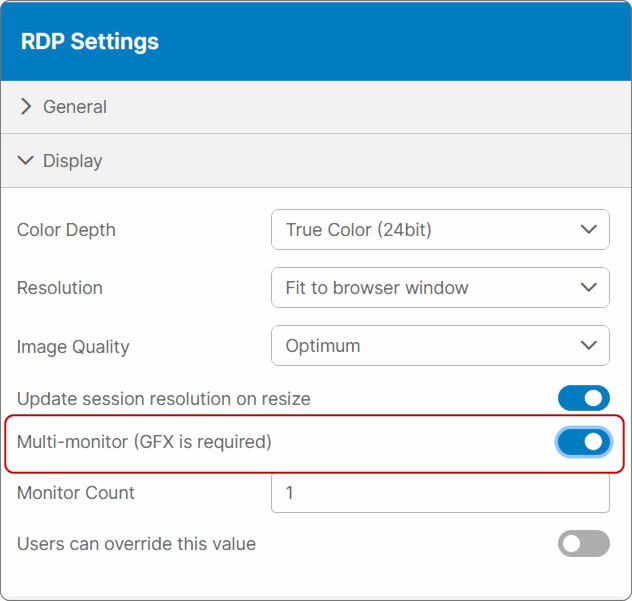
Also, if you enable Users can override this value the users will be able to customize the number of monitors they can use.
After connecting to an access profile for which Multi-Monitor has been enabled, you will be able to spawn new monitors from the menu bar at the top-middle of the screen:

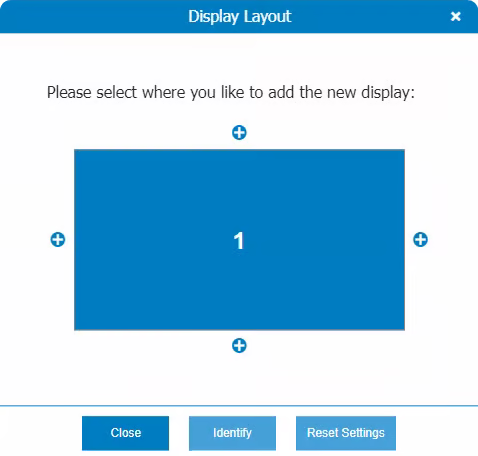
Select the Display Layout option to pull up the display layout and choose to which sides you wish to extend the display: