
Analytics
The Analytics feature is only available if enabled for a user or for a group of users.
For details on how to enable a feature, see User Interface Permissions and Permissions Tab.
The Analytics feature allows assigned users to view historical data regarding sessions, connections, logins, browsers, and file transfers.
To access the Analytics add-on, select the user profile icon and then select Analytics.
Select the Chart button at the top right of the list to view results graphically. Use the field at the bottom of the page to customize the number of entries displayed at once.
The Sessions tab is the default tab presented by the Analytics add-on and is displayed as in the following image.
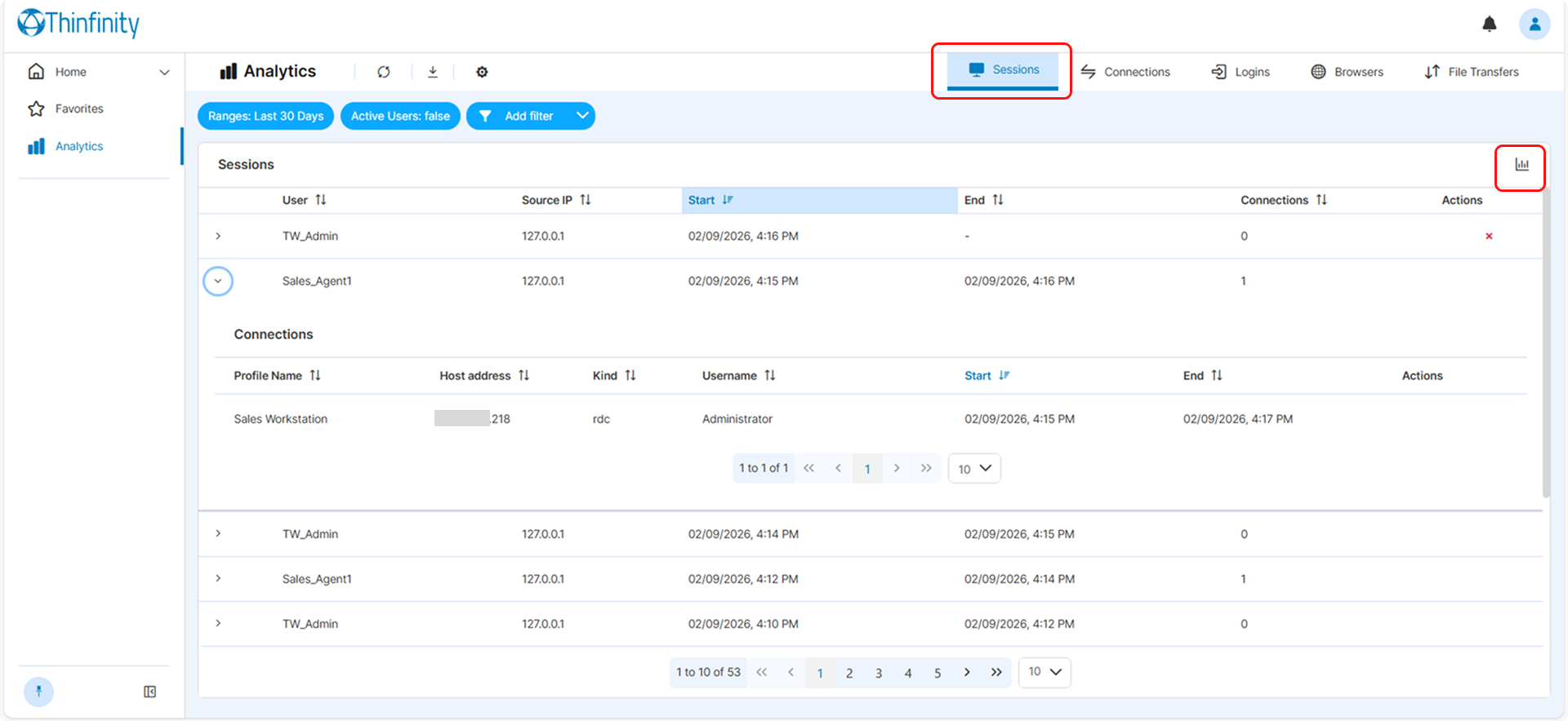
The Sessions tab offers a detailed overview of both current and past users. It allows real-time monitoring, tracking, and analysis of user activity.
The central part of the screen displays the list of sessions launched during the selected range, the default is Last 30 days.
The default info presented for each session is: the user name, the source IP, the start and end timestamps, the number of connections initiated during the session, and the actions that can be performed by the admin on the selected session.
Also, each session log provides details such as the (Access) Profile name, the host address, the type of connection (RDP, VNC, etc.), the username, the start and end time stamps and the actions that the admin can perform on the selected connection.
Sessions can be recorded, enabling analysis of long-term usage patterns, trend spotting, and resource planning. For details on how to enable session recording, see Session Recording.
The Connections tab is displayed as in the following image.
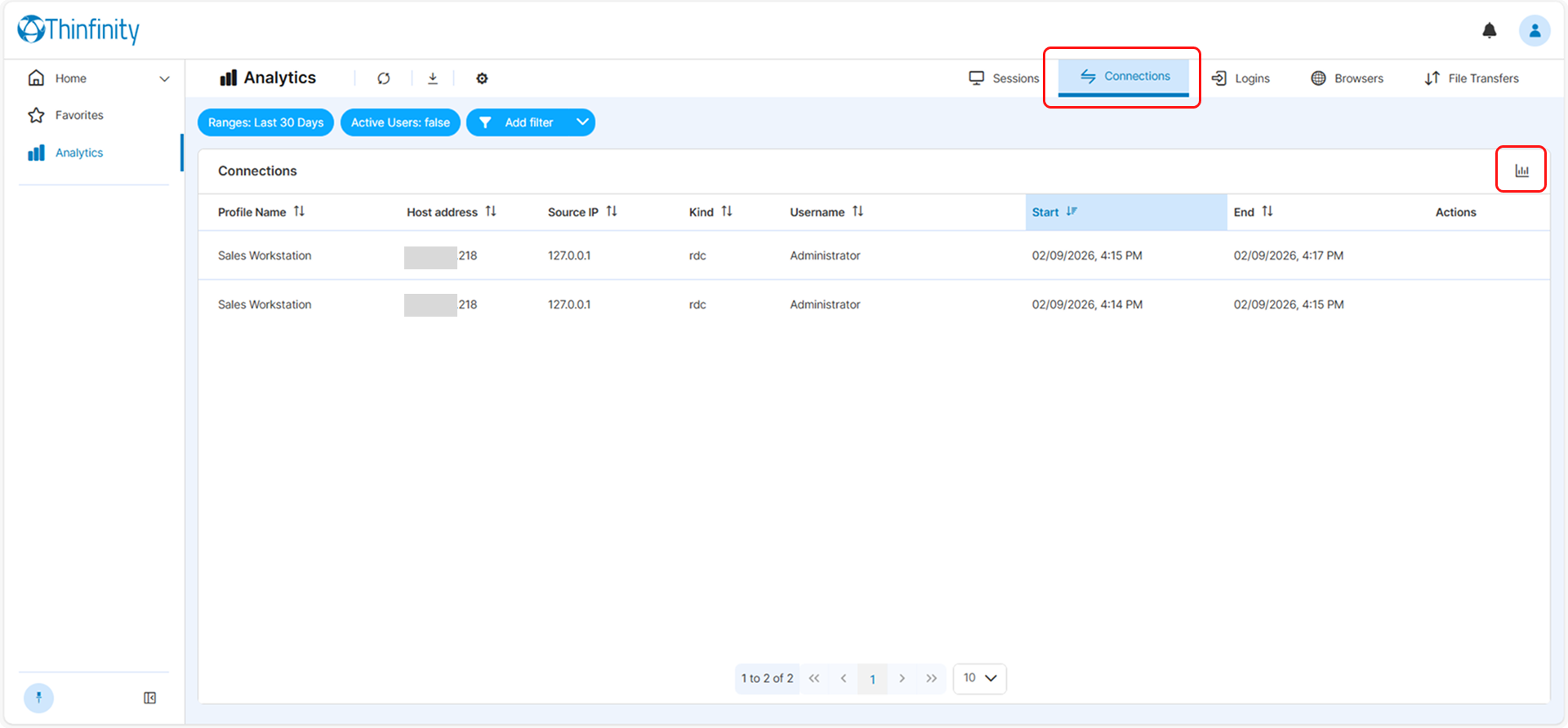
The Connections tab displays information about your remote desktop connections, providing data such as connection duration, concurrent connections, and connection types.
For each connection the following data is provided: profile name, host address, source IP, type of connection (kind), username, start and end time.
Identifies the protocol type used, aiding in diagnosing compatibility or configuration issues between client devices and the remote environment.
At the same time, it stores historical connection data which allows analyzing connection trends over time. It’s useful for optimizing resource allocation, forecasting usage, and identifying potential network bottlenecks.
Helps with security and compliance monitoring: Tracks the IP addresses and types of connections so that administrators can ensure that connections are coming from trusted sources and in compliance with existing policies.
The Logins tab is displayed as in the following image.
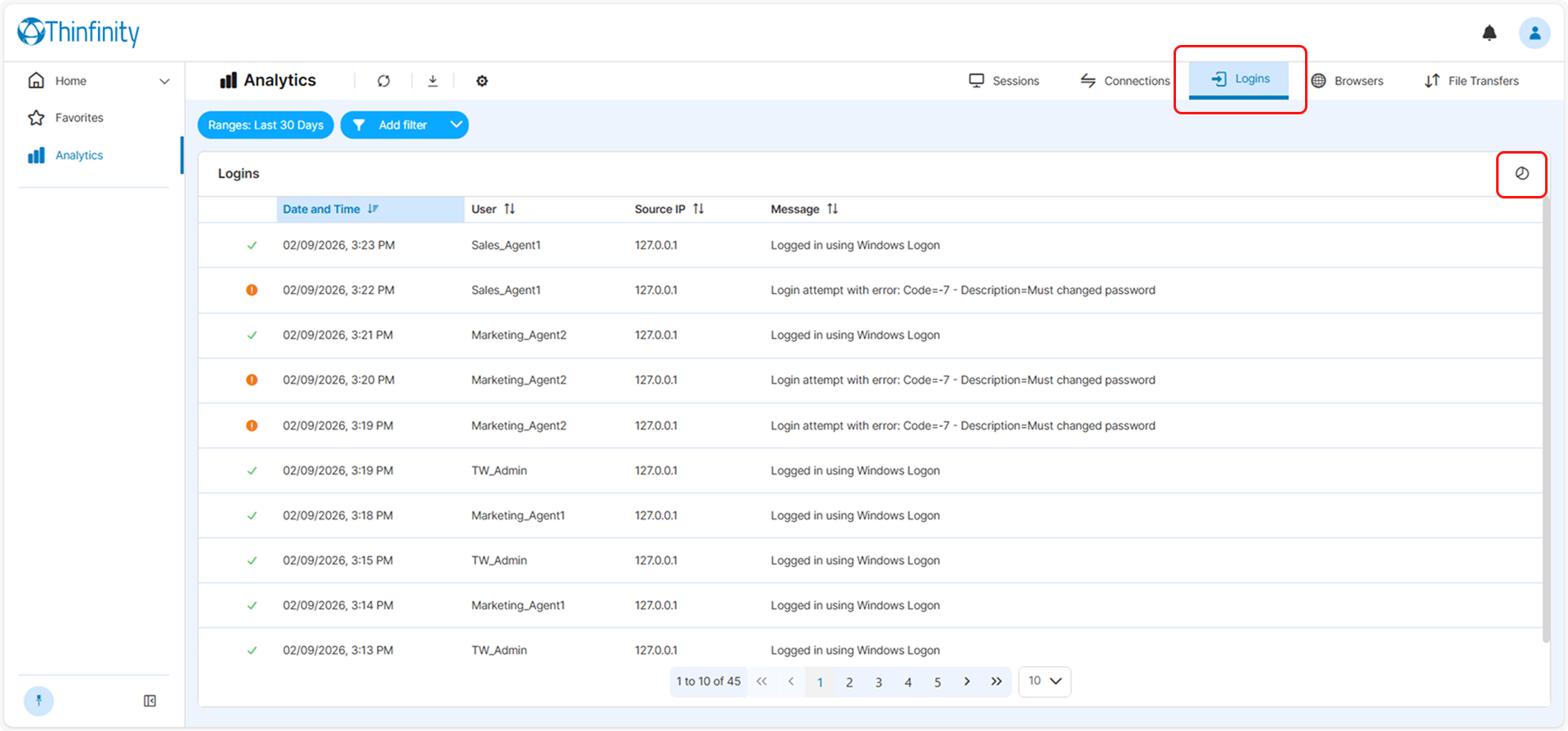
The Logins tab provides detailed insights into remote desktop login activities, including metrics such as the total number of login attempts, success rates, and login frequency patterns. This information helps administrators monitor user access behavior and detect potential security threats, such as unauthorized or failed login attempts.
It also displays both successful and failed logins, showing details such as the username, date and time, IP address of the device, and the authentication method used (e.g., username/password, multi-factor authentication, or Single Sign-On). This allows administrators to verify the security methods applied during each login process.
Each login status is clearly marked as either successful or failed, helping to identify unauthorized access attempts or brute-force attacks. In addition, the IP address of each attempt can be traced to a geographical location, allowing detection of logins from unusual or unauthorized regions that may indicate a compromised account.
The system also retains historical login information, providing long-term data for analysis and audit trails, thereby strengthening security measures over time.
The Browsers tab is displayed as in the following image.
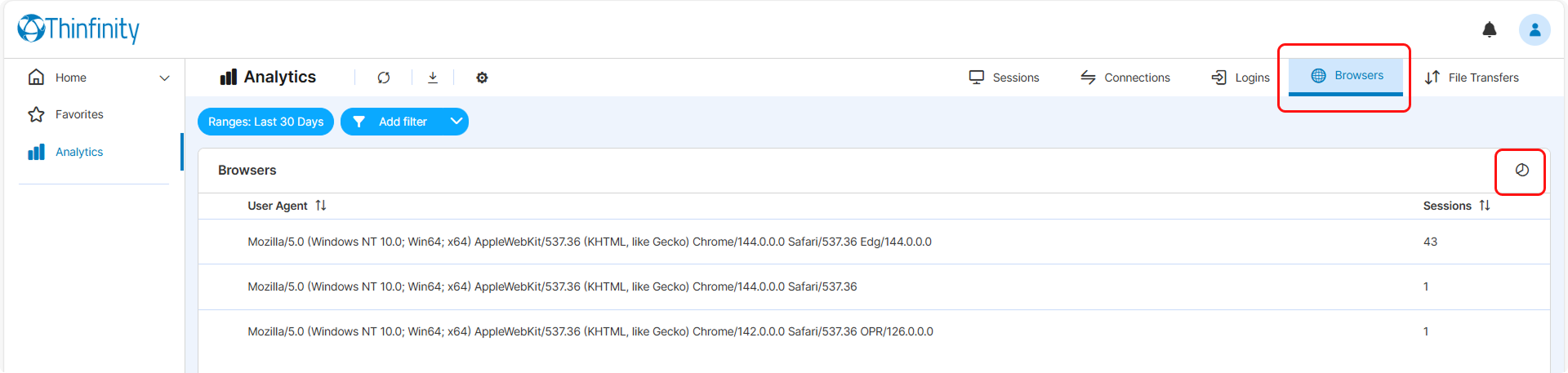
The Browsers tab displays User Agent information for clients’ web browsers, helping track their usage and ensure compatibility with the latest versions.
Each browser entry is linked to a specific user session, so an administrator can see which browsers are being used and who is using them. Also, the system provides insights into the device and operating system which are associated with the browser.
Monitoring browser versions can also highlight potential security risks that can arise from outdated browsers which might expose the system to vulnerabilities. This feature helps the administrator to detect users who may be connecting with less secure or unsupported browser versions.
The File Transfers tab is displayed as in the following image.
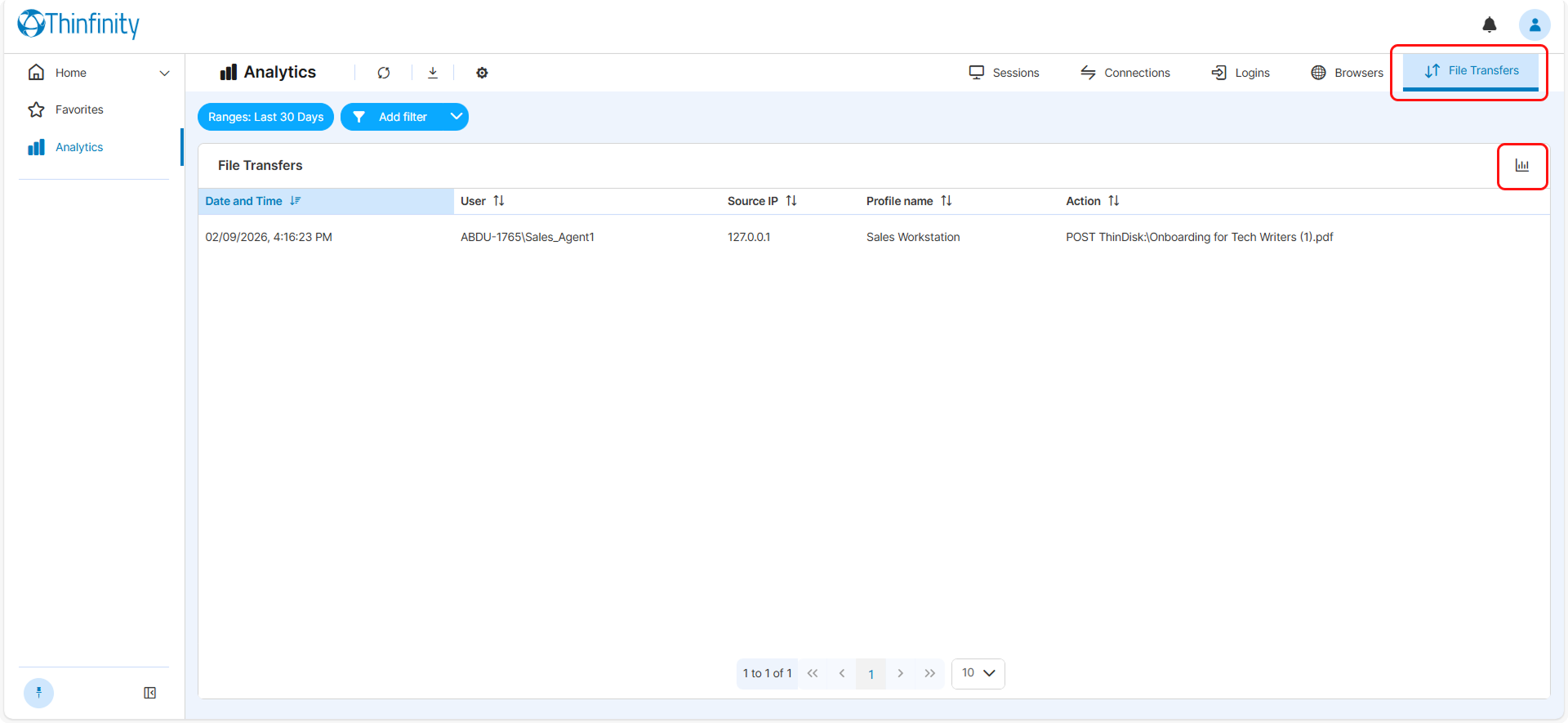
The File Transfers tab in the Analytics add-on provides details about the file transfers occurring within the remote desktop environment.
The following data is available for each file transfer operation: date and time, user name, source IP, (Access) Profile name and action.
This data helps identify file transfer patterns and allows admins to track and manage the file transfers in a session.
The tool can be used to enforce compliance with security policies allowing admins to supervise the files, facilitates monitoring the bandwidth associated with file transfers to optimize resources.
Display and Filtering Options
The following display and filtering options are available all the different tabs in the Analytics page.
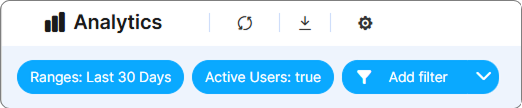
| Option | Description |
|---|---|
| Refresh | Use this button to make sure the current tab shows the latest data. |
| Export | Select the Export button to display the available options and choose a format for the export file. By default, the data in the current tab is exported. To export the data from all the tabs, enable Export all files. When working with the Legacy display option, Export all files and the associated options will be available in the toolbar like so. |
| Settings | The Settings button lets you switch to the Legacy classic UI layout and also, once Legacy is enabled, Show Graphics. |
| Ranges | The default time interval for which data is displayed is Last 30 days. Select the Ranges button to display additional options, choose the time range for which you want to display data, then select Apply. |
| Active Users | This filter is only available for the Sessions and Connections tabs. By default, the Sessions tab will display the list of all sessions within the specified time interval. Selecting the Active Users filter will only bring:Sessions that both originate and terminate entirely within the interval.Sessions that originated before the interval but terminated within it.Sessions that originated within the interval but terminated after it.Sessions that were active at the exact moment the interval closed, regardless of when they began. |
| Add filter | Select the Add filter button to display additional filtering options. Note that the options available in this field depend on the criteria available for each tab. Selecting the arrow button of the Add filter button will display the Save view and Reset filters options. |
The filtering options depend on the data presented in each tab.