
Broker Tab
The Broker tab allows administrators to configure settings related to the Brokers and the way they connect to the rest of the architecture components. This section also provides key settings for user management, resource allocation, and network identification.
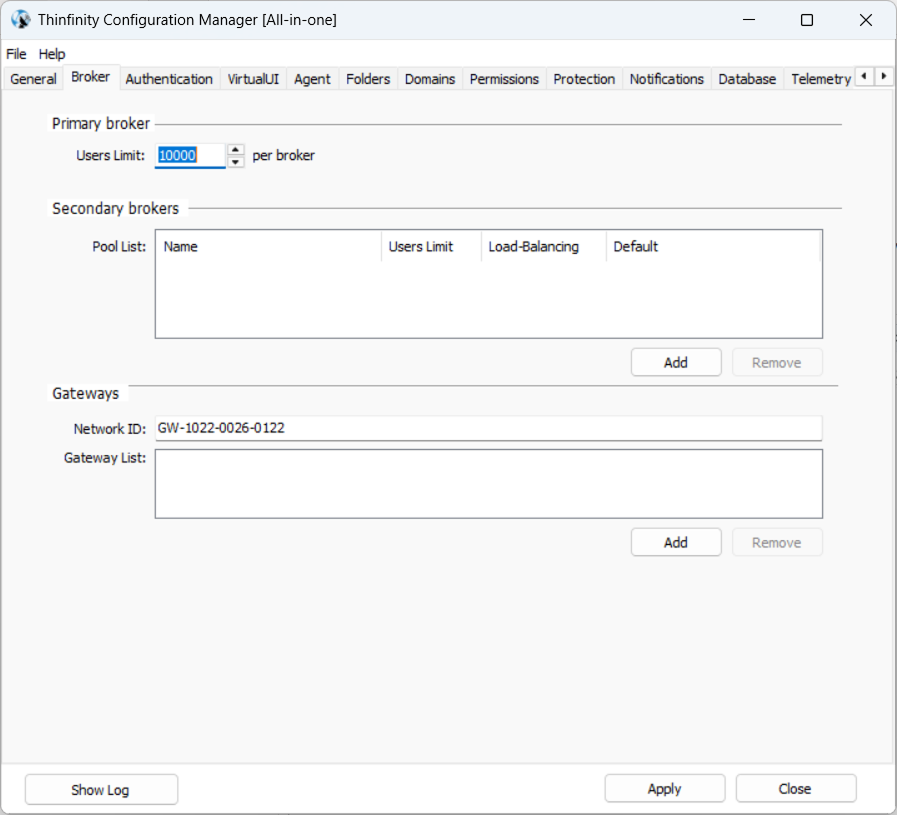
| Option | Description |
|---|---|
| Primary broker Users Limit | Sets the maximum number of simultaneous users allowed to connect through the Primary Broker. The default value is 10000. |
| Secondary brokers Pool List | Shows the list of available pools and their corresponding details. |
| Add/Remove | Adds and removes Secondary Brokers Pools. See the following paragraphs for details. |
| Gateways List | Shows the list of Gateways available in the network. |
| Network ID | The Network ID identifies the current installation. Any Thinfinity® Workspace servers sharing their resources through one or more Gateways must match their Network ID. For details, see the General Tab. |
| Add/Remove | Adds and removes Gateways. Selecting Add from the Gateways area opens a dialog window where you can enter the URL of the new gateway. |
Selecting Add from the Secondary brokers area opens the following dialog window.
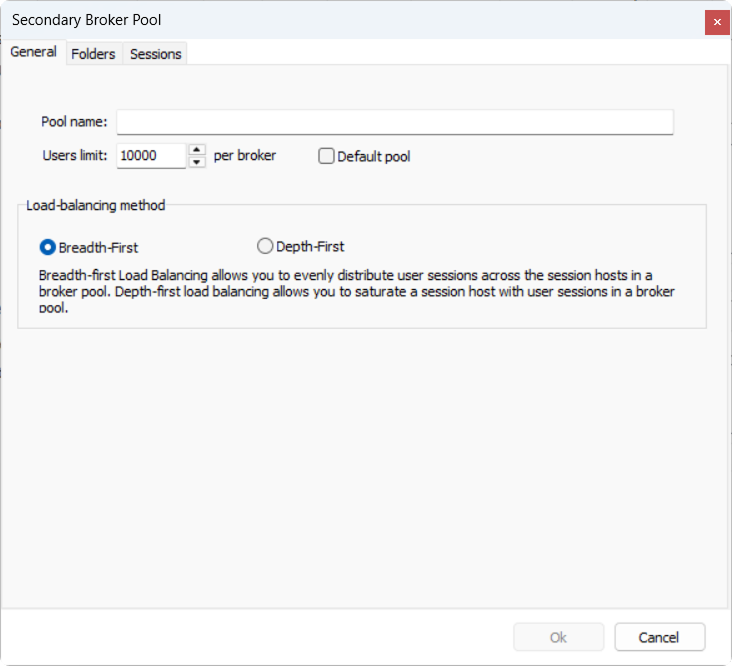
The following options are available.
| Option | Description |
|---|---|
| Pool Name | Enter a name for the new pool of Secondary Brokers. |
| Users limit/per broker | This field presents the default number of users per Broker, modify if applicable. |
| Default pool | Select this option to mark the current Brokers pool as the default one. |
| Load Balancing Method | Use this area to select the load balancing method. |
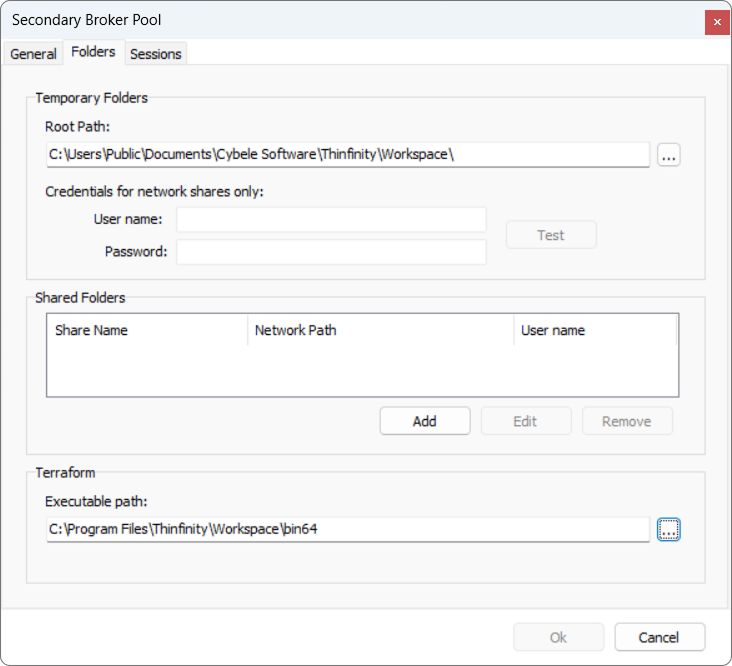
For details on the options available see Folders Tab.
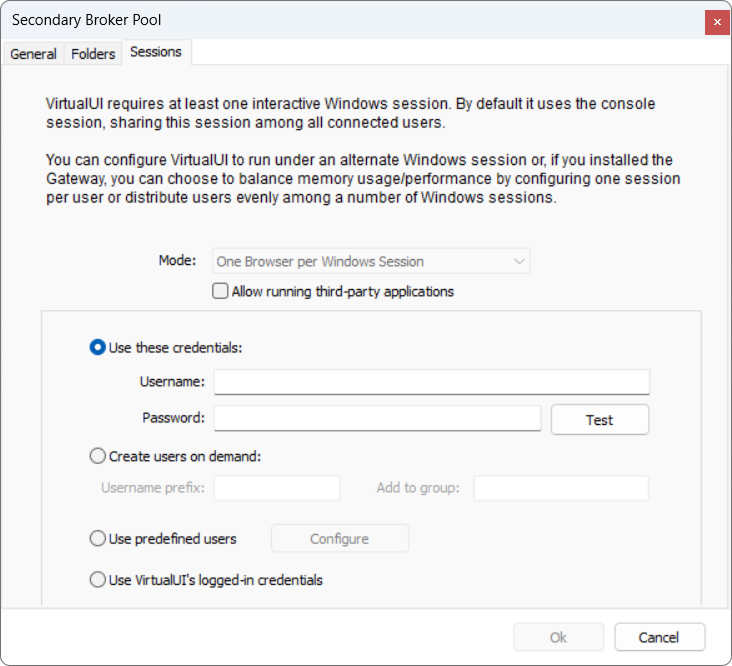
For details on the options available, see VirtualUI Tab.