
RDC User Experience Settings
The following User Experience settings are available for an RDC Access Profile.
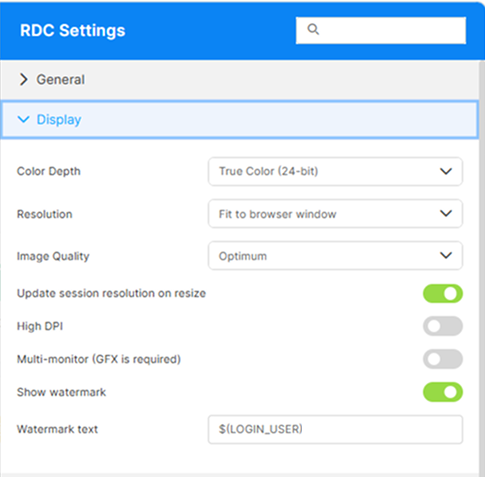
| Option | Description |
|---|---|
| Color depth | Specifies how many colors are used to render the remote desktop. Higher color depths provide better image quality but consume more bandwidth; lower values reduce bandwidth usage at the cost of image fidelity. The default option is True Color (24-bit or 32-bit Color Depth). |
| Resolution | Defines the remote session’s screen resolution. You can match the client device resolution or set a fixed size. Higher resolutions show more content on screen but may require more bandwidth and processing power. • Fit to Browser Window: Adjusts to your browser’s current size. • Fit to Screen: Adapts to your display’s size. • Main Screen Resolutions: Select from a range of pre-defined resolutions. |
| Image Quality | Controls the compression level applied to the remote desktop image. Higher image quality improves visual clarity but uses more bandwidth; lower image quality prioritizes performance and responsiveness over visual detail. |
| Update Session Resolution on Resize | This option is enabled by default and allows the remote session to automatically adjust its resolution when the browser window or client viewport is resized. This helps avoid scrollbars and ensures the remote desktop fits the visible area. When disabled, the session keeps the original resolution even if the window size changes. |
| High DPI | Renders the remote desktop at the monitor’s native resolution on high-density (HiDPI) displays, instead of scaling a standard-resolution image in the browser. This keeps text and interface elements sharp on screens that use display scaling, such as a 4K laptop set to 150–200%. In multi-monitor sessions with mixed densities, each monitor is rendered at its own native density, and in shared (shadow) sessions the guest inherits the primary session’s High DPI state. Disabled by default. |
| Multi-monitor (GFX is required) | Enable the use of multiple monitors for this connection. Requires GFX; if GFX is not available, multi-monitor will not be used and the session may be downgraded to a compatible mode. Selecting this option will reveal the following two options. |
| Monitor Count | Specifies how many monitors the remote session should use when multi-monitor is enabled. |
| Users can override this value | Allows the user (and the platform) to reduce the number of monitors at connection time if needed (for example, when downgrading to Canvas, which does not support multi-monitor). By default, this option is disabled, meaning that the configured monitor count is mandatory, even if that causes the connection to fail. |
| Show watermark | Overlays a watermark on the remote session that identifies the user, so a screenshot taken from the session can be tied back to the person who captured it. The watermark renders as a semi-transparent, tiled diagonal overlay across the entire session area. Intended for accountability in environments where session screenshots may be circulated. Disabled by default. When enabled, reveals the Watermark text field. |
| Watermark text | Available when Show watermark is enabled. The template rendered as the watermark. Free-form text and placeholders can be combined; only $(LOGIN_USER) (the session user’s account name) is substituted — other $(NAME) tokens are rendered literally. Default: $(LOGIN_USER). |
The watermark’s visual appearance (color, font, layout, and more) can be customized globally through common.settings.js. See Watermark Visual Customization.
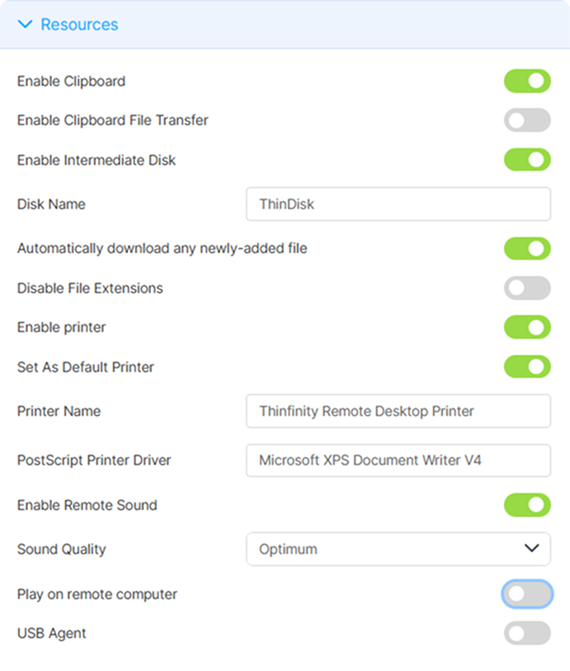
| Option | Description |
|---|---|
| Enable Clipboard | This option is selected by default and allows the use of the clipboard. |
| Enable Clipboard File Transfer | This option is selected by default; it allows the transference of the files between local and remote computers using the clipboard. |
| Enable Intermediate Disk | This option is selected by default; it allows the use of an intermediate storage disk for files during remote sessions. |
| Disk Name | The field presents the default name of the disk, modify if needed. |
| Automatically download any newly-added file | This option is selected by default and allows newly added files to be automatically downloaded on the local computer. |
| Disable File Extensions | Choose this option to display an additional field where you can specify file extensions that are not allowed. |
| Enable printer | This option is selected by default, and it allows the use of local printers while connected to a remote computer. |
| Set As Default Printer | This option is selected by default, and it sets the printer entered in the Printer Name as default printer for remote sessions. |
| Printer Name | Enter the name of the printer you want to use as the default printer for remote sessions. |
| PostScript Printer Driver | Select a driver to preserve the layout, fonts, and graphics of a document when printing. |
| Enable Remote Sound | Check this option to allow the remote sound to be reproduced within the browser (Only for Firefox and Chrome browsers). Selecting this option reveals the Sound Quality and Play on remote computer options. |
| Sound Quality | Available when Enable Remote Sound is enabled. Sets the quality of the redirected audio, balancing fidelity against bandwidth and responsiveness: Highest, Optimum (default), Good, or Fastest. |
| Play on remote computer | Available when Enable Remote Sound is enabled. Plays the session audio on the remote computer instead of redirecting it to the local browser: when this option is on, the audio is not played in the browser (it is not played in both places). Disabled by default. |
| USB Agent | Check this option to be able to access USB devices physically connected to the local (client) machine from within a remote RDC session delivered through the Thinfinity Workspace web interface. |
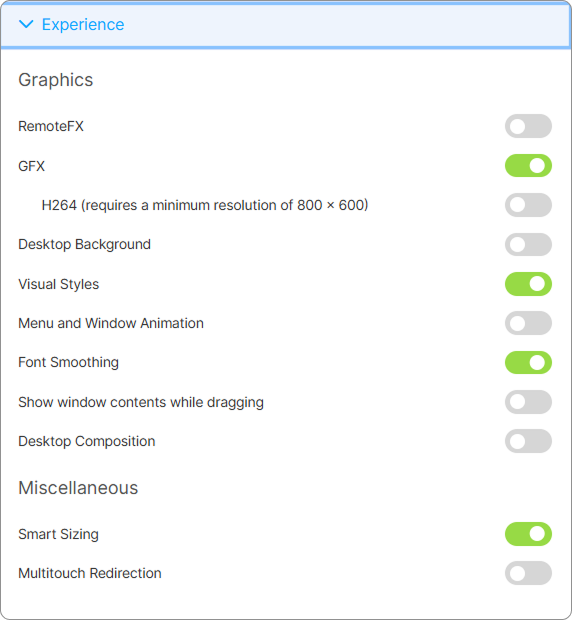
| Option | Description |
|---|---|
| RemoteFX | Enable or disable RemoteFX. For details, see Enhanced Graphic Encoding Support. |
| GFX | This option is selected by default, it provides high-quality 3D graphics, smooth animation, and even hardware acceleration for video decoding and rendering. Note: When GFX + H264 is enabled, the web client uses WebCodecs (when available) to decode the H.264 stream, improving performance and image quality in compatible browsers. |
| H.264 | A compressor for remote desktop software to provide a smoother and more responsive experience, even over slower or less reliable networks. |
| Desktop Background | Enable this option to show the desktop background. |
| Visual Styles | This option is selected by default, it allows showing Windows Visual Styles: the appearance of common controls, colors, borders, and themes. |
| Menu and Windows Animation | Enable this option to show the menu and Windows animation when you scroll or expand a drop-down menu. |
| Font Smoothing | This option is enabled by default, it allows the use of “Clear Type”, a font smoothing option added to Windows Server 2008. |
| Show Window Content While Dragging | Enable this option to show the contents of the window while it’s being dragged. Otherwise, a transparent border is dragged. |
| Desktop Composition | Enable this option to configure the DWM to redirect the desktop drawing to off-screen surfaces in video memory. Also, the desktop will present many visual effects. |
| Smart Sizing | This option is selected by default, it allows scaling the connection image. The maximum size of the connection will be the original desktop size. |
| Multitouch Redirection | Allows the use of the touchscreen capabilities of a local device when accessing a remote computer. |
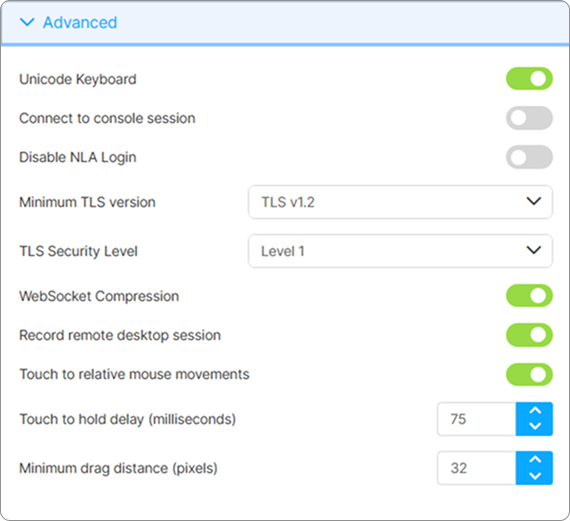
| Option | Description |
|---|---|
| Unicode Keyboard | This option is selected by default. Uncheck this option to connect to Unix computers through xRDC. |
| Connect to the console session | Check this option to connect to the console session. This requires confirmation from the logged on user and then, a log out the current session. |
| Disable NLA login | Check this to skip NLA as the default login and use an alternative method to authenticate. |
| Minimum TLS version | Sets the lowest version of the TLS (Transport Layer Security) protocol the connection will negotiate. Choose Negotiate to use the highest version the client and host both support, or pin a minimum from TLS v1.0 to TLS v1.3. |
| TLS Security Level | Sets a tiered security level for the connection’s TLS, from Level 0 (least restrictive) to Level 5 (most restrictive). Higher levels require stronger keys and ciphers and disallow older protocol versions, hardening the connection but potentially preventing connections to hosts that support only weaker cryptography. New Access Profiles default to Level 2. |
| WebSocket compression | This option is selected by default, it enables the compression for the exchanged WebSocket data and improves the functioning of the application. It only works in browsers that have the WebSocket compression enabled. |
| Record Remote Desktop Session | Enables the recording of the remote desktop session when using to this Access Profile. For details, see Session Recording. |
| Touch to relative mouse movements | This option is selected by default, it allows using tapping and dragging the finger across the touchscreen to move the cursor on the remote computer. |
| Touch to hold delay | Specify the amount of time in milliseconds that you need to hold a touch until you can drag. |
| Minimum drag distance (pixels) | Specify the minimum drag distance to be taken into consideration as drag action. |
These settings apply when the Access Profile is opened through the Thinfinity Workspace Desktop Client (the Windows-native application) rather than the browser. Browser-based redirections — clipboard, printer, remote sound, USB Agent — are configured in the Resources tab instead.
This tab has two groups: Connection, which controls how the native RDP connection is established, and Redirect, which selects the local resources made available inside the remote session.
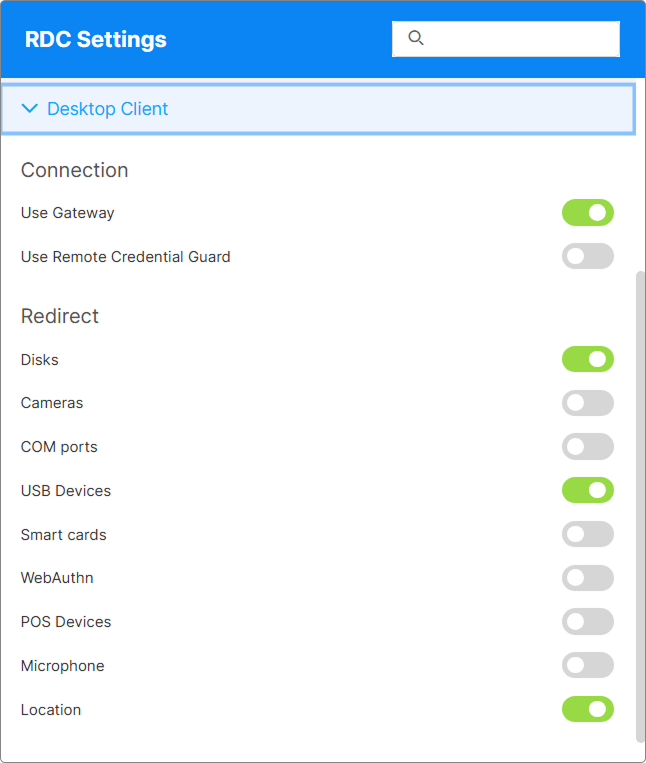
Connection
| Option | Description |
|---|---|
| Use Gateway | This option is selected by default and is recommended for most deployment scenarios. When enabled, the Remote Desktop connection is routed through the Thinfinity Workspace gateway, which acts as an intermediary between the client and the target host. This eliminates the need for direct network connectivity to the remote machine and ensures that RDP traffic is securely tunneled through the gateway’s reverse-proxy architecture. |
| Use Remote Credential Guard | When enabled, Remote Credential Guard protects RDP credentials by ensuring they are never sent to the target host. Instead, Kerberos authentication requests are redirected back to the originating device, mitigating the risk of credential theft (such as pass-the-hash attacks) on the remote machine. Unlike Restricted Admin mode, Remote Credential Guard preserves the user’s identity on the remote session, allowing access to network resources under the user’s own credentials. Note: This feature requires Windows 10 (version 1607) or later, or Windows Server 2016 or later, on both the client and the target host. |
Redirect
Select which local resource types the Desktop Client can redirect to the remote session — the menu covers disks, USB devices, and other peripherals such as cameras, smart cards, WebAuthn authenticators, and location. When enabled, the selected resource becomes available within the remote desktop as if it were directly connected to the remote machine, including geolocation (Location) when requested by the remote applications. By default, Disks, USB Devices and Location are enabled.
If the connection is temporarily lost — for example, when the client device goes to sleep or the network drops — the web client automatically attempts to reconnect and restores the session once connectivity is available again, without needing to reopen the profile.
For details, see Core Settings and Access Control Settings.