
Access Profile Security Settings
Access control is managed by means of two features: Labels and the Access Control tabs that are available for each Access Profile.
The following customization options are universally available across all Access Profiles, providing a consistent framework for managing how and when users can access remote resources.
This feature allows administrators to set specific access hours for an Access Profile thus limiting the time when users can log in to corporate resources.
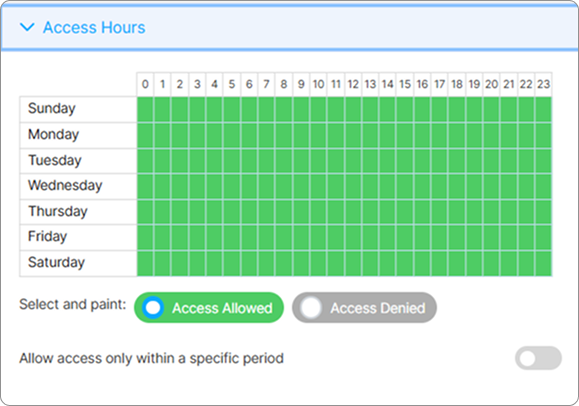
| Option | Description |
|---|---|
| Access Allowed | Select and drag to define a day and a time interval when the Access Profile will be available. |
| Access Denied | Select and drag to define a day and a time interval when the Access Profile will NOT be available. |
| Allow access only within a specific period | Define a specific time period during which the Access Profile will be available. |
The Permissions tab allows managing the access permissions for the selected connection (Access Profile).
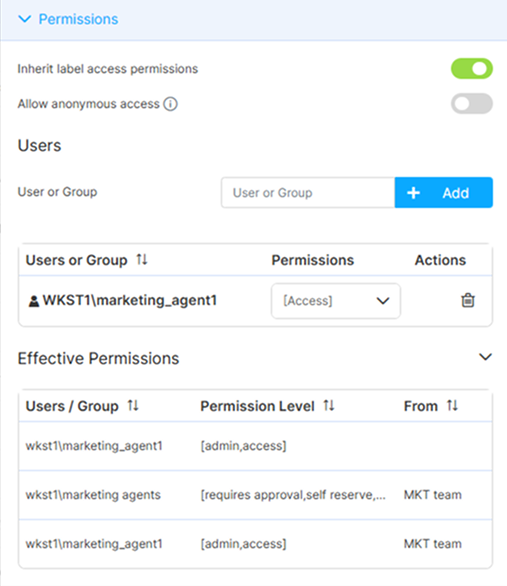
| Option | Description |
|---|---|
| Inherit label access permissions | This option is selected by default and is only available if the Access Profile has been placed inside a Label. It indicates that the profile inherits permissions from the parent label. |
| Allow anonymous access | If this option is enabled, the Access Profile will be available for anyone who accesses Thinfinity® Workspace. |
| User or Group | The Users area is only displayed if Allow anonymous access is disabled. It allows selecting the users and/or groups that will be able to access the Access Profile. + Add button allows adding the selected user or group to the User and Group list. Once a user/group is added, the associated Permissions field allows you to select the role you want to assign to them. |
| Effective Permissions | This area shows the resolved permissions for the current Access Profile: entries assigned directly to the profile plus entries inherited from any parent Label. Each row shows the Permission Level column and the From column (empty when directly assigned, or the parent Label when inherited). |
Anonymous access is governed at two levels. System-wide, Allow Anonymous Access Profiles permits anonymous Access Profiles across the installation and is enabled by default; see Global Access Profiles Parameters. When it is enabled, the per-profile Allow anonymous access option appears in this Permissions tab, exposing the selected profile to anyone who opens Thinfinity Workspace. When it is disabled, Allow anonymous access is not shown, and no profile can be made anonymous.
For details on how label permissions and the authorization model work, see Access Management.
For details on role-based permissions used in resource reservation approval workflows, see Access Profiles Permissions Group.
Note that this tab is available only when the Access Profile does not allow anonymous access — that is, when the Allow anonymous access option in the Permissions tab is off, or not shown because anonymous Access Profiles are disabled for the installation.
The Authentication Methods tab allows you to customize the authentication methods for the selected Access Profile.
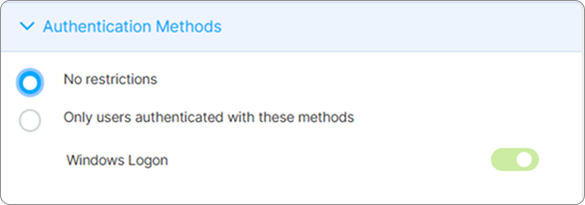
| Option | Description |
|---|---|
| No restrictions | No restriction on the authentication method used. |
| Only users authenticated with these methods | Only the users authenticated with the selected methods will be able to see and connect to the resource (desktop, app, folder, terminal). |
Use the available options to define which IP Addresses are allowed to connect to the current Access Profile or which IP addresses are denied access.
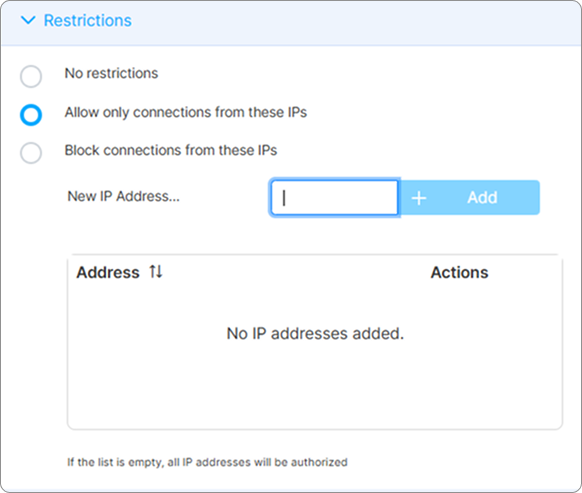
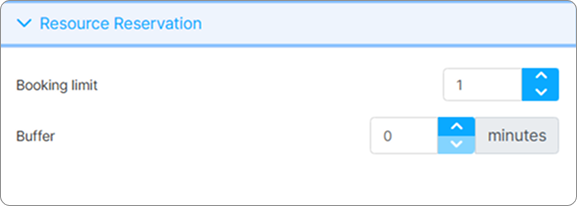
| Option | Description |
|---|---|
| Booking limit | Determines the maximum number of concurrent reservations for the resource. |
| Buffer | The minimum gap allowed between two subsequent bookings. For example, if the Buffer is set to 15 minutes, and a booking is made between 15:00 and 15:30, the next booking cannot start earlier than 15:45. |