
Installing and Configuring the Desktop Client
The Thinfinity® Workspace Desktop Client for Windows acts as a native RDC client. Therefore, before using it, make sure you have a properly configured and running Thinfinity Workspace environment, including the required components (Gateway, and/or Brokers and Agents). For details on how to do that, see Installing an evaluation setup and Configuring Roles in Thinfinity Workspace.
To install and configure the Desktop Client:
Download the Client
Download the installation package from the Cybele Products Download page.
Run the installation Package
Double-click the installation package to launch the install wizard. Select Next on all the steps of the wizard to install the client with the default parameters.
Connect the Desktop Client to a Thinfinity Workspace Installation
The first time you access the client after installation, you have to configure the path to the Workspace URL. If the client is installed on the same computer as Thinfinity Workspace, enter the URL as shown in the image below.
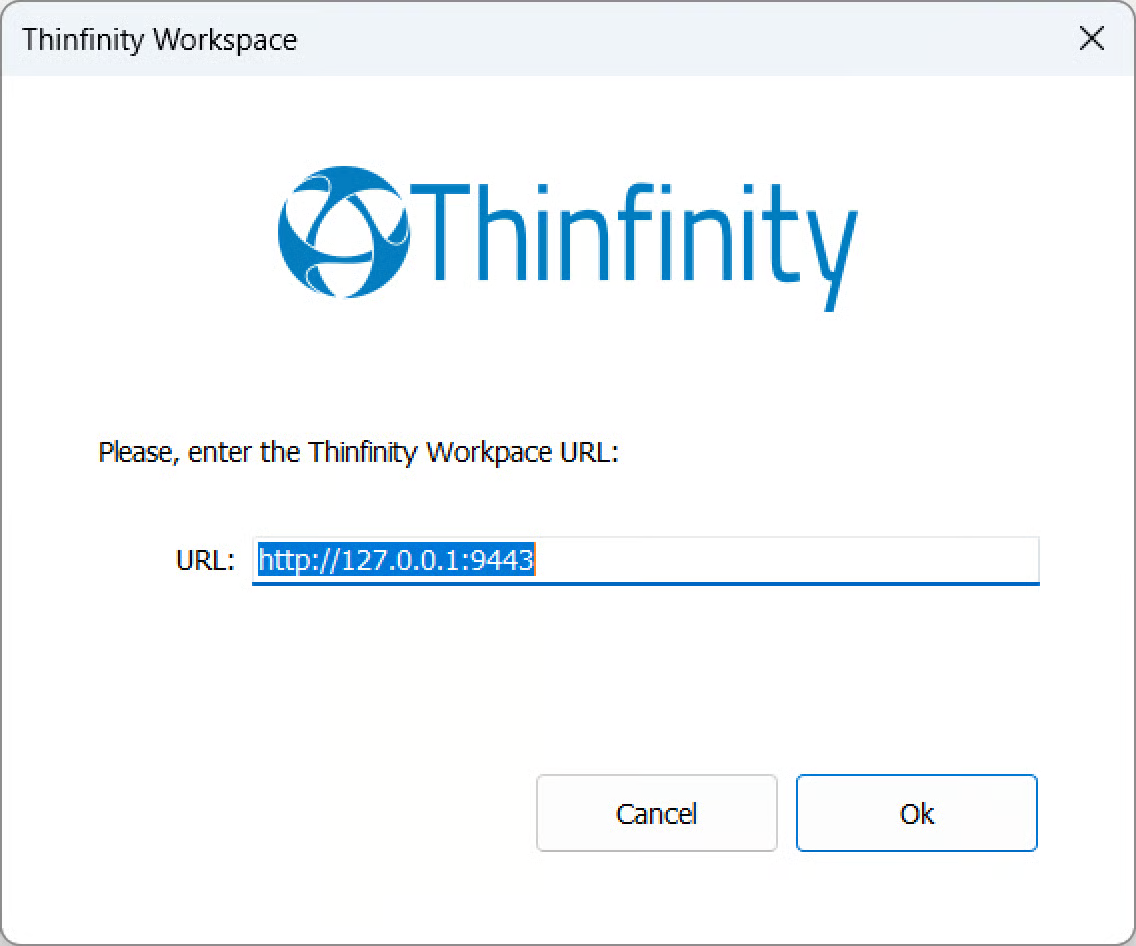
If Thinfinity Workspace is installed on a different computer, enter the corresponding URL, ensuring it follows the format:
https://[Server_IP_or_FQDN]:9443
The address and port must exactly match those configured in your Thinfinity Workspace Gateway settings. Selecting OK will display the log in page. Use your credentials to log in.
Access the Thinfinity Workspace Desktop Client
Search Thinfinity Workspace Desktop Client in your installed applications list and select it to display the main window.
To reopen the Desktop Client after closing its window, open the system tray by selecting the hidden icons in the lower-right corner of the Windows taskbar, then select Thinfinity Workspace.