
File Transfer Manager
The File Transfer Manager opens in a new browser tab when File Manager is selected from the File Transfer group of the connection toolbar. The remote session continues in the tab it was already running in.
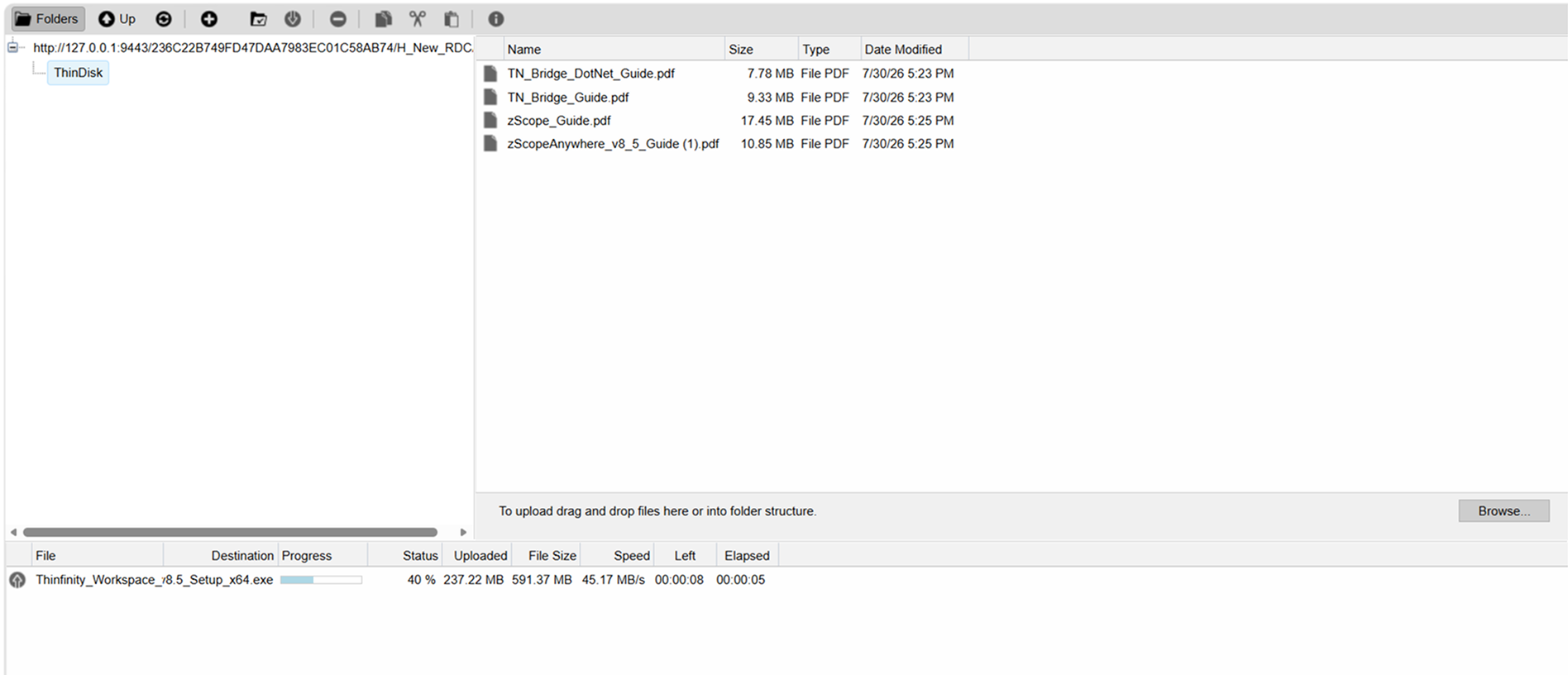
The intermediate disk appears as a folder named for the Access Profile’s Disk Name value, in both the navigation tree and the file listing. The listing reports each entry’s Name, Size, Type and Date Modified.
Files can be uploaded by dragging them onto the listing or onto a folder in the navigation tree, or by selecting Browse and choosing them from the client device.
Commands
| Control | Description |
|---|---|
| Folders | Shows and hides the navigation tree. |
| Up | Navigates one level up in the folder structure. |
| Refresh | Refreshes the content of the current folder. |
| Upload | Uploads files to the selected folder. |
| New folder | Creates a folder in the current location. |
| Download | Downloads the selected items. |
| Delete | Deletes the selected items. |
| Copy | Copies the selected items, to be placed in another location with the paste command. |
| Cut | Cuts the selected items, to be moved to another location with the paste command. |
| Paste | Pastes the cut or copied items into the current location. |
| Information | Shows information about the selected item. |
The Manager’s commands operate on the intermediate disk. Upload and Download are the only commands that move files between the intermediate disk and the client device — Cut, Copy and Paste do not cross that boundary.
Upload Queue
The queue below the listing tracks uploads to the intermediate disk in progress. Downloads do not appear in this queue — they are handed to the browser’s native download mechanism, which reports them in its own downloads UI. Completed uploads are cleared from the queue once the batch finishes, and the queue does not offer a per-entry cancel control. The queue reports the following for each upload.
| Column | Description |
|---|---|
| File | The file being uploaded. |
| Destination | The path on the intermediate disk where the file is being written. |
| Progress | How far the transfer has advanced. |
| Status | The state of the transfer. |
| Uploaded | How much of the file has been sent. |
| File Size | The total size of the file. |
| Speed | The current transfer rate. |
| Left | The time remaining. |
| Elapsed | The time taken so far. |
For the commands that open the File Transfer Manager and the conditions that make them available, see File Transfer. For the intermediate disk and the wider file-transfer mechanism, see Transfer Files with Thinfinity WebBridge.