
Access Profile Settings
By default, an Access Profile can be created and configured in the Public Profiles section within the Settings>Configuration>Access Profiles menu.
For details on the options available in Public Profiles section, see Access Profiles.
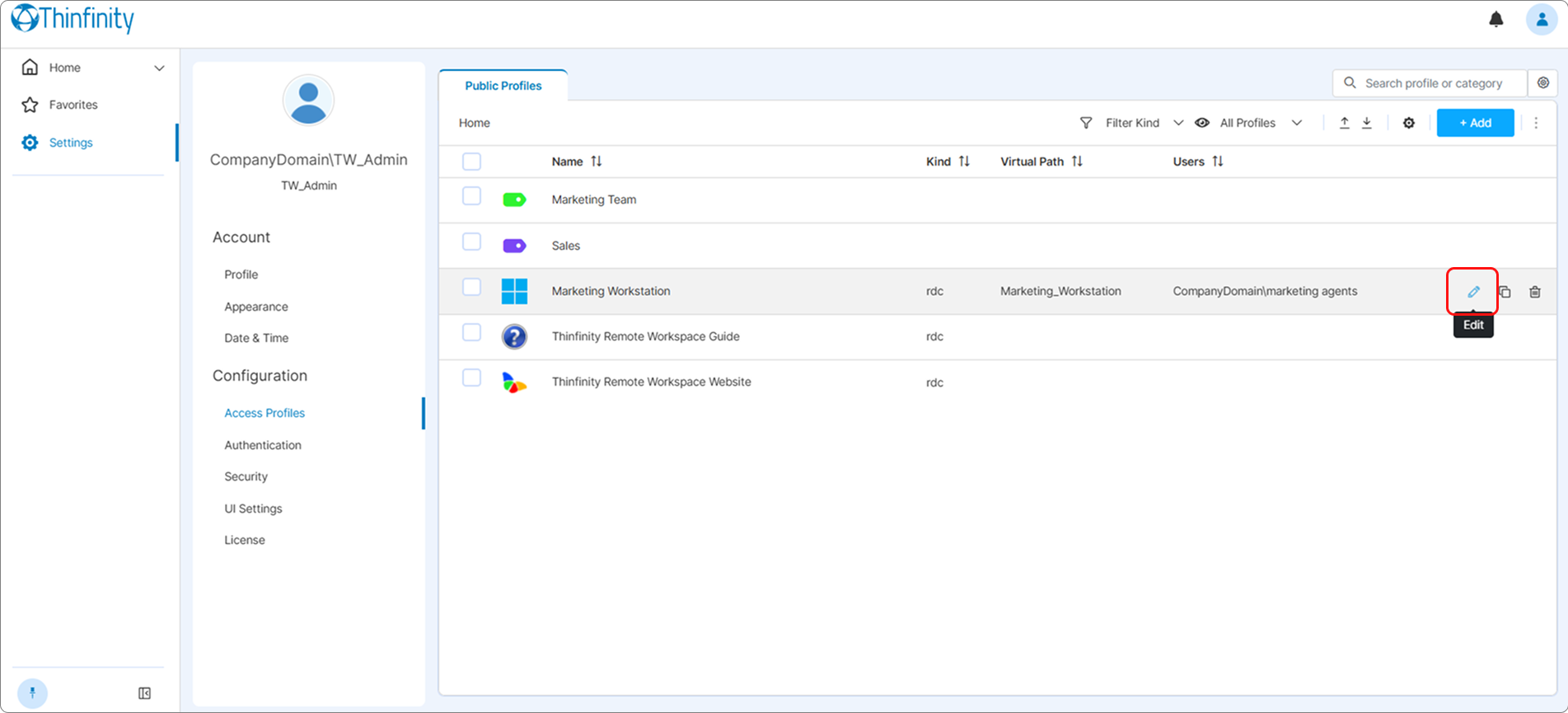
Selecting Edit will display the Settings menu with options for customizing the selected Access Profile. The available options depend on the type of Access Profile.
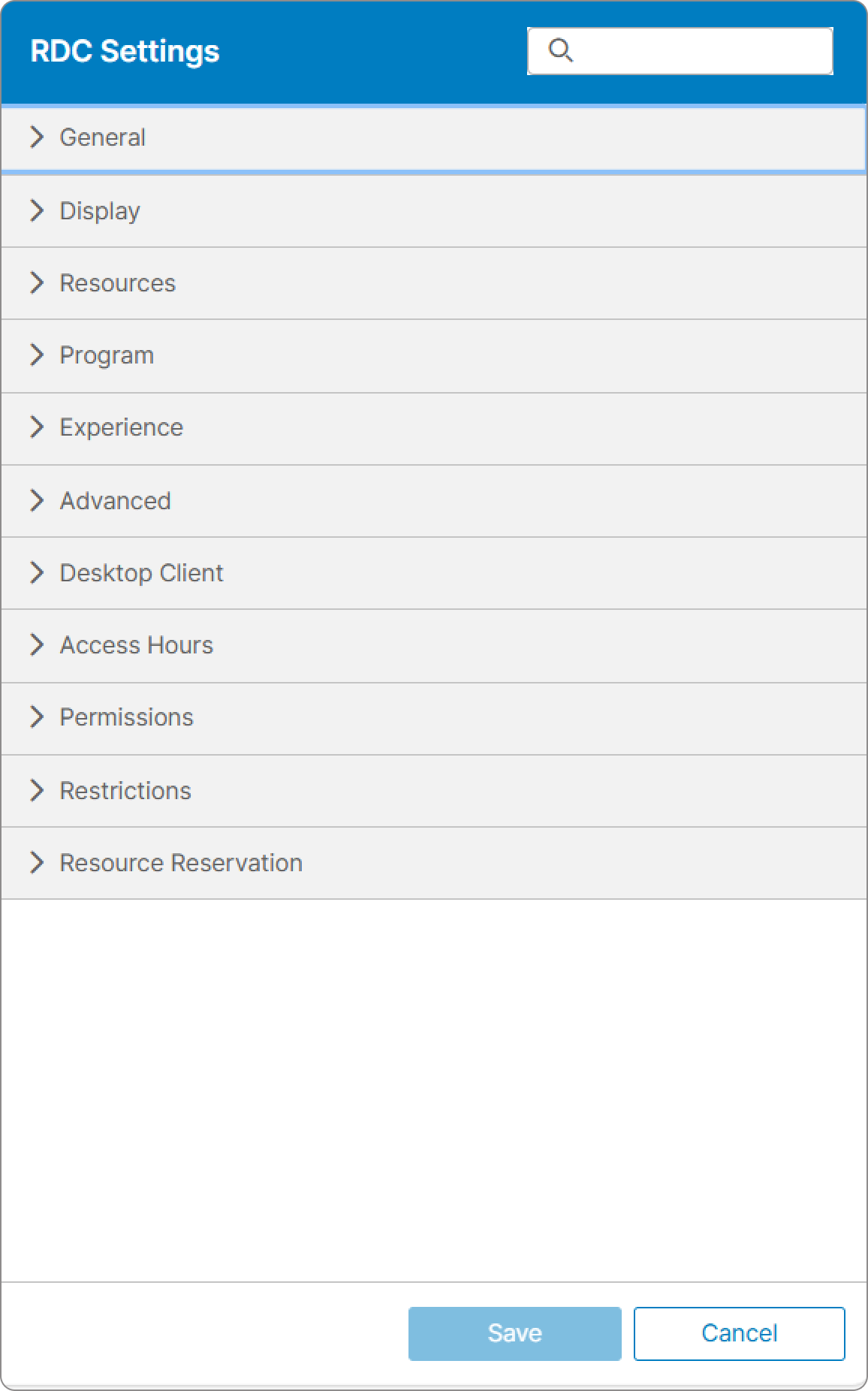
For each Access Profile you can configure Core, Experience, and Access Control Settings.
For details on the available options, see the Reference chapter.
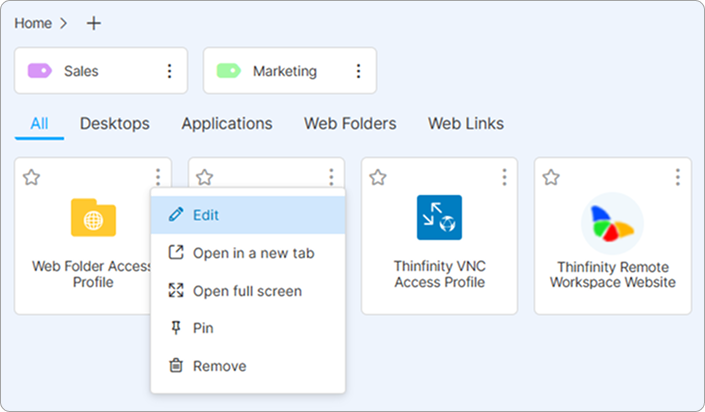
If Allow editing public profiles on home view has been enabled from UI Settings, an Access Profile can be edited from the Thinfinity Workspace dashboard by selecting the three-dot button at the top right of the profile and then selecting Edit.
The options available in the Access Profile three-dot menu depend on the settings defined for each profile and the permissions set for each user.
For details, see Permissions tab, in Access Control Settings.
Customizing the Profile Appearance
Each Access Profile’s General settings include a Profile preview control that opens the Customize Profile dialog, where you set the icon and an optional label tag shown on the profile’s tile:
- Icon Gallery — pick one of the built-in icons, use Upload Image to provide your own, or Set default icon to revert to the type’s default icon.
- Tag color and Tag text — add a small colored tag, with optional text, on the icon.
- Icon color — for icons that support recoloring, choose the icon’s color. Some icons (for example, the multi-color product icons) cannot be recolored and support only a tag.
Select Apply to save the appearance.