
Thinfinity Workspace Web Manager
The Web Manager allows administrators to access and configure the following categories of parameters:
Homepage Preview
The Web Manager home page is displayed as in the following image and it presents Labels and Access Profiles enabled for the current user. It also provides links to the Thinfinity® Workspace Product Manual and the Cybele website.
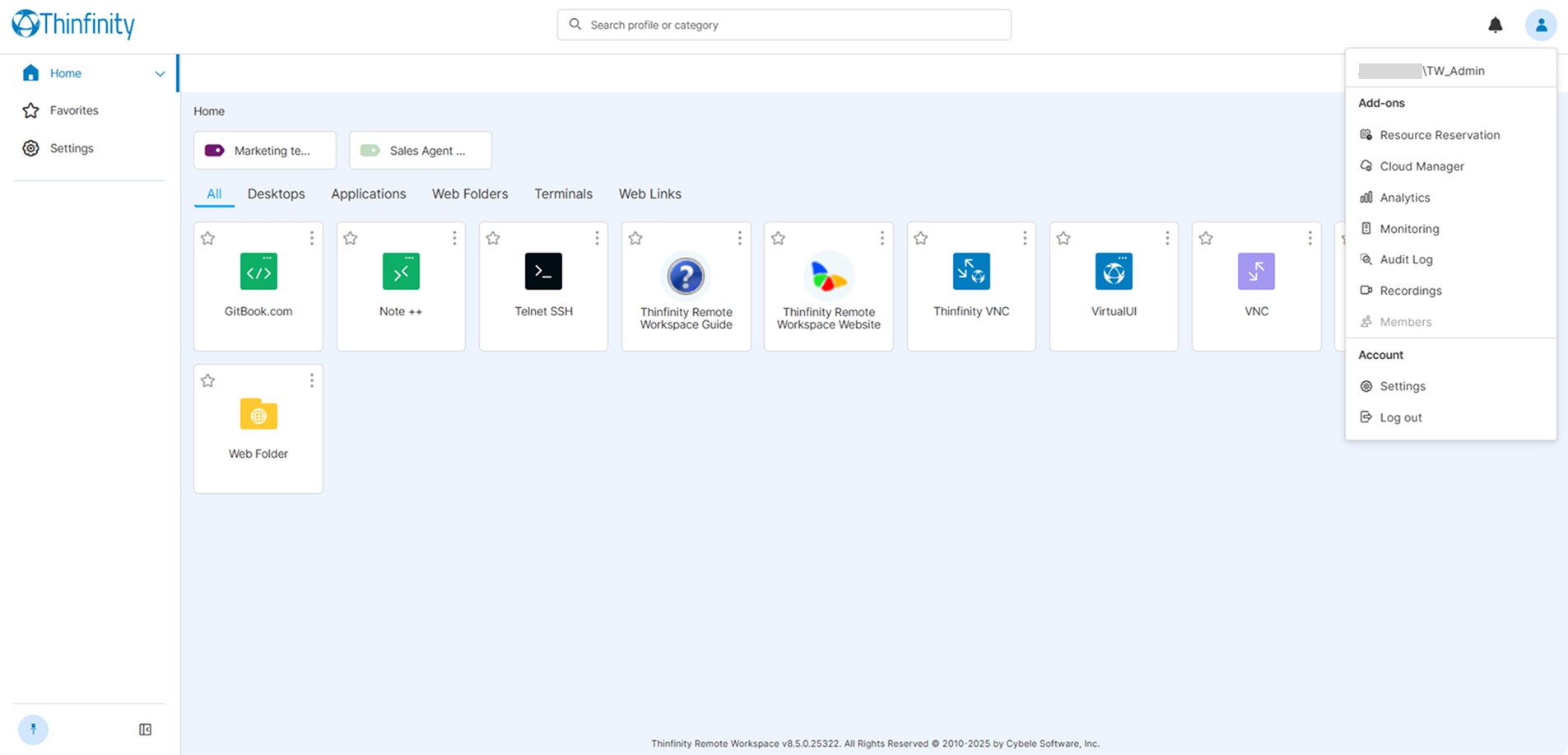
Also available in the Web Manager home page:
| Option | Description |
|---|---|
| Search bar | At the top of the page, helps find Access Profiles or Labels by name or category. |
| Notifications | Displays notifications and allows users to choose how to be notified about activity in the system, such as account logins, security alerts, and system updates. In the upper right part of the home page, the Notifications list and options are available: |
| User menu icon | Provides access to Add-ons, account and application configuration settings. |
| Favorites | Opens a dedicated page listing every profile the user has starred. See Sidebar: Favorites and Pinned Items below. |
| Pinned items | Shortcuts to profiles the user has pinned. Appear in the sidebar below Favorites. See Sidebar: Favorites and Pinned Items below. |
| Currently open list | For easy access, the left-hand side pane shows a list of currently opened Access Profiles and/or menus. |
| Dashboard Organization and Filtering Options | Allows customizing the way Access Profiles are displayed in the home page. See the section below for details. |
Sidebar: Favorites and Pinned Items
Favorites and Pinned items are two independent ways for a user to keep frequently-used Access Profiles within one click. A profile can be starred, pinned, both, or neither.
Favorites (star). On the home page, each top-level Access Profile tile carries a star control. Selecting the star marks the profile as a favorite; selecting it again removes the mark. The sidebar’s Favorites entry opens a dedicated page listing every profile the user has starred. The star is available only for profiles at the top level of the home page, and only while the user is signed in — it is not shown for Labels, for private profiles, or while browsing inside a Label.
Pinned items (pin). The three-dot menu on a profile tile offers a Pin action. Pinned profiles appear as shortcut rows in the sidebar below Favorites, each with a pin icon. Selecting the pin icon on a sidebar row unpins the item. Labels cannot be pinned.
Reordering. The profile and Label tiles on the home page can be rearranged by drag-and-drop. Reordering applies to the home-page tiles, not to the sidebar rows.
Where favorites are stored. A user’s favorites are saved in the Thinfinity Workspace profiles and configuration database, so they follow the user across every broker in the deployment. Installations upgraded from an earlier version migrate their existing favorites automatically the first time the user opens the home page. When no database persistence is configured, favorites fall back to a local file on the broker. Because favorites now live in the configuration database, they are covered by that database’s high-availability and backup strategy rather than by per-node files — see Database Configuration Overview and Thinfinity Broker.
Labels and private profiles cannot be starred as Favorites, and Labels cannot be pinned. Private profiles can still be pinned.
Dashboard Organization and Filtering Options
The menu bar options help the user organize the Thinfinity Workspace home page by filtering Access Profiles (connections) and Labels.

The zA button allows sorting the Access Profiles alphabetically.
The Tiles, Cards or List options allow customizing the way the Access Profiles are displayed.
The Settings button allows the user to choose a Theme for the UI and how to view the connection (full-screen or windowed) in the same tab or in a new one.
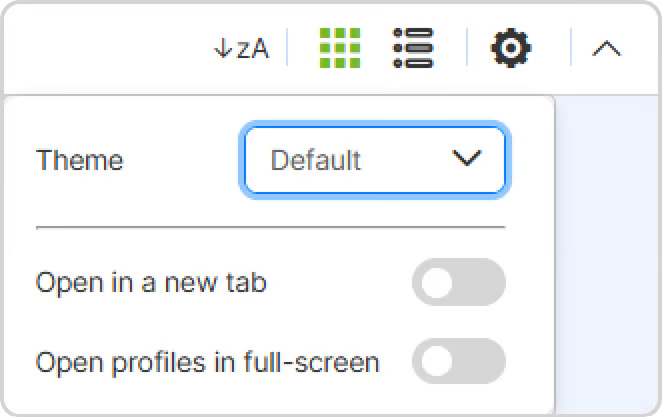
The last button allows hiding/showing the Display Options toolbar.
For details on the themes you can choose for the UI, see Appearance.