
Working with the License Manager
The License Manager enables centralized management of licenses for multiple Thinfinity® Workspace deployments.
To obtain the License Manager installation package, please contact our support team.
Installing the License Manager
Once you have the installation package, install the License Manager on the target machine:
Run the installer
Execute the installer on the target machine. The InstallShield Wizard is displayed. Select Next to continue.
Accept the license agreement
Select I accept the terms in the license agreement, then select Next.
Install
Select Install and wait for the process to complete.
Finish
Once the installation is complete, you are given the option to start the License Manager. Enable it to open the application immediately, then select Finish.
Connecting License Manager to Your Thinfinity Workspace Installation
Open License Manager
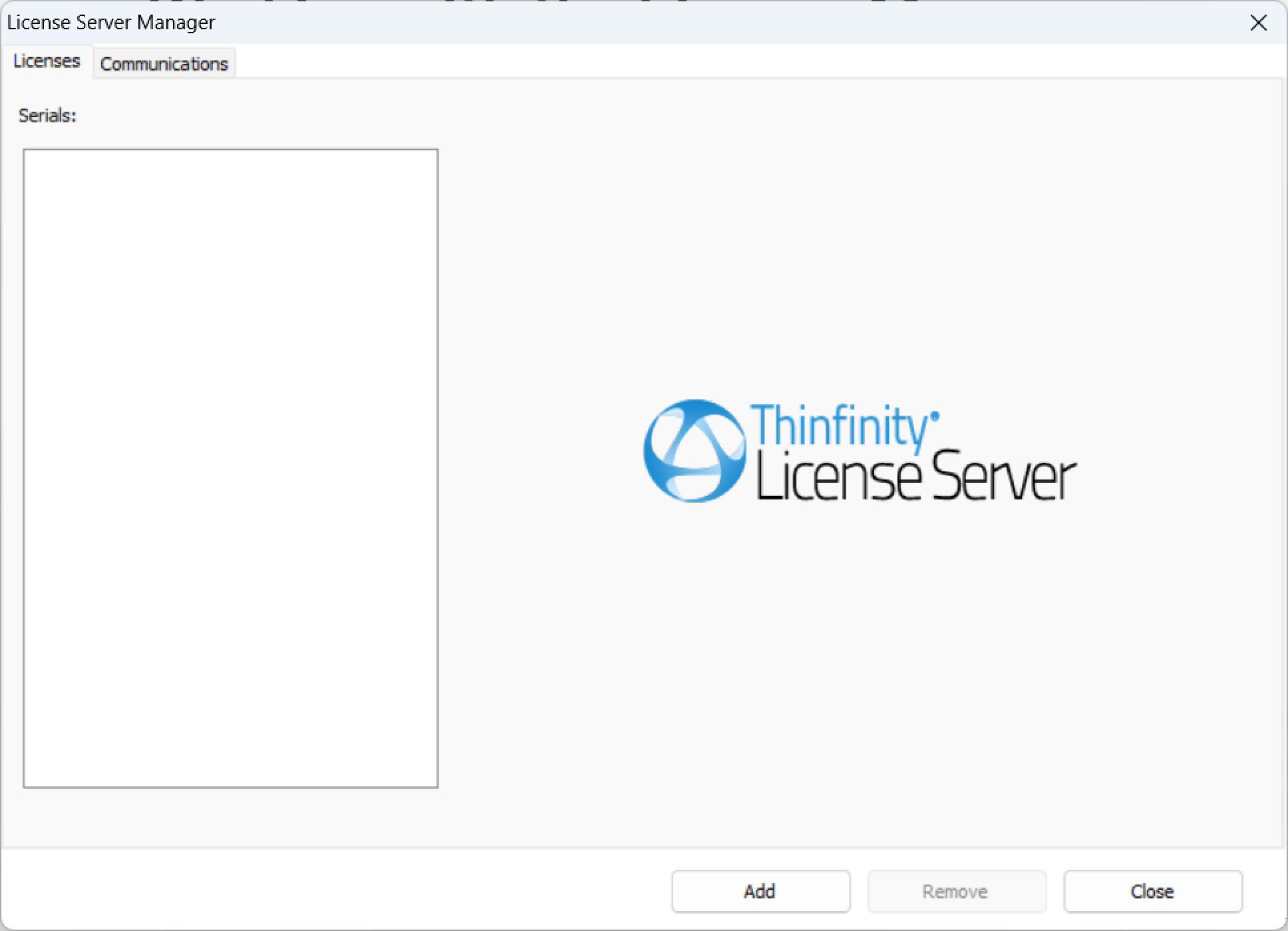
After you install License Manager, run it to display the main window as in the following image:
Configure the communication parameters
The first step is to ensure that the License Manager is connected to the correct Gateway. To do that, select the Communications tab.
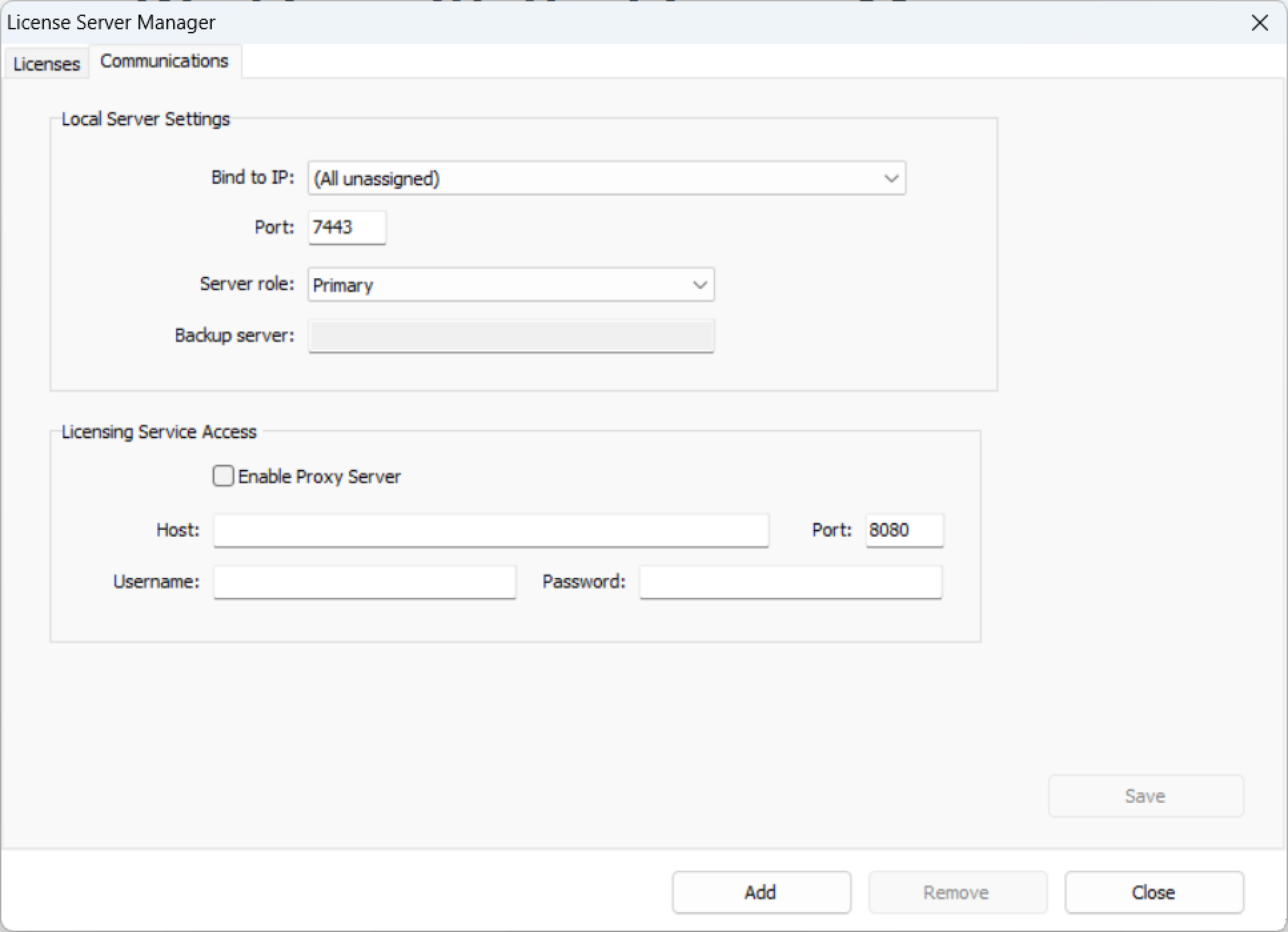
In the Bind to IP field, make sure you enter the IP of the Gateway of your current Thinfinity Workspace installation. In the Port and Server role fields leave the default options.
If you want to place your License Server behind a proxy, use the options available in the License Server Access to configure the Host IP, port number, and credentials.
Registering a New License
To register a new license with the License Manager:
Select a Thinfinity product
In the Licenses tab select Add.
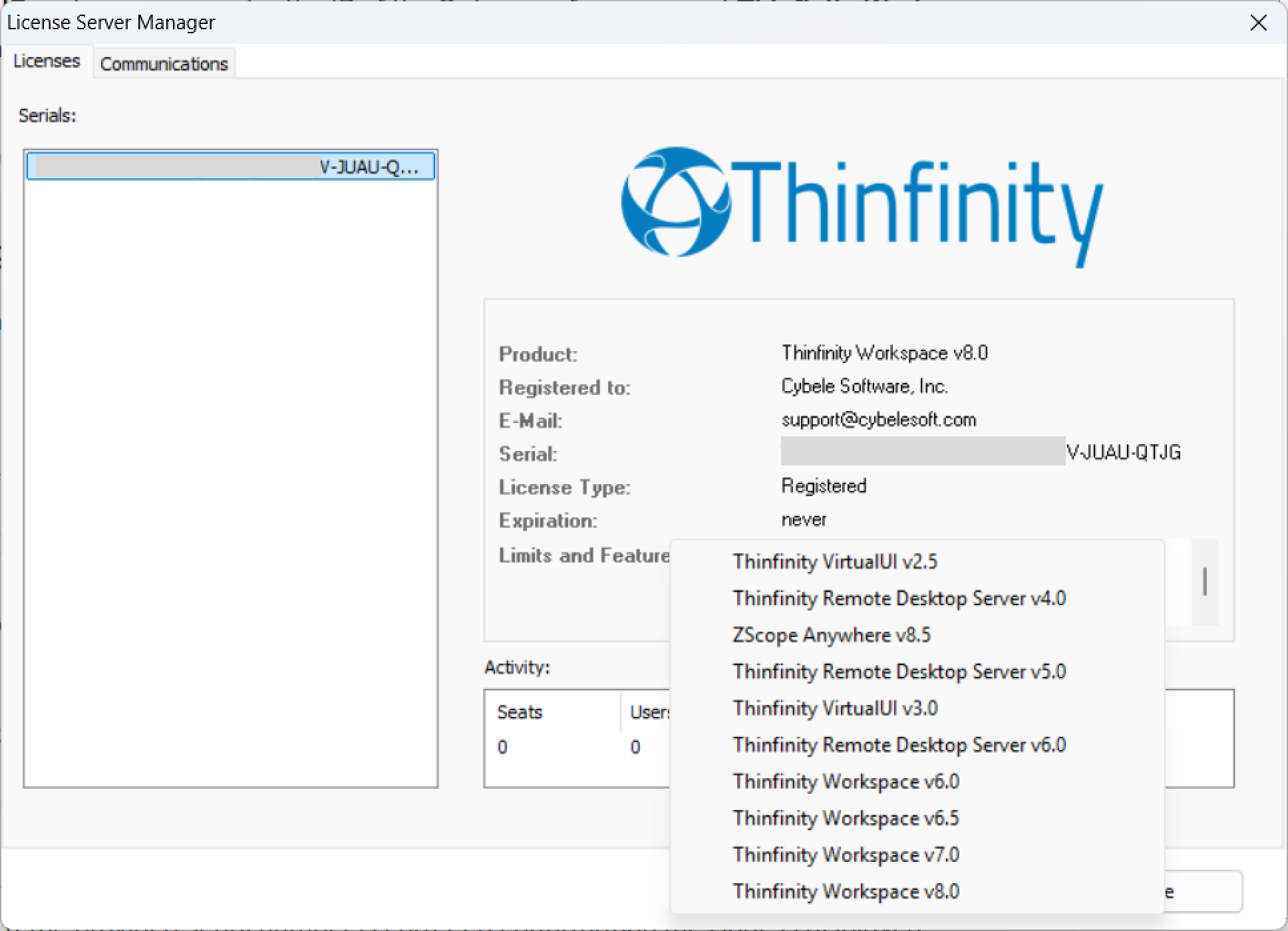
A list of Thinfinity products is displayed. Select the product for which you want to add the license, then select Next.
Select the license type
From the Product Registration Wizard that is displayed, select the type of license you want to register, then select Next. The following options are available:
| Option | Description |
|---|---|
| Get a new Trial Serial Number | Request a 30-day trial serial with unlimited access. |
| Activate a Serial Number Online | Register your Cybele Software product using a serial number over an internet connection. |
| Activate a Serial Number Offline | Register a license on a machine that has no internet connection. |
Complete the registration
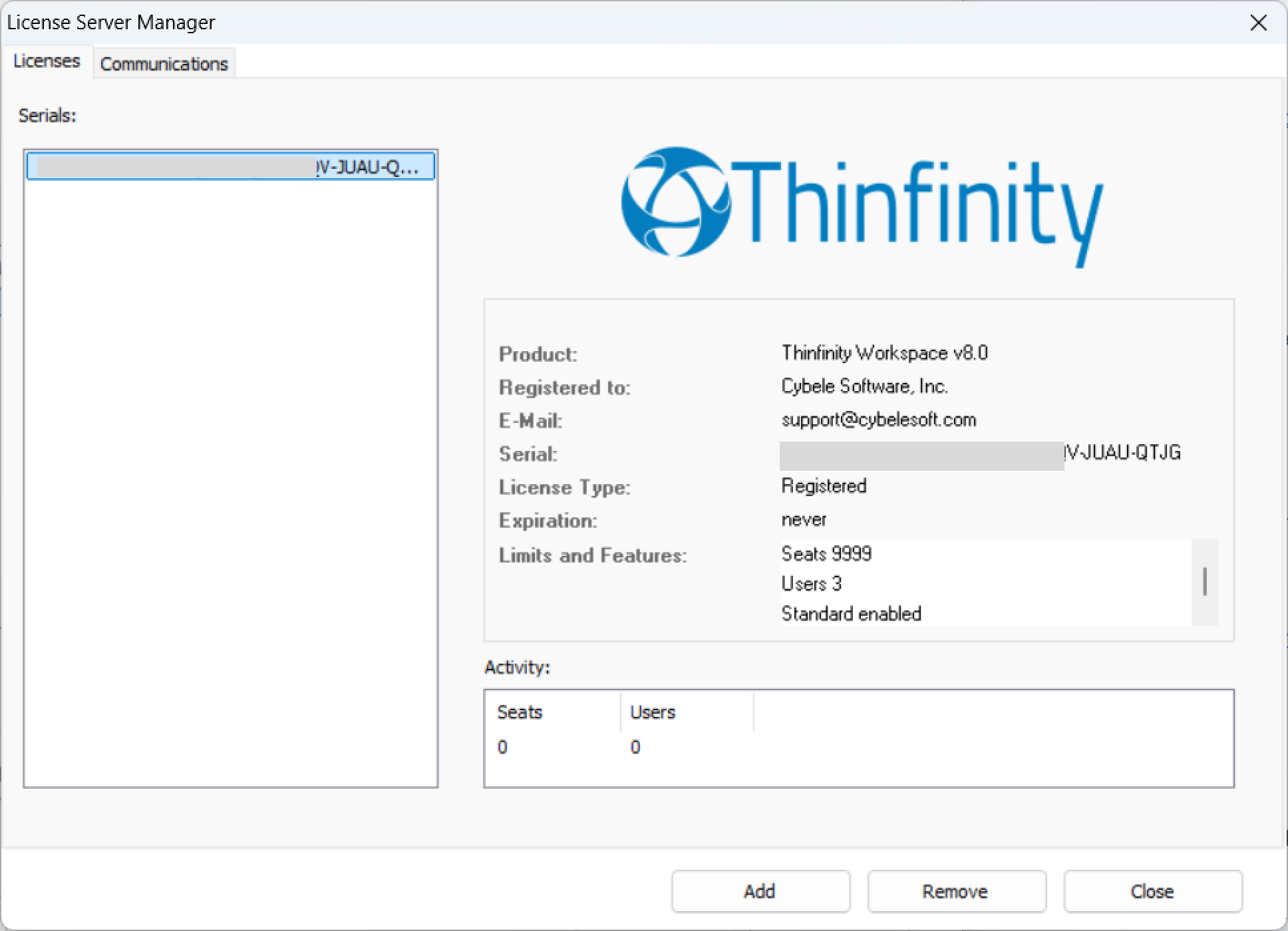
Follow the steps for the license type you selected (see the sections below). Once the license is registered, its serial number is listed in the Serials section of the License Manager.
Repeat the procedure to add as many licenses as necessary.
Getting a Trial Serial Number
Select Get a new Trial Serial Number to request a 30-day trial license with unlimited access. Enter a valid name and email address, then select Next. The serial key is sent to the email address you provided; check your inbox and use it to activate the product.
Activating a Serial Number Online
Select Activate a Serial Number Online to register your product over an internet connection. Complete the following fields:
| Field | Description |
|---|---|
| Enter the email address you registered with. | |
| Serial | Enter the serial number provided to you. |
| Licensing Server URL | If you installed the License Server administrator, enter the License Server URL. Otherwise, leave this field blank. |
If the license information is correct, the License Manager confirms that the new license has been installed successfully and displays its information.
If you see the warning “The license information is invalid”, verify the following:
- You entered the exact email and serial number sent to you. The best practice is to copy and paste them, being careful not to include any spaces before or after.
- You have a working internet connection. If the machine has no internet access, use offline activation instead.
- If your internet access is restricted by a proxy, confirm that the proxy details are configured in the Communications tab.
If you need additional help, contact our support team.
Activating a Serial Number Offline
Offline (manual) activation is intended only for machines that have no internet connection, or whose connection is restricted by security policies that block regular activation. If you have not tried a regular activation yet, use Activate a Serial Number Online first. If your restriction is caused by a proxy, add the proxy details in the Communications tab.
Before performing a manual activation, please contact our support team.
After you select Activate a Serial Number Offline:
Generate the Manual Activation Key
Enter the license Serial number, then select Generate Manual Key. A Manual Activation Key is generated in the corresponding field.
Send the key to support
Send the Manual Activation Key to the support team. They will reply with a Manual License code.
Enter the Manual License
Enter the Manual License code provided by support in the corresponding field, then select Next to complete the activation.
Removing a License
To release a license from a machine, open the License Manager, select the license you want to deactivate in the Serials section, then select Remove. Removing a license deactivates it on this machine, allowing you to use it on a different machine or to reuse it after reinstalling Windows.