
VNC User Experience Settings
The following user experience settings are available for a VNC Access Profile:
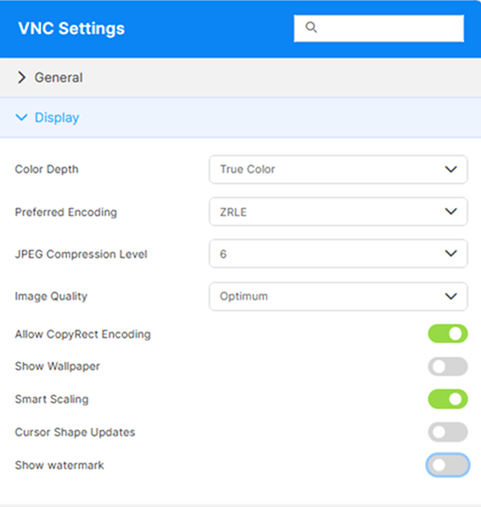
| Option name | Description |
|---|---|
| Color depth | Choose the number of bits used to represent the color of a single pixel on the screen. Choose between 256 (8-bit Color Depth) or True Color (24-bit or 32-bit Color Depth). |
| Preferred Encoding | Displays different algorithms used to compress and transmit the graphical data. Available options include RAW, Tight, Hextile, RRE, and ZRLE. |
| JPEG Compression Level | Choose the degree of compression applied to images transmitted during the session None or levels 1-9. |
| Image Quality | Controls the balance between visual clarity and performance. Choose between Highest, Optimum, Good, or Fastest. |
| Allow CopyRect Encoding | This option is selected by default and it allows the use of CopyRect, which optimizes the transmission of graphical data by reducing the amount of information sent over the network. |
| Show Wallpaper | Shows or hides the wallpaper. |
| Smart Scaling | This option is selected by default, it adjusts the display of the remote desktop to fit the size of the client’s window or screen resolution. |
| Cursor Shape Updates | Allows the remote session to send updates about changes in the cursor shape from the server to the client. |
| Show watermark | Overlays a watermark on the remote session that identifies the user, so a screenshot taken from the session can be tied back to the person who captured it. Intended for accountability in environments where session screenshots may be circulated. Disabled by default. |
| Watermark text | Available when Show watermark is enabled. The template rendered as the watermark. Free-form text and placeholders can be combined; only $(LOGIN_USER) (the session user’s account name) is substituted — other $(NAME) tokens are rendered literally. Default: $(LOGIN_USER). |
Reference
The watermark’s visual appearance (color, font, layout, and more) can be customized globally through common.settings.js. See Watermark Visual Customization.
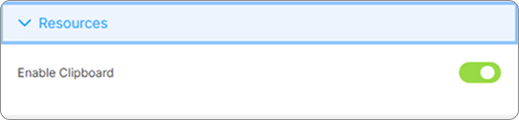
Enables or disables the use of the Clipboard.
| Option name | Description |
|---|---|
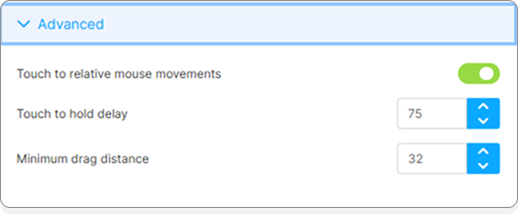
| Touch to relative mouse movements | Allows touch inputs to be interpreted as relative mouse movements rather than absolute positions. |
| Touch to hold delay | Specify how long (in seconds) a touch input must be held on the screen before it is recognized as a hold action, rather than a simple tap. |
| Minimum drag distance | Determine the smallest distance (in pixels) a touch or mouse movement must cover before it is recognized as a drag action, rather than a simple tap or click. |
Reference
For details about basic configuration options, see VNC Core Settings.
For access control and user permissions, see Access Control Settings.