
TOTP Settings
To access TOTP configuration settings: in the main Thinfinity® Workspace page, select the user profile to access the user menu and select Settings. Next, navigate to Configuration>Authentication>Two-Factor Authentication, then select Add and choose TOTP.
The following configuration parameters are available for TOTP.
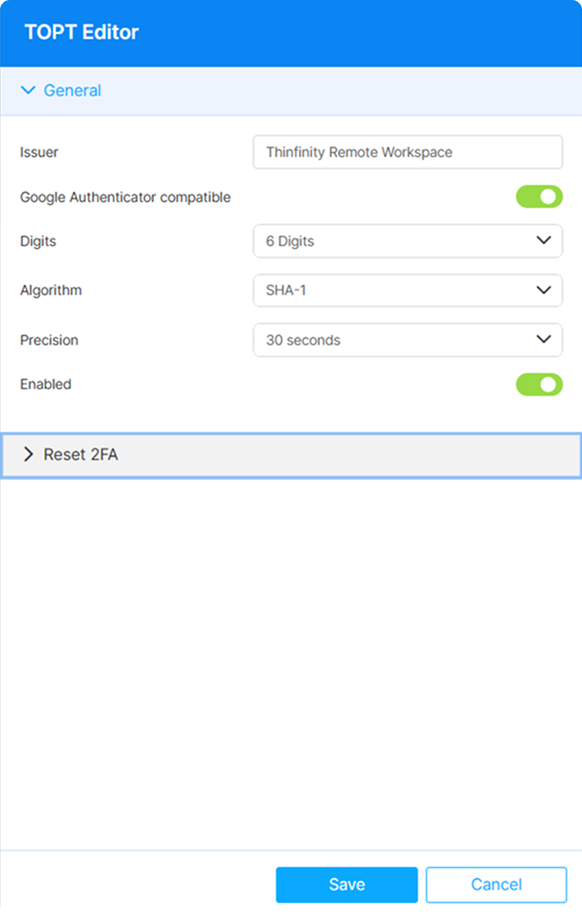
The following options are available:
| Option | Description |
|---|---|
| Issuer | The name shown to users on the enrollment screen and used as the account name in their authenticator app. Choose a value that identifies this installation to users who may hold several TOTP accounts. Default: Thinfinity Workspace. |
| Google Authenticator compatible | Enabled by default. When enabled, the Digits, Algorithm, and Precision fields are read-only, locked to the values Google Authenticator accepts. Disable it to make those fields editable and use parameter combinations that other authenticator apps support. |
| Digits | Number of digits in the generated code. Default: 6. |
| Algorithm | Hashing algorithm used to derive the code. Default: SHA-1. |
| Precision | How long each code remains valid. Default: 30 seconds. |
| Enabled | Enabled by default when the method is added. Disable to keep the method configured without applying it to any Authentication Method. |
| Reset 2FA | Expandable section for clearing a specific user’s TOTP enrollment. Enter the account in Username and select Reset 2FA key for user. Resetting invalidates the codes generated by the user’s current authenticator app; the user is prompted to enroll again at their next login. |