
VirtualUI App Settings
Thinfinity® VirtualUI is a development platform designed to enable the transformation of Windows desktop applications into web-based solutions with minimal code changes. At the core of this technology is a proprietary DLL that developers can integrate directly into their applications. This DLL injects a virtualization layer into the software, allowing it to run in HTML5-compatible web browsers, and extending its accessibility across various platforms such as Windows, macOS, Linux, and mobile devices.
For details on how to create a VirtualUI Access Profile, see VirtualUI Applications.
To access a VirtualUI Access Profile settings: From the user menu select Settings then Access Profiles and in the Public Profiles tab, select the Edit icon of the Access Profile you want to edit.
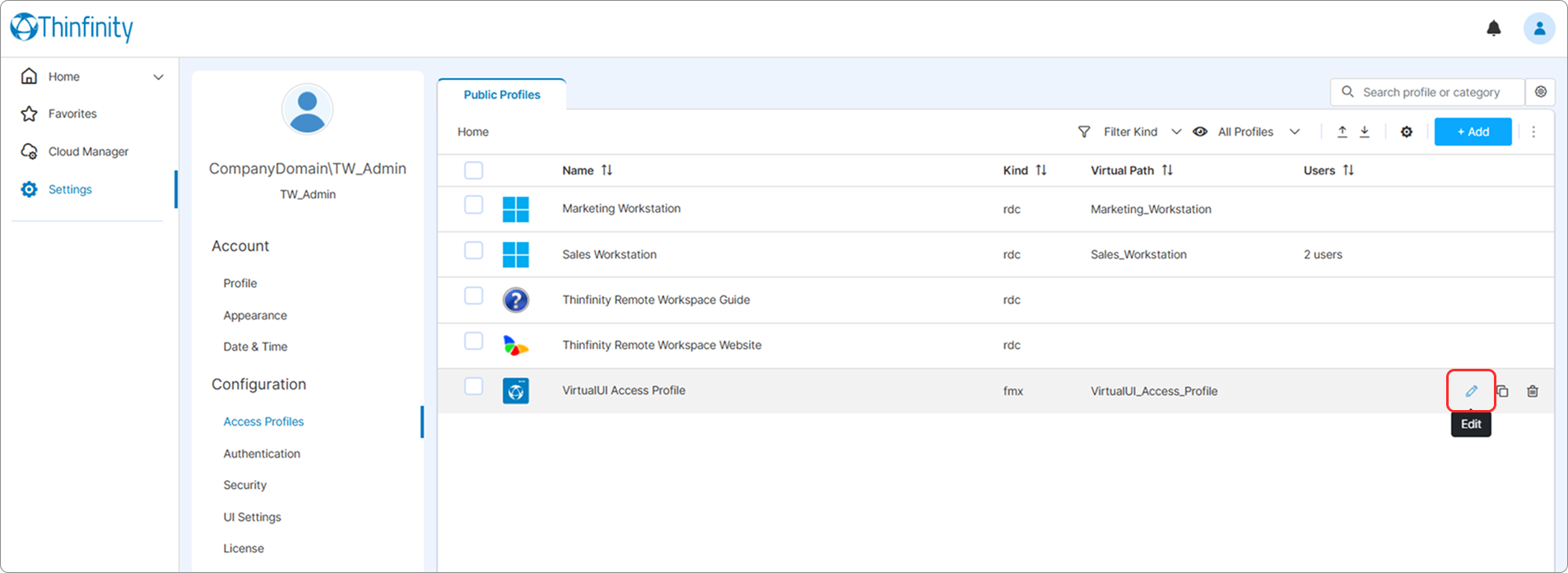
Selecting Edit will display several options for customizing your VirtualUI Access Profile.
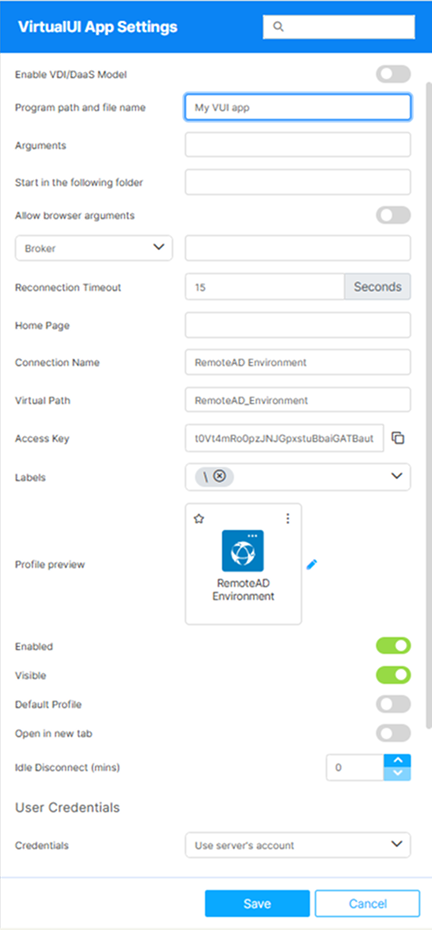
| Option | Description |
|---|---|
| Search field | The search field at the top of the Settings menu allows searching a specific parameter by its name. |
| Enable VDI/DaaS Model | Enable the option to connect to a VDI/DaaS model. For details, see the Cloud Manager Manual. |
| VDI/DaaS Model | This field will only become available if Enable VDI/DaaS Model is selected. Allows selecting the source of the VM. An associated field allows selecting the actual VM where you want to connect the current Access Profile. |
| Use Staging | This option is only available when Enable VDI/DaaS Model is on and VDI/DaaS Models is selected as the connection target. It enables the use of different versions of the selected VDI/DaaS model. For details on working with VDI/DaaS models and staging, see the Cloud Manager Manual. |
| Use Instance | This option is only available when Enable VDI/DaaS Model is on and Managed VMs is selected as the connection target. By default, it is not enabled, and it means that the current Access Profile will connect to any of the available VMs. If you enable this option, an additional field lets you select a specific VM instance where the Access Profile will connect. |
| Program path and file name | The path to the application that has been integrated with VirtualUI. For details, see Thinfinity VirtualUI in our online Knowledge Base. |
| Stop after disconnect | This field is only available when Enable VDI/DaaS Model is on and Managed VMs is selected as the connection target. It allows turning off the VM after the Access Profile is closed. Enter the number of minutes after which the VM is stopped. |
| Arguments | Allows you to send external arguments in the URL. |
| Start in the following folder | Enter a context directory for the program set in the field Program path and file name. |
| Allow browser arguments | If enabled, allows passing application arguments directly through the URL for enhanced customization and control. |
| Broker/Agent Pool | The broker or agent pool that handles connections for this Access Profile. Leave blank to use the default pool (MAIN_POOL unless a different name is configured on the Broker tab). |
| Reconnection timeout | Set a timeout (in minutes) for how long Thinfinity Workspace Server should wait before terminating the application after the browser is closed. A timeout of 0 will immediately terminate the application upon browser closure. |
| Idle Disconnect (mins) | Disconnects the session after the specified number of minutes without user activity, up to 1440. Set it to 0 to disable the inactivity cut-off. Unlike Reconnection timeout, which acts when the browser is closed, this acts while the browser stays open but idle. |
| Home Page | If desired, enter the path of an HTML file that will serve as integration with jsRO. |
| Connection Name | The friendly name shown on the Access Profile’s card in the home-page list and on the browser tab when the profile is open. |
| Virtual path | By default, Thinfinity Workspace creates a unique URL address for the current access profile. If you want to customize it, make sure your address is unique and web compatible and that it has the following format: https://ThinfinityDomain:port/VirtualPath/. You can then create a web shortcut for this specific Access Profile and bypass the Thinfinity Workspace web interface. |
| Labels | Access Profiles can be organized into groups (labels) for which you can collectively manage the permissions settings. This field shows the names of the groups (or labels) that the current profile is a part of. For details, see Labels. |
| Profile preview | Use this button to customize the appearance of your Access Profile by choosing an image. Selecting the image will open the Customize Profile dialog window where you can select one of the available images or upload one from your computer. |
| Enabled | When on (default), the Access Profile is available. When off, direct URLs no longer route to it and the profile disappears from the home-page card list. |
| Visible | When on (default), the Access Profile appears on the home-page card list for users who have permission to it. When off, the card is hidden, but users with the direct URL can still open the profile. |
| Default Profile | When on, users who have this Access Profile log in and connect directly to it, skipping the home page. |
| Open in a new tab | When on, launching this Access Profile opens it in a new browser tab. When off (default), it opens in the current tab. |
| Usercredentials | Allows selecting the set of credentials that the current Access Profile will use to log into the specified remote computer: • Use the server´s account: Use the same credentials provided in the Sessions tab. • Use authenticated credentials: Use the credentials entered in Thinfinity Workspace (from the Permissions tab) to log in. The user will connect automatically after selecting the profile or after authenticating for Thinfinity Workspace. • Use these credentials: Enter new credentials for this profile (*). The user will connect automatically after selecting the profile or authenticating for Thinfinity Workspace. |
(*) If this is the only profile linked to the user’s credentials and if the credentials are valid, these options will automatically connect the user when they select the application or after authenticating with Thinfinity VirtualUI.
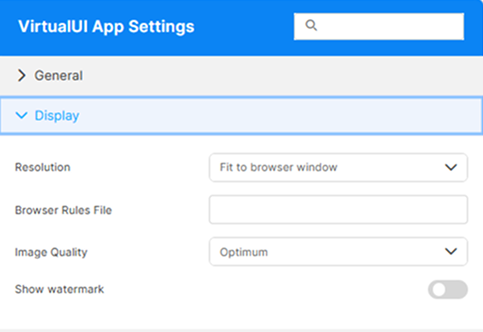
| Option | Description |
|---|---|
| Resolution | Customize your display settings:Fit to Browser Window: Adjusts to your browser size.Fit to Screen: Adapts to your display for optimal viewing.Main Screen Resolutions: Select from predefined resolutions. |
| Browser rules file | Specify the location of the file containing a ruleset that adjusts the remote desktop resolution accordingly. |
| Image Quality | Controls the balance between visual clarity and performance. Choose between: Highest, Optimum, Good or Fastest. |
| Show watermark | Overlays a watermark on the remote session that identifies the user, so a screenshot taken from the session can be tied back to the person who captured it. Intended for accountability in environments where session screenshots may be circulated. Disabled by default. |
| Watermark text | Available when Show watermark is enabled. The template rendered as the watermark. Free-form text and placeholders can be combined; only $(LOGIN_USER) (the session user’s account name) is substituted — other $(NAME) tokens are rendered literally. Default: $(LOGIN_USER). |
The watermark’s visual appearance (color, font, layout, and more) can be customized globally through common.settings.js. See Watermark Visual Customization.
For details on the options available in the access and permissions tabs, see Access Control Settings.