
General Tab
The General tab is the first interface presented to the user when opening Thinfinity® Workspace Configuration Manager. It provides key configuration options related to network access, server settings, and overall system behavior.
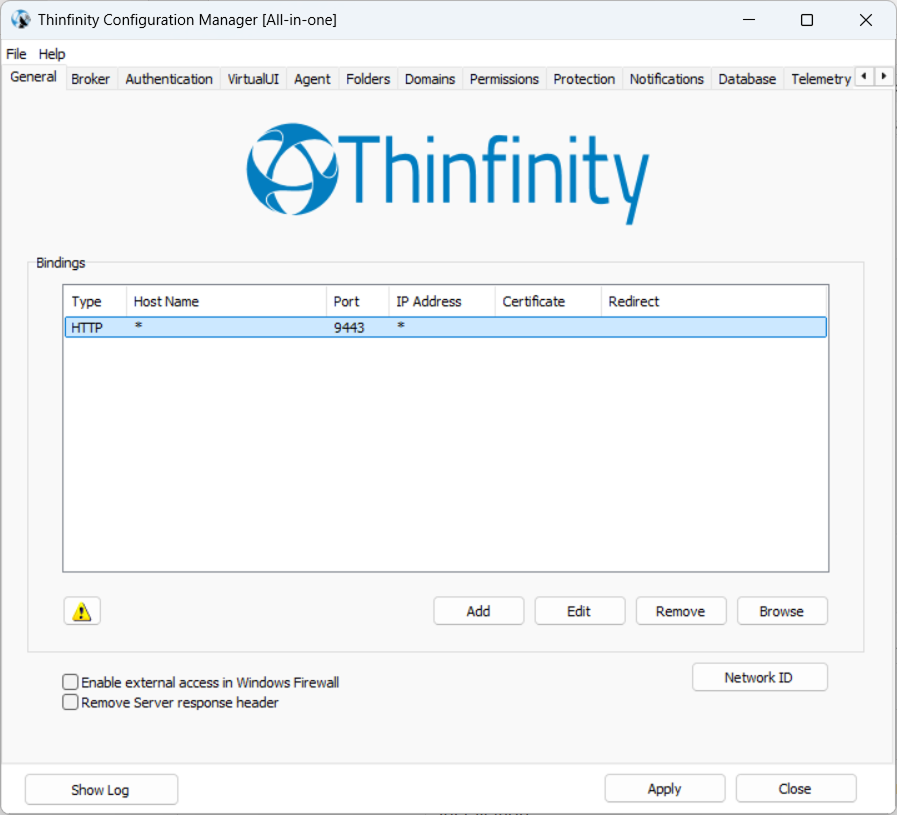
| Option | Description |
|---|---|
| Bindings | Shows a list of Gateway bindings defined for the current installation. |
| Add/Edit/Remove | Adds, edits or removes a binding. |
| Browse | Navigates to the selected binding. |
| Enable external access in Windows Firewall | Adds the currently configured bindings on the Windows Firewall exception list. This is mandatory for certain Windows Firewall configurations. |
| Remove Server response header | Removes headers from the response. |
| Error page responses (warning icon) | Allows the user to define custom error pages for various HTTP error codes for a more user-friendly experience when issues occur. |
| Network ID | Identifies the current installation. All Thinfinity Workspace servers sharing their resources through one or more Gateways must match their Network ID. Select this button to see and/or change the Network ID. The default value is a random string, but it can be changed to something more descriptive. |
| Show Log | Opens the server logs in a separate window. |
Binding
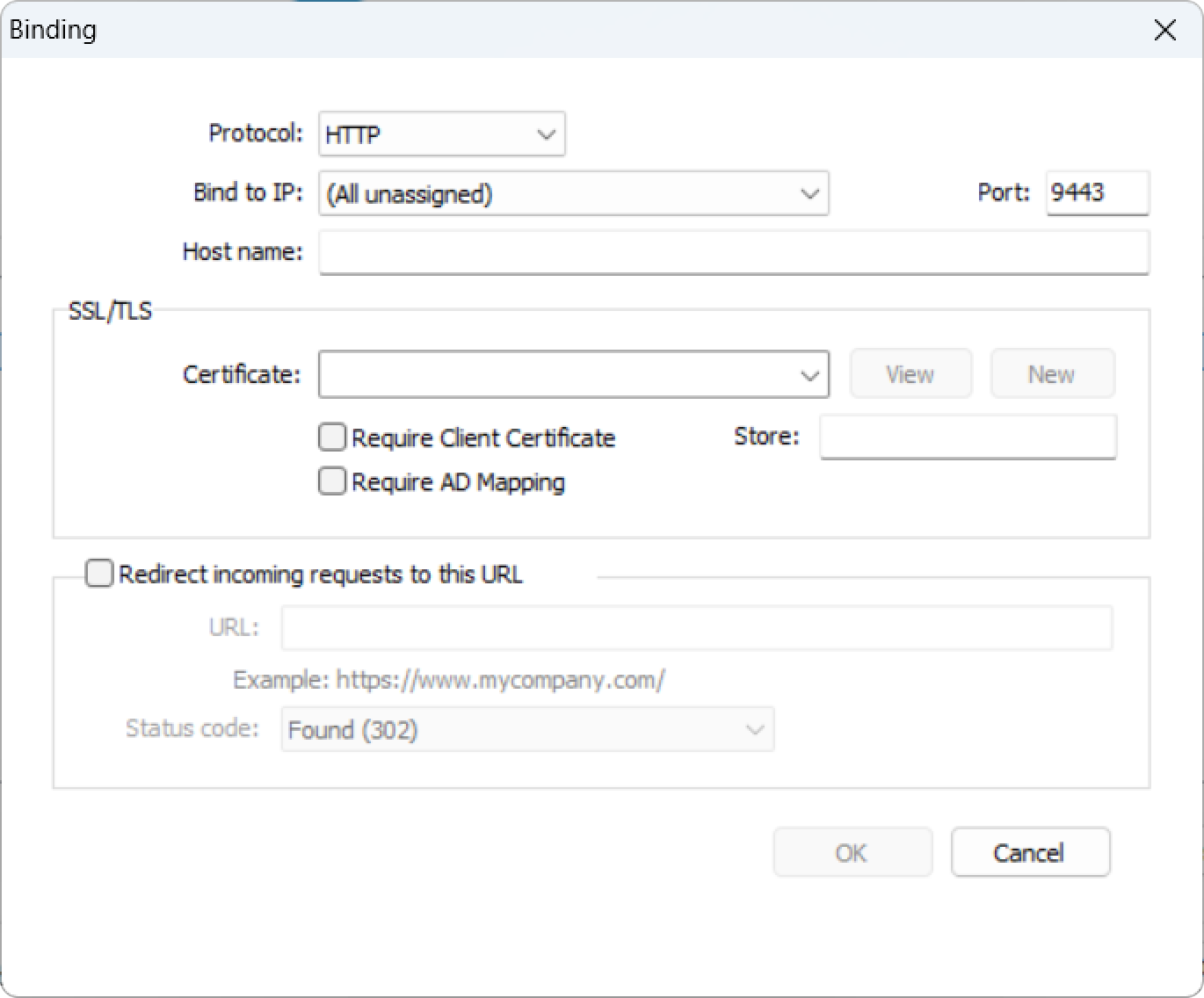
When adding or editing a binding the following parameters are available.
| Field/Option | Description |
|---|---|
| Protocol | The protocol used by the current binding to connect to the Gateway. You can choose between HTTP and HTTPS. |
| Bind to IP | The IP where the binding is defined. |
| Host name | The host name (FQDN) used to reach this binding. For an HTTPS binding, set a host name that the selected certificate is valid for, so that clients and internal components connecting over this binding can validate the certificate. It can be left blank. |
| Port | The port where the current binding is defined. |
| SSL/TLS Certificate | This field will only become active if you select the HTTPS protocol. You can choose one of the available certificates. |
| View | Displays the contents of the selected certificate. |
| New | Allows the creation/import of a new certificate. |
| Require Client Certificate | Indicates whether the server requires a valid SSL/TLS certificate from the client’s browser or device to establish a connection. If enabled, users without a trusted certificate will be denied access at the handshake level. |
| Require AD Mapping | Determines if Thinfinity should attempt to automatically map the provided client certificate to a specific user account in Active Directory. This allows for “Certificate-based Authentication” where the user is logged in based on their certificate identity rather than a password. |
| Store | Specifies the local Windows Certificate Store (e.g., MY or ROOT) on the Thinfinity Workspace server used to validate the chain of trust for incoming client certificates. Note: This does not refer to the location of the certificates on the user’s remote device. See the Which Store to use? below for details. |
| Redirect incoming requests to this URL | Select to redirect requests to a different URL. |
| URL | This field only becomes available if the previous option has been selected. Enter the URL where you want to redirect the incoming requests. |
| Status code | Leave the default selection. |
Which “Store” to use?
When configuring the Store parameter, you usually need to choose between these standard Windows identifiers:
| Store Name | Technical Code | Description |
|---|---|---|
| Personal | MY |
Where the server’s own identity certificates are kept. |
| Trusted Root | ROOT |
Where the CA certificates that validate the clients are kept. |
| Intermediate | CA |
For subordinate CAs in a multi-tier hierarchy. |
SSL Certificate
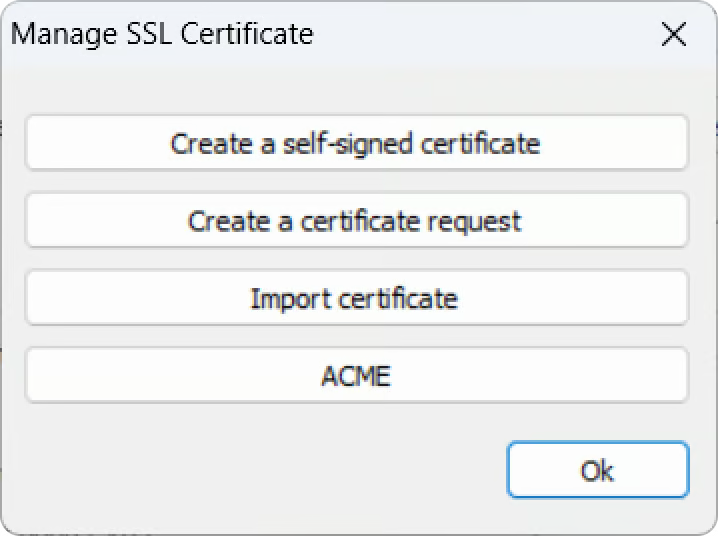
When selecting New, the following options are available for the certificates.
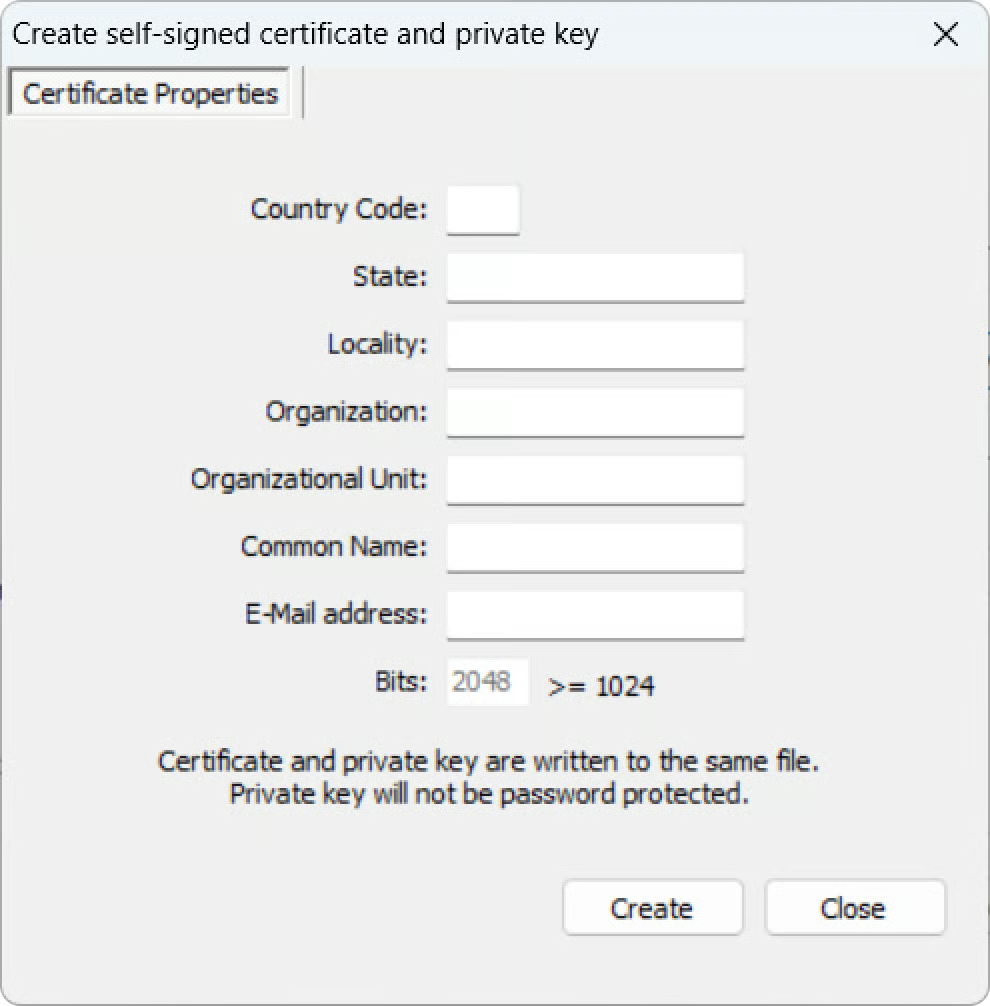
When creating a self-signed certificate, the following options are available.
| Option | Description |
|---|---|
| Country Code | The two-letter country code of the International Organization for Standardization (ISO 3166). |
| State | Full, unabbreviated name of the state or province in which your organization is located. |
| Locality | Full, unabbreviated name of the city in which your organization is located. |
| Organization | The name under which your company is legally registered. |
| Organizational Unit | Use this field to distinguish between departments within an organization. |
| Common Name | The domain name or URL with which you plan to use this certificate. |
| E-Mail Address | The company email address. |
| Bits | We recommend using a 2048 length key. |
When requesting a certificate, the available options are the same as when creating a self-signed certificate.
Use this button to access the native Windows Certificate Import Wizard.
Before setting any parameters in the following dialog window, make sure ACME Service is enabled in the Services tab of the Configuration Manager.
The ACME certificates dialog presents the list certificates and their associated details and offers management and configuration options.
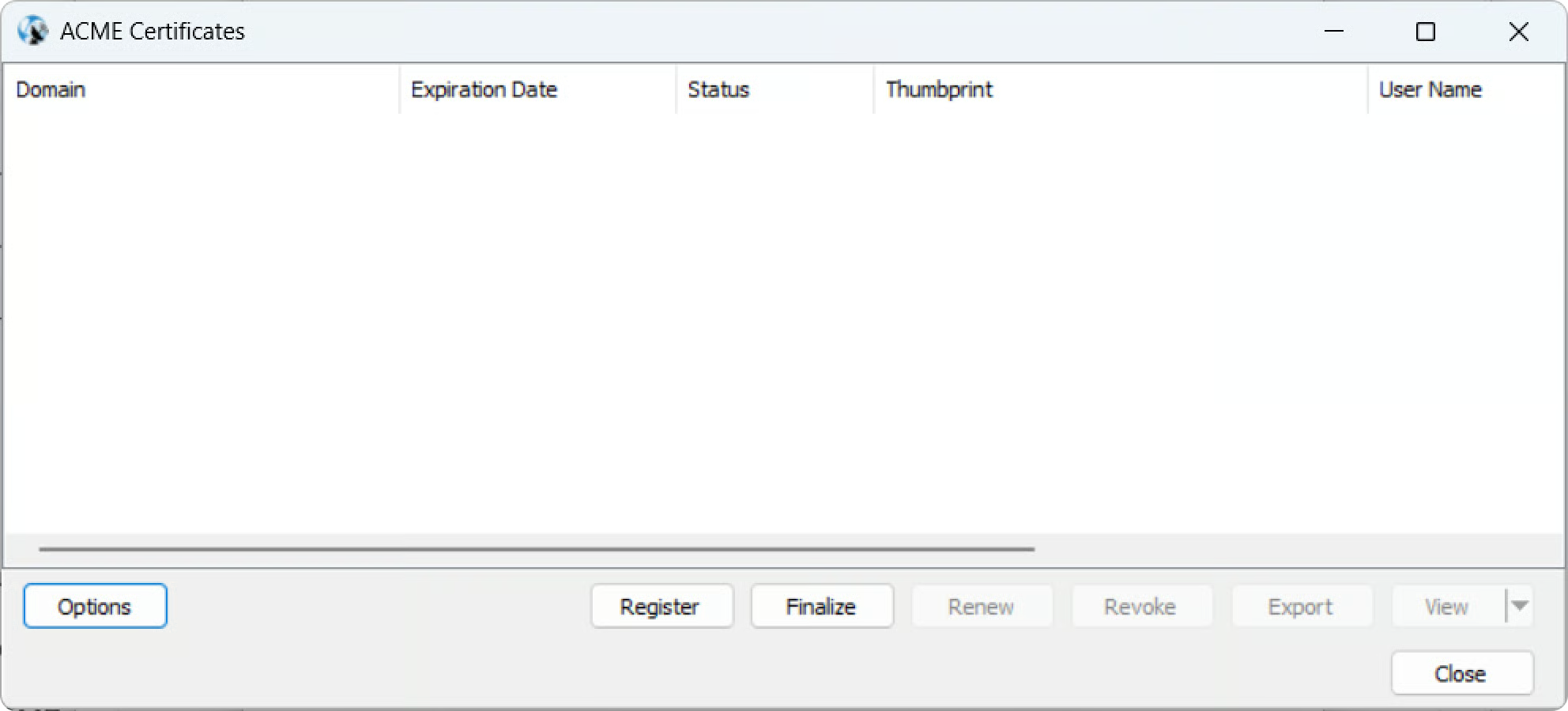
The following options are available for the management of ACME certificates.
| Option | Description |
|---|---|
| Options | Allows defining how ACME certificates will function for the current installation. |
| Register | Allows defining how an ACME certificate should register. |
| Finalize | Notifies that the TXT records have been updated on the DNS server. |
| Renew | Renews a certificate. |
| Revoke | Revokes a certificate. |
| Export | Exports the selected certificate. |
| View Certificate in Store | Allows viewing the certificate in the certificate store. |
| View DNS Info | Allows viewing the certificate TXT records if the certificate has been validated through DNS. |
When selecting the Options button, the following options are available.
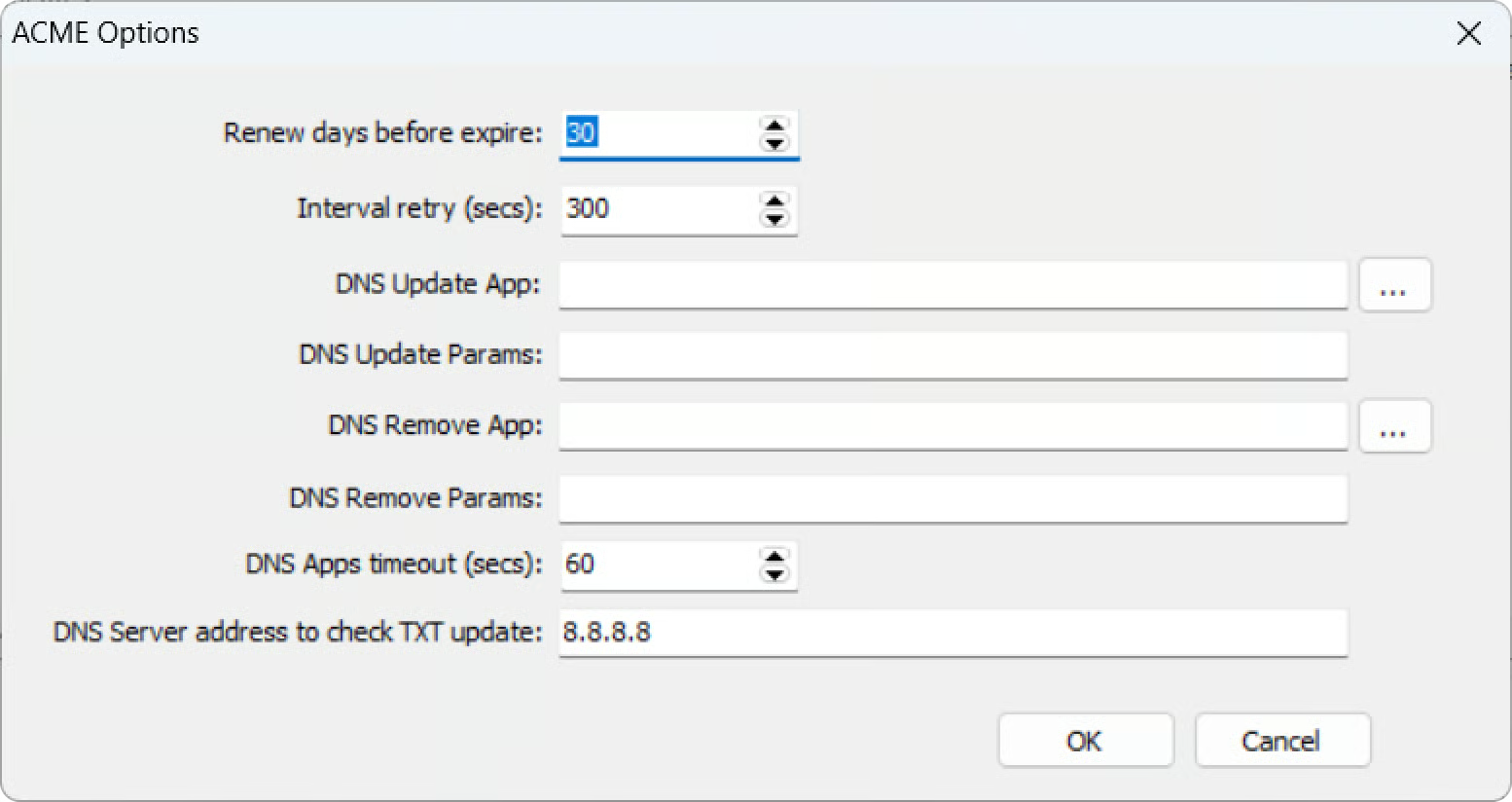
| Field/Option | Description |
|---|---|
| Renew days before expire | The default number of renew days before the certificate expires. Modify if applicable. |
| Interval retry (secs) | The default retry interval (in seconds) for the certificate renovation. |
| DNS Update App | The script or app to execute in order to update the DNS server with the TXT values received. |
| DNS Update Params | The parameters for the DNS Update app or script. |
| DNS Remove App | The script to execute in order to remove the TXT values received from the DNS. |
| DNS Remove Params | The parameters for the DNS Remove app or script. |
| DNS Apps timeout (secs) | The default timeout in sec, modify if applicable. |
| DNS Server address to check TXT update | IP address or DNS host to check for the TXT update (to confirm the propagation of the update). |
When selecting the Register button in the ACME Certificates Register dialog window the following options are available.
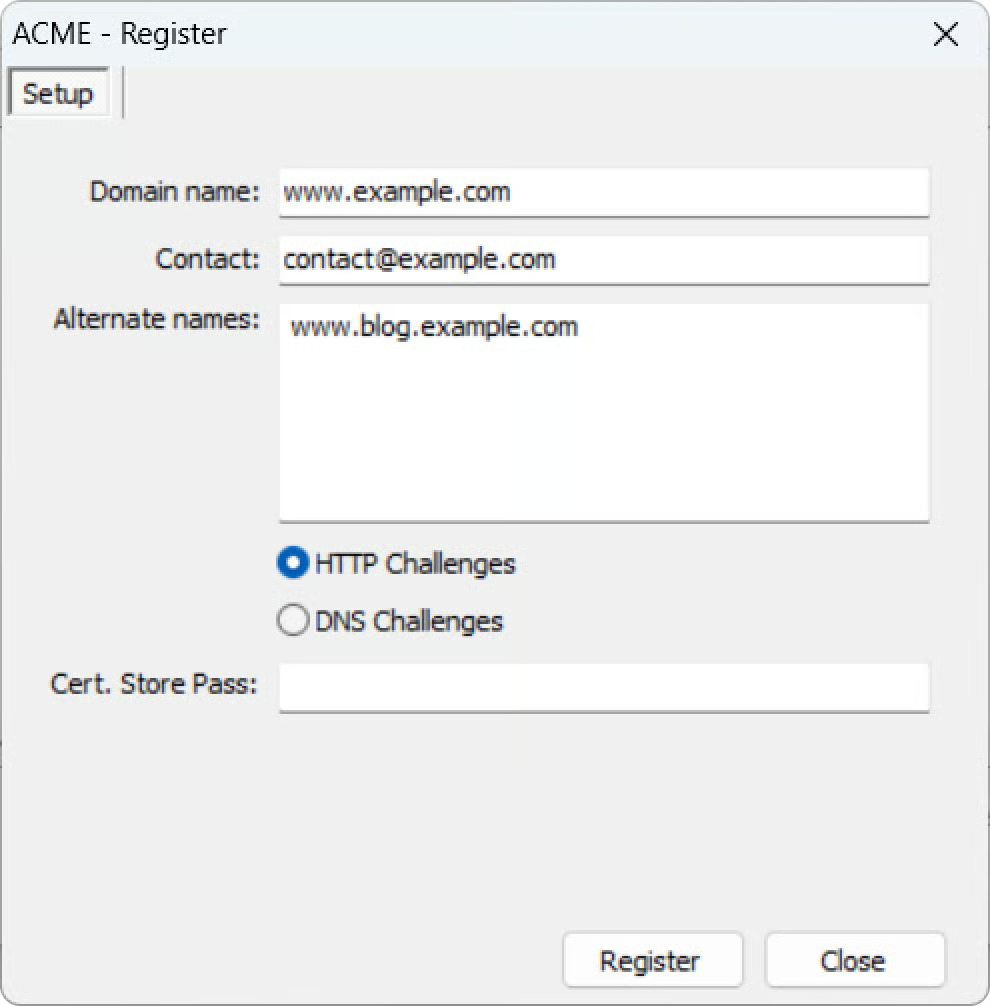
| Field/Option | Description |
|---|---|
| Domain name | The domain name against which the certificate will be validated. This is a required field. |
| Contact | A contact email address (optional). |
| Alternate names | Alternate names for the domain name entered above. |
| HTTP Challenges | Validates domain possession through HTTP using port 80. If domain possession cannot be checked using this method, it remains disabled, and the only remaining option is the DNS validation. |
| DNS Challenges | Validates domain possession through DNS. |
| Cert Store Pass | Password for the certificate store location. |