
Publishing Applications: RBI App
An RBI App Access Profile publishes an isolated browser in Thinfinity® Workspace using Remote Browser Isolation (RBI). The browser runs entirely in a container on a Kubernetes cluster and is streamed to the user, so untrusted web content, scripts, and downloads never reach the endpoint.
An RBI App profile points at a Kubernetes Model created in Cloud Manager. The model defines the isolated browser that runs on the cluster; the Access Profile publishes it to users and governs who can reach it.
Prerequisites
A Kubernetes Model — for example, the built-in Chrome RBI model — must already exist in Cloud Manager so that it can be selected in the wizard. To create one, see Kubernetes Models in the Cloud Manager manual.
Procedure
To create an RBI App Access Profile and publish an isolated browser:
Start the Access Profile Wizard
Select + New Profile in the dashboard or home page. Alternatively, select + Add from the Access Profiles tab of the Web Manager.
The ability to see the New Profile button on the home page or the Access Profiles tab within the Web Manager depends on the specific rights assigned to a user by the admin. Additionally, the global UI settings for the current Thinfinity Workspace installation may also influence access.
For details, see Permissions Tab and UI Settings.
Select an Access Profile Type
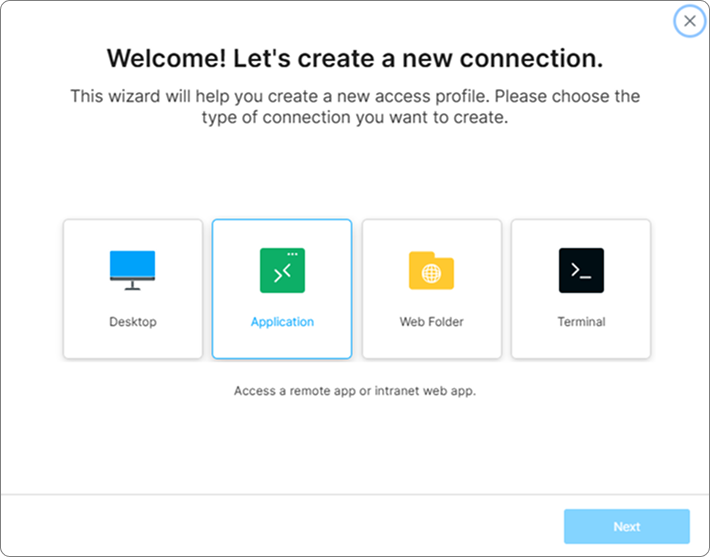
Select Application and select Next.
Choose the Application Type
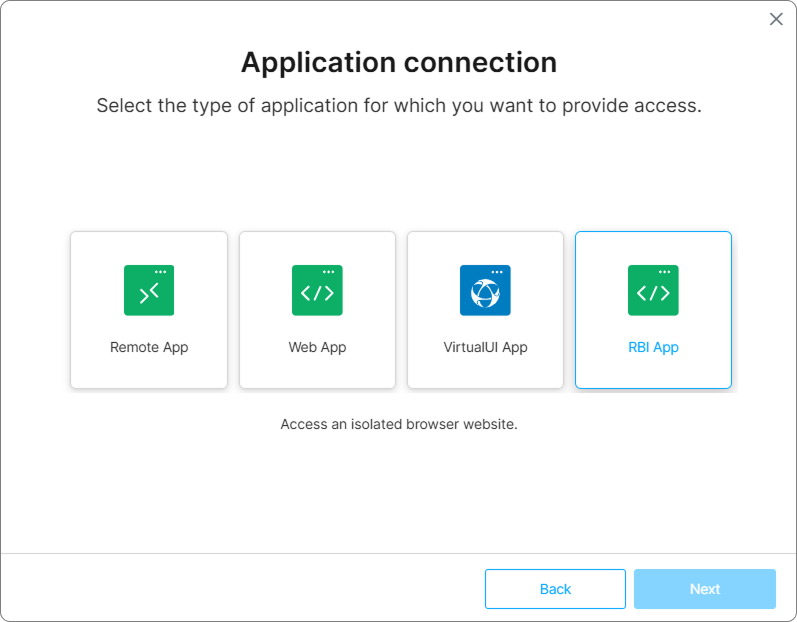
Select RBI App, then select Next.
Select the VDI/DaaS Model
From the VDI/DaaS Models dropdown, select the model that defines the isolated browser you want to publish, then select Next.
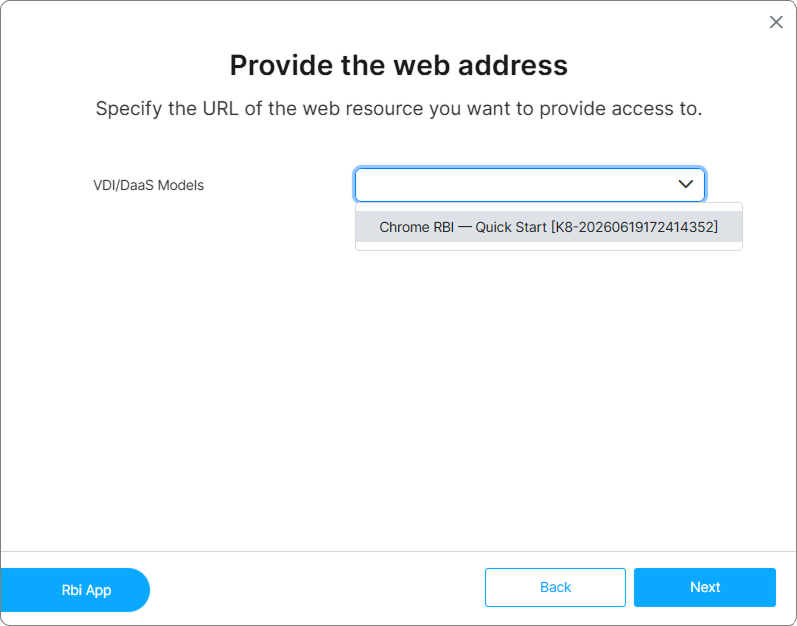
The models in this list are created in Cloud Manager. To create or review one, see Kubernetes Models in the Cloud Manager manual.
Set the Permissions for the Access Profile
When Allow Anonymous Access is enabled in the installation, it is pre-selected in the Permissions step of the wizard. Simply click Next to continue.
To limit access to specific users or groups, uncheck Allow Anonymous Access and click Add to choose who can access the new Access Profile.
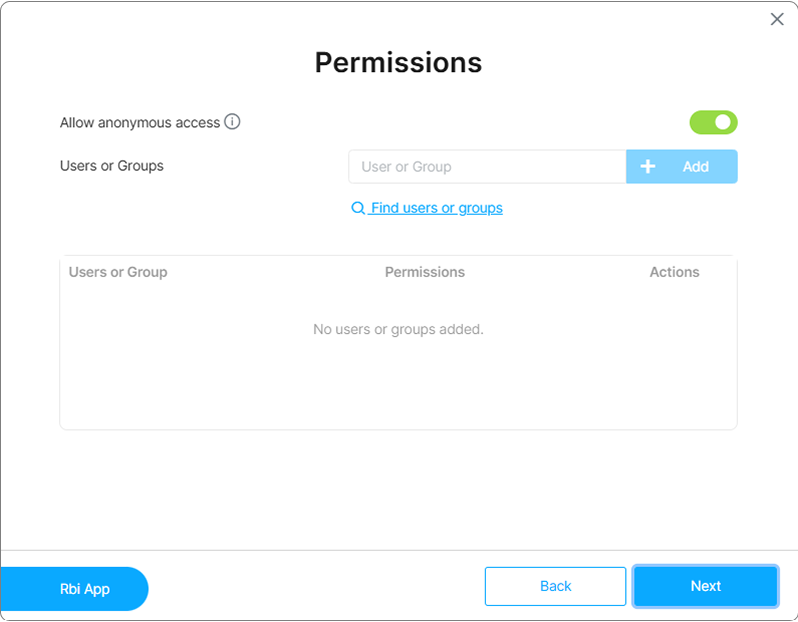
For details on how to enable/disable anonymous access and configure access permissions, see Global Access Profiles Parameters, Access Control Settings and Labels.
Find users and groups link will only be available when working with Directory Services.
Set the Access Profile Name
Enter a descriptive name for the new Access Profile, then select an icon for it. A Profile preview shows how the connection will appear to users. Select Next, and when the wizard reports that the profile was created, select Done.
Configure the Access Profile
The wizard guides you through the essential settings required for the connection to the target resource. Thinfinity Workspace assigns default values for the rest of the parameters of the connection.
To customize these parameters, access the Settings menu of the Access Profile. Depending on how the home page is configured and the rights granted to each user, the Edit option which grants access to the Settings menu might be available:
- in the home page, from the three vertical dots button of the Access Profile tile.
or
- in the Access Profiles tab in the Web Manager.
The session controls for the isolated browser live in this editor, under Display (Quality, High DPI) and Resources (Audio, File Uploads, Clipboard Sync). They are off by default.
For details on how to customize the user interface, see UI Settings.
For details on the parameters available in the Access Profile Settings menu, see RBI App Settings.
Apply the Changes
Select Apply to implement the configured connection parameters.
- If you are defining only one profile, you can use Apply right after configuring all the desired parameters.
- If you are defining several profiles or complex profile configurations, use Apply after you have everything in place.