
Thinfinity VNC Core Settings
The following core settings are available for a Thinfinity VNC Access Profile in the General section:
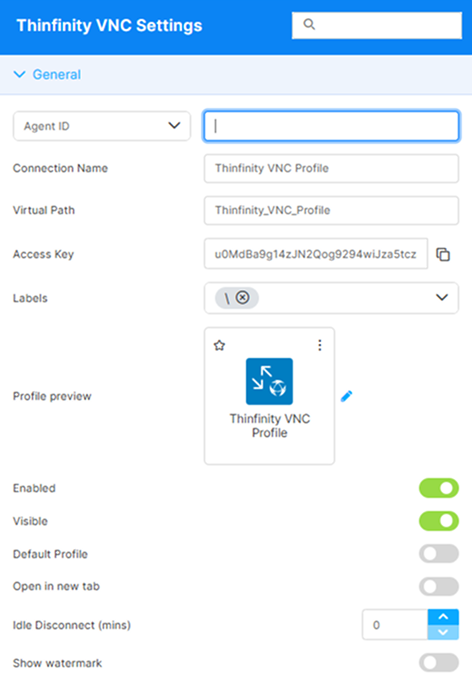
| Option name | Description |
|---|---|
| Search field | The search field at the top of the Settings menu allows searching a specific parameter by its name. |
| Connection target | The dropdown at the top of the General section selects what this Access Profile connects to. It carries no label of its own: it displays the option currently selected. The available options are Agent ID, Agent Pool, Managed VMs, and VDI/DaaS Models; the field to its right takes the corresponding value. For Agent ID, paste the target agent’s ID (shown in the agent’s Configuration Manager, typically in the format hostname@ip). For Agent Pool, enter the name of a registered pool. For Managed VMs and VDI/DaaS Models, the value field becomes a picker of the entities registered with Cloud Manager; see the Cloud Manager Product Manual for details on how those options work. The list of options is not fixed: Managed VMs and VDI/DaaS Models appear only when the Cloud Manager (VDI) service is available and you have the View Instances permission, and are not offered in a non-public workspace. |
| Use Instance | This option is only available when Managed VMs is selected as the connection target. By default, it is not enabled, meaning the current Access Profile will connect to any of the available VMs. If you enable this option, an additional field lets you select a specific VM instance where the Access Profile will connect. |
| Use Staging | This option is only available when VDI/DaaS Models is selected as the connection target. It enables the use of different versions of the selected VDI/DaaS model. For details on working with VDI/DaaS models and staging, see the Cloud Manager Manual. |
| Stop After Disconnect | This field is available when Managed VMs or VDI/DaaS Models is selected as the connection target. It allows turning off the VM after the Access Profile is closed. Enter the number of minutes after which the VM is stopped. |
| Connection Name | The friendly name shown for this Access Profile. |
| Virtual Path | By default, Thinfinity Workspace creates a unique URL address for the current Access Profile. If you want to customize it, make sure your address is unique and web-compatible and that it has the following format: http(s)://ThinfinityDomain:port/VirtualPath/. You can then create a web shortcut for this specific Access Profile and bypass the Thinfinity Workspace web interface. |
| Access Key | A unique, read-only identifier that the Thinfinity Workspace REST API and external integrations use to reference this Access Profile. It is generated automatically when the profile is created and is not a password or authentication secret. Use the copy button to copy it. |
| Labels | Access Profiles can be organized into groups (labels) for which you can collectively manage the permissions settings. This field shows the names of the groups (or labels) that the current profile is a part of. For details, see Labels. |
| Profile preview | Use this button to customize the appearance of your Access Profile by choosing an image. Selecting the image will open the Customize Profile dialog window where you can select one of the available images or upload one from your computer. |
| Enabled | When on (default), the Access Profile is available. When off, direct URLs no longer route to it and the profile disappears from the home-page card list. |
| Visible | When on (default), the Access Profile appears on the home-page card list for users who have permission to it. When off, the card is hidden, but users with the direct URL can still open the profile. |
| Default Profile | When on, users who have this Access Profile log in and connect directly to it, skipping the home page. |
| Open in new tab | When on, launching this Access Profile opens it in a new browser tab. When off (default), it opens in the current tab. |
| Idle Disconnect (mins) | Disconnects the session after the specified number of minutes without user activity, up to 1440. Set it to 0 to disable the inactivity cut-off. |
| Show watermark | Overlays a watermark on the remote session that identifies the user, so a screenshot taken from the session can be tied back to the person who captured it. Intended for accountability in environments where session screenshots may be circulated. Disabled by default. |
| Watermark text | Available when Show watermark is enabled. The template rendered as the watermark. Free-form text and placeholders can be combined; only $(LOGIN_USER) (the session user’s account name) is substituted — other $(NAME) tokens are rendered literally. Default: $(LOGIN_USER). |
The Resources section below the General settings (collapsed by default) exposes a USB Agent toggle to enable USB device redirection through the connected agent.
Reference
The watermark’s visual appearance (color, font, layout, and more) can be customized globally through common.settings.js. See Watermark Visual Customization.
For access control settings — Access Hours, Permissions, Authentication Methods, IP Restrictions, and Resource Reservation — see Access Control Settings. The Authentication Methods tab is shown only when the profile does not allow anonymous access.