To access Passkeys configuration settings: in the main Thinfinity® Workspace page select the user profile to access the user menu and select Settings. Next, navigate to Configuration>Authentication>Authentication Methods, select Add and select Passkeys.
The following parameters are available:
Option
Description
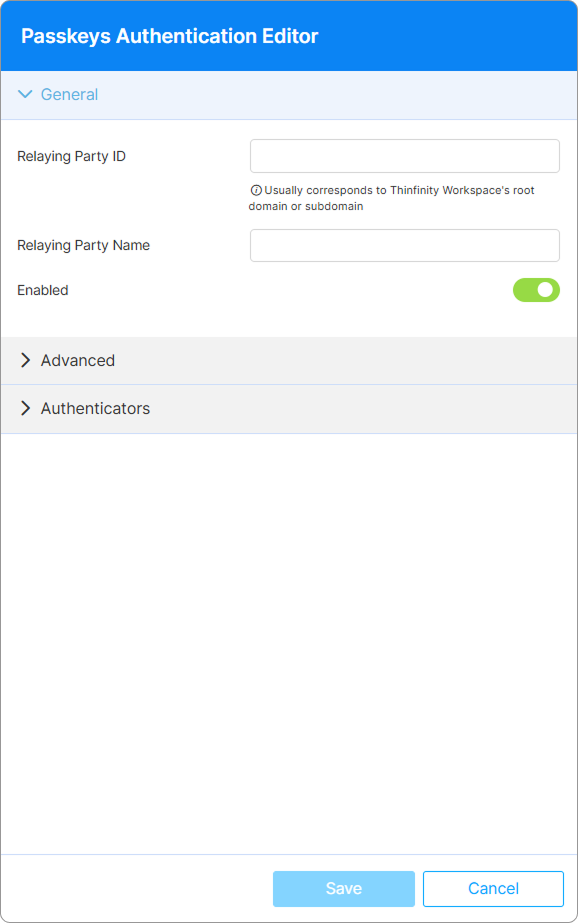
Relaying party ID
Fill in the domain name, as the tip indicates, it usually corresponds to the Thinfinity Workspace root domain or subdomain, e.g., myDomain.com.
Relaying party name
Enter a name for your Workspace installation. This field must not be left empty.
Enabled
This option is selected by default when adding the authentication method.
Option
Description
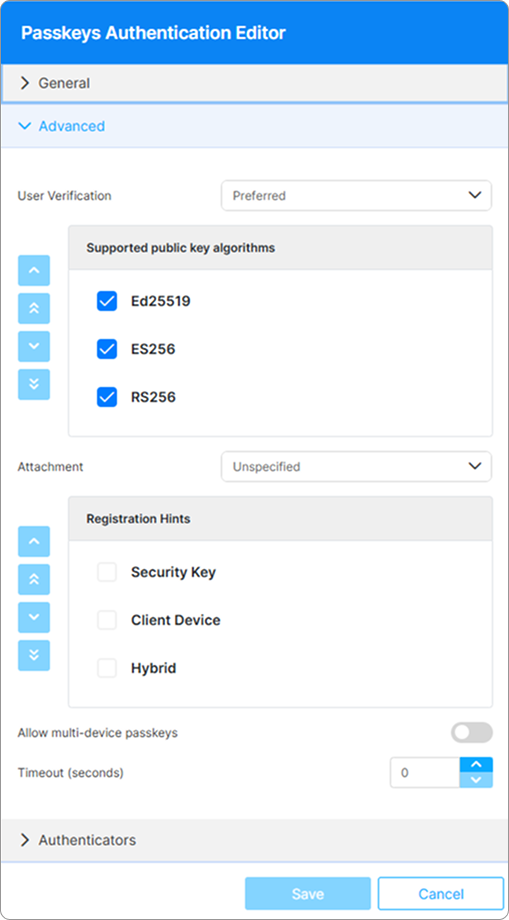
User verification
Use this field to configure the level of enforcement of the Passkeys method. The default option is Preferred. • Preferred The Relying Party prefers user verification for the operation if possible. • Discouraged The Relying Party does not want user verification to be used during the operation, for example, to minimize disruption to the user interaction flow. • Required The Relying Party mandates user verification for the operation.
Supported public key algorithms
By default, all options are selected. Edit if applicable. To change the algorithm order, select an element from the list and use the buttons to the left to change its position.
Attachment
Use this option to set the preference for the type of authenticator (where the passkey is stored and managed) that should be used for the authentication or registration process. Available options include Unspecified, Platform and Cross-Platform, the default option is Unspecified. • Platform: Platform authenticators are limited to authenticating a user via a specific device (in the case of Windows Hello, the laptop running it). • Cross-platform: enables the establishment of a secure source for verifying the user’s identity and for delegating trust to specific devices in the user’s control.
Registration hints
Select one of the available options and use the buttons to the left to set the order. • Security key: Indicates that the Relying Party believes that users will satisfy this request with a physical security key. • Client Device: Indicates that the Relying Party believes that users will satisfy this request with a platform authenticator attached to the client device. • Hybrid: Indicates that the Relying Party believes that users will satisfy this request with general-purpose authenticators such as smartphones
Allow multi-device passkeys
Select to allow Passkeys to synchronize across devices of the same ecosystem.
Timeout (seconds)
Set a timeout for the authentication process.
Option
Description
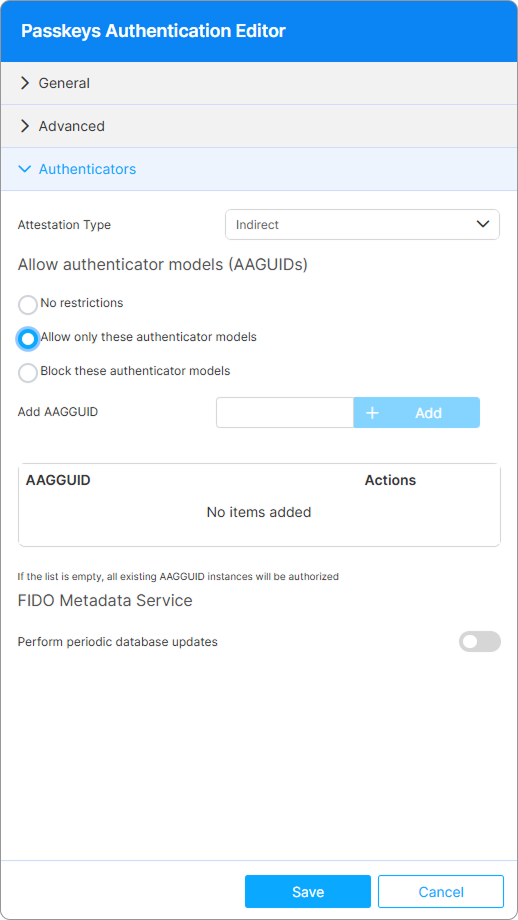
Attestation Type
Use this option to determine the level of attestation information Thinfinity Workspace (the Relaying Party) requests from the authenticator. • None: Doesn’t require Attestation. • Direct: Allows your service to know the details of the devices being used with your service. • Indirect: Get an attestation but allows the client to decide how to obtain attestation statements. The client may replace the authenticator-generated attestation statements with anonymous attestation statements to protect the user’s privacy
Allow authenticator models (AAGUIDs)
Use the options in this area to choose the allowed authenticator models. No restrictions.Allow only these authenticator models.Block these authenticator models.
Add AAGUID
This field only becomes available if you select any of the last two options from the previous field. It allows selecting the allowed/forbidden authenticator models.