Global Access Profiles Parameters
To set the global parameters for the Access Profiles in your Thinfinity® Workspace installation: from the user menu select Settings, then navigate to Configuration > Access Profiles and select the Configuration button.
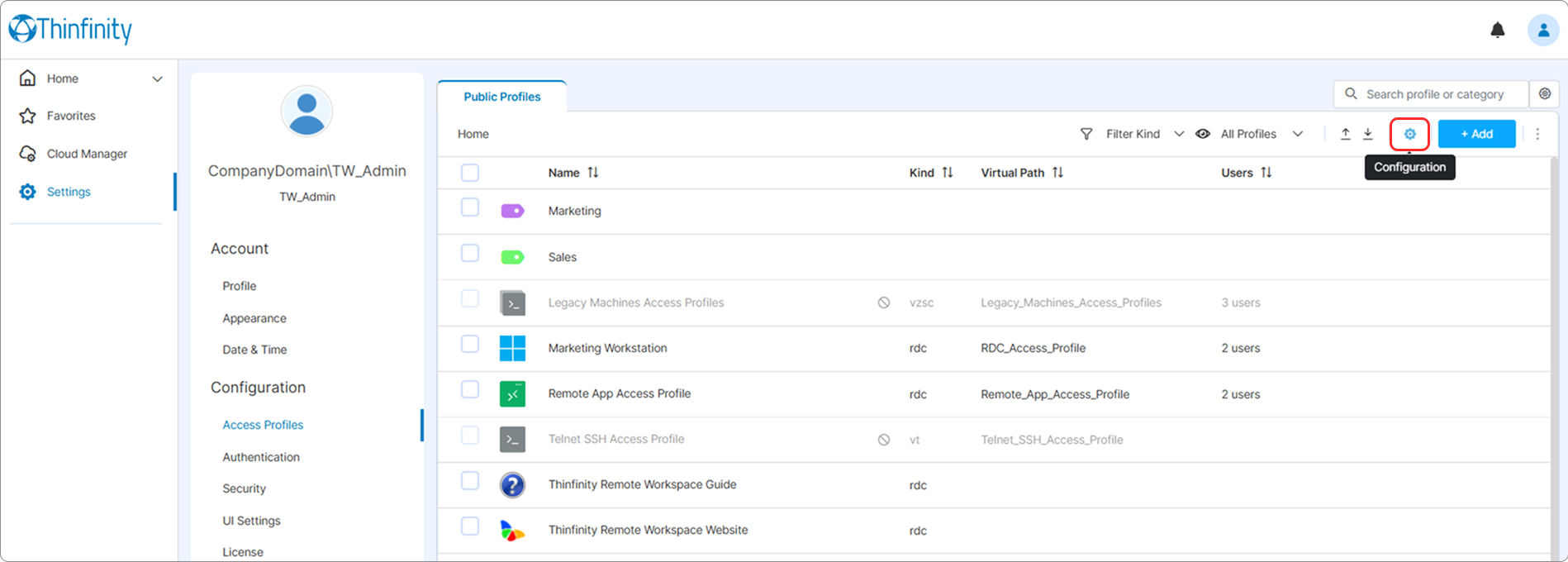
Access Profiles Configuration menu is displayed as in the following image.
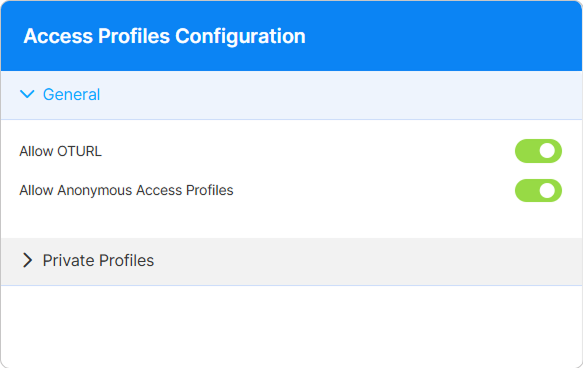
The following options are available in the General tab.
| Option | Description |
|---|---|
| Allow OTURL | OTURL (One Time URL ) functionality is enabled by default for all Access Profiles defined in the system. For details, see One-Time URL in Thinfinity and How to use Thinfinity Remote Workspace One-Time URL Test application in our online Knowledge Base. |
| Allow Anonymous Access Profiles | Permits anonymous Access Profiles across the installation; enabled by default. When enabled, each Access Profile gains an Allow anonymous access option in its Permissions tab, used to expose that profile to anonymous users; see Access Profile Security Settings. |
Private Profiles Tab
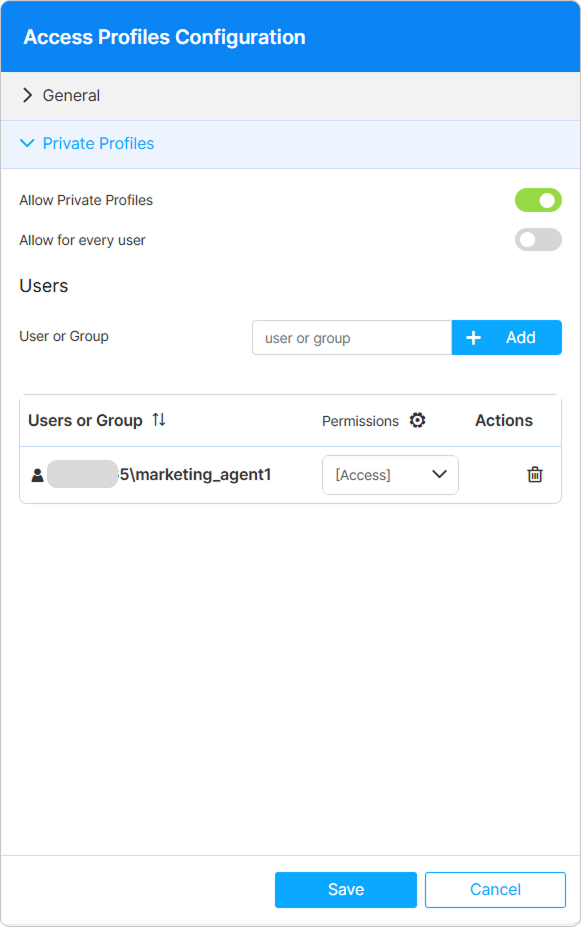
The Private Profiles tab is displayed as in the following image.
Private profiles have two special behaviors: they allow access to all computers and let users choose freely their settings at the moment of connection.
Since private profiles grant practically unlimited access to all resources, you must manage them very carefully to preserve your installation’s security.
| Option | Description |
|---|---|
| Allow Private Profiles | Select this option to enable the use of private Access Profiles (and Labels) in your installation. For the users for whom Private Profiles has been enabled, an additional Private Profiles tab will become available in the Access Profiles section in the Configuration area of the Settings menu. |
| Allow for every user | By default, only designated users can utilize Private Access Profiles (and Labels). Use the Users and group area to select them.Select this option to allow all the users to create private Access Profiles. |
| Users or group | Only available if Allow for every user is not enabled. Allows selecting the users who will be granted the right to create private Access Profiles. |
By default, non-admin users can only edit private profiles from the Thinfinity Workspace home page. To grant them permission to also edit them from the Settings menu, disable the Allow editing private profiles on home view option from the UI Settings section of the Settings menu.
For details, see UI Settings.
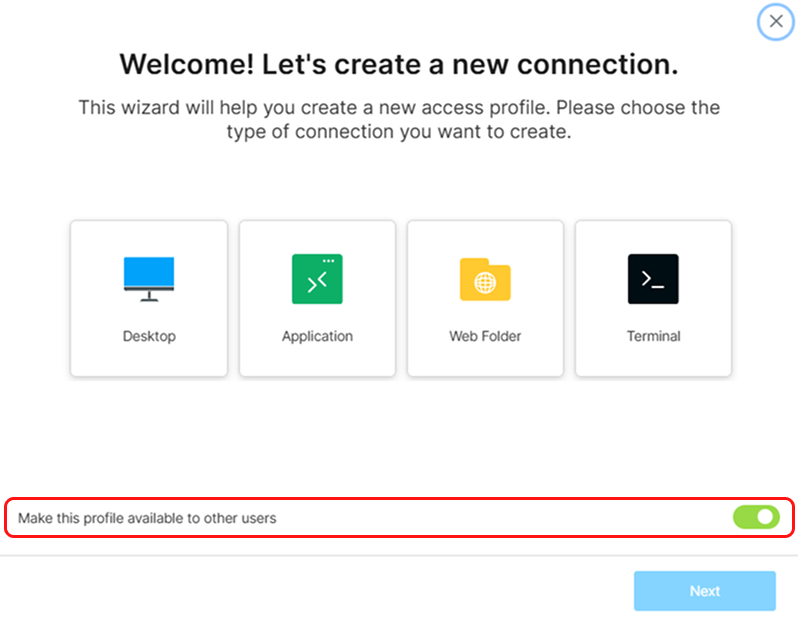
When Private Profiles are enabled, users with permission to create private Access Profiles can use the Access Profile wizard from the Home page to define their own connections and, optionally, share them with other users by selecting the Make available to other users option in the wizard’s first step. This opens a simplified permissions model, allowing the creator to either grant access to all authenticated users or to a selected set of users and groups.