
Enabling H.264 for an Access Profile
Make sure to review the advanced server configurations and any relevant Group Policy settings before enabling this feature. Missing or incorrect system-level settings may prevent the feature from working as expected, even if it’s enabled within Thinfinity® Workspace.
Open the Access Profile Settings menu
In the Thinfinity Workspace home page, locate the Access Profile for which you want to enable H.264 feature, select the three-dot menu and select Edit.
Enable the H.264 option
In the Settings navigate to the Experience tab and enable the H264 option:
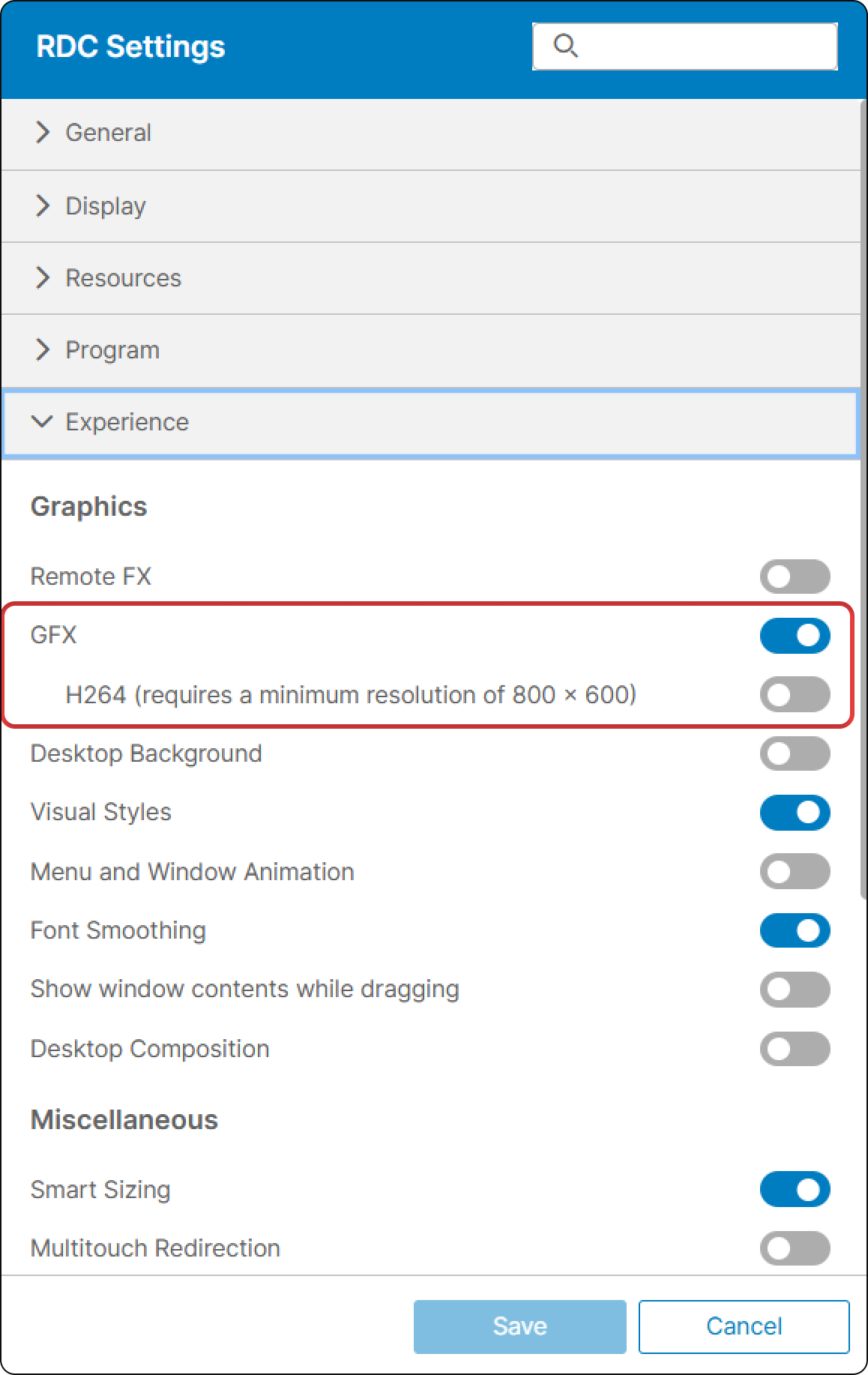
H.264 takes advantage of your GPU, hence, this server must have an H.264 compatible graphics card installed.
For more details on how to enable H.264 on the remote desktop, see the next section Preparing a Remote Desktop for H264 support.