
Monitoring
The Monitoring feature is only available if enabled for a user or for a group of users.
For details on how to enable a feature, see User Interface Permissions and Permissions Tab.
The Monitoring add-on provides real-time telemetry across Thinfinity® Workspace components, giving administrators live visibility into the operational state of the deployment so they can detect and diagnose performance issues as they occur. Where the Analytics add-on reports on historical activity, Monitoring focuses on current state and resource utilization.
To access Monitoring, select the user profile icon and then select Monitoring.
Monitoring tracks six components, each on its own tab: Gateways, Brokers, Services, Agents, Connections, and Sessions. Every tab shares the same list controls — a refresh control, a search box, pagination with an adjustable page size, and a Configure Columns control for showing, hiding, reordering, and resetting the tab’s columns. On the Gateways, Brokers, Services, and Agents tabs, the Metrics Dashboard icon at the end of each row opens time-series charts for that component, described in Metrics Dashboard.
The Gateways tab opens first and tracks each Gateway, the component that handles inbound client traffic.
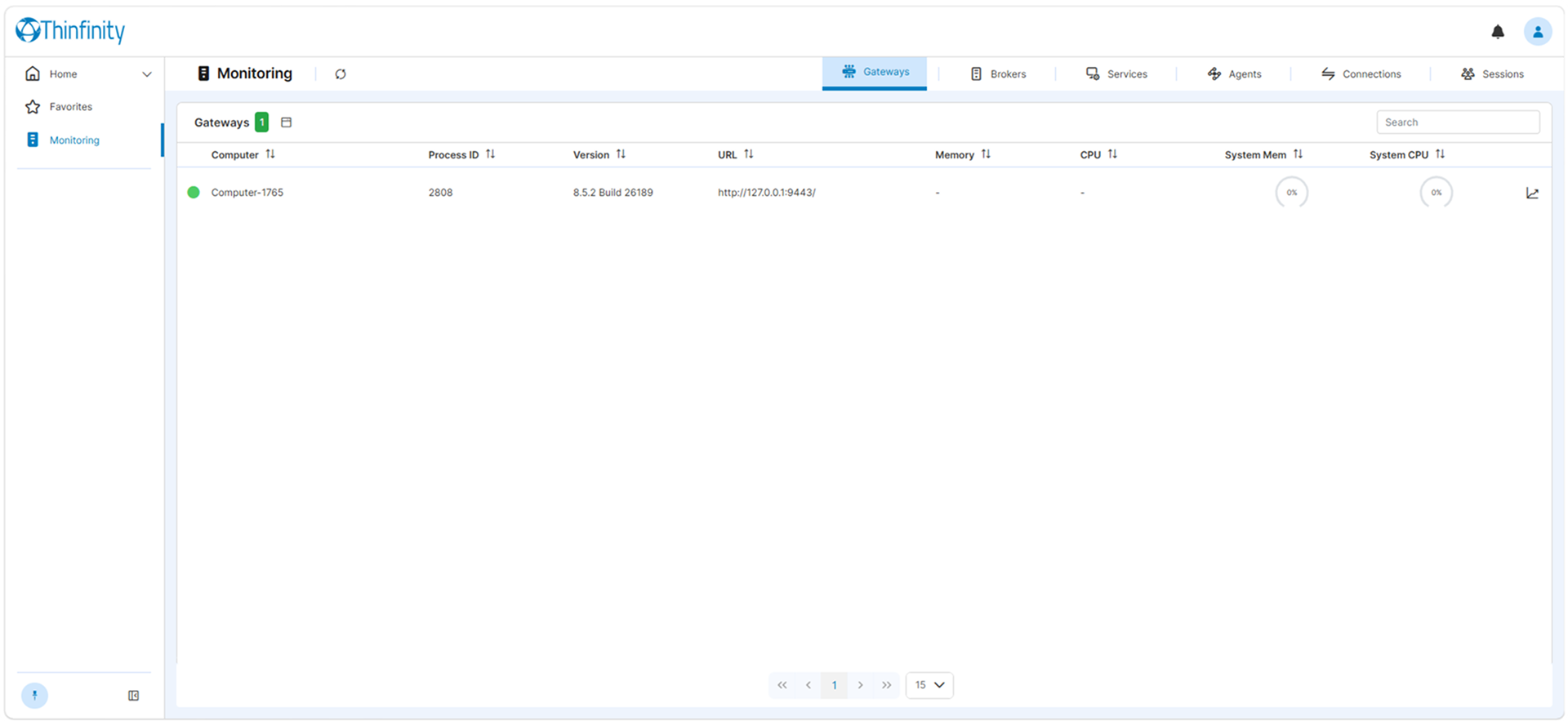
For each Gateway, the list shows the computer name and status, the process ID, the version, the service URL, process memory and CPU, and the host machine’s memory and CPU (shown as System Mem and System CPU).
The Brokers tab tracks each Broker, the component that routes client requests to resources.
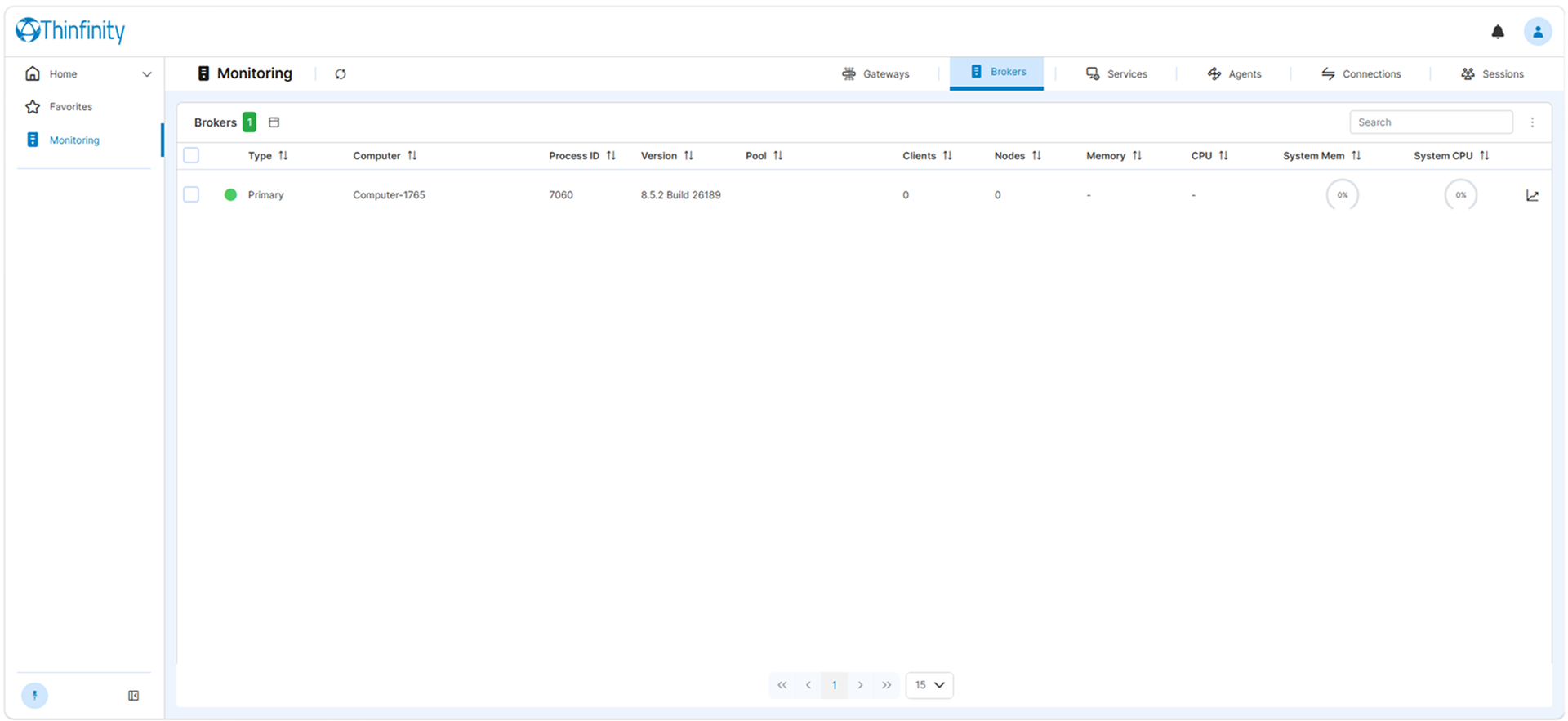
For each Broker, the list shows its type (Primary or Secondary), the computer name and status, the process ID, the version, the pool, the number of connected clients and nodes, process memory and CPU, and the host’s System Mem and System CPU.
The Services tab tracks the Thinfinity® Workspace back-end services running on each host, such as Cloud Manager, Resource Reservation, TLS Tunnel, Enterprise Logging, Web Service API, Notifications, and IDP.
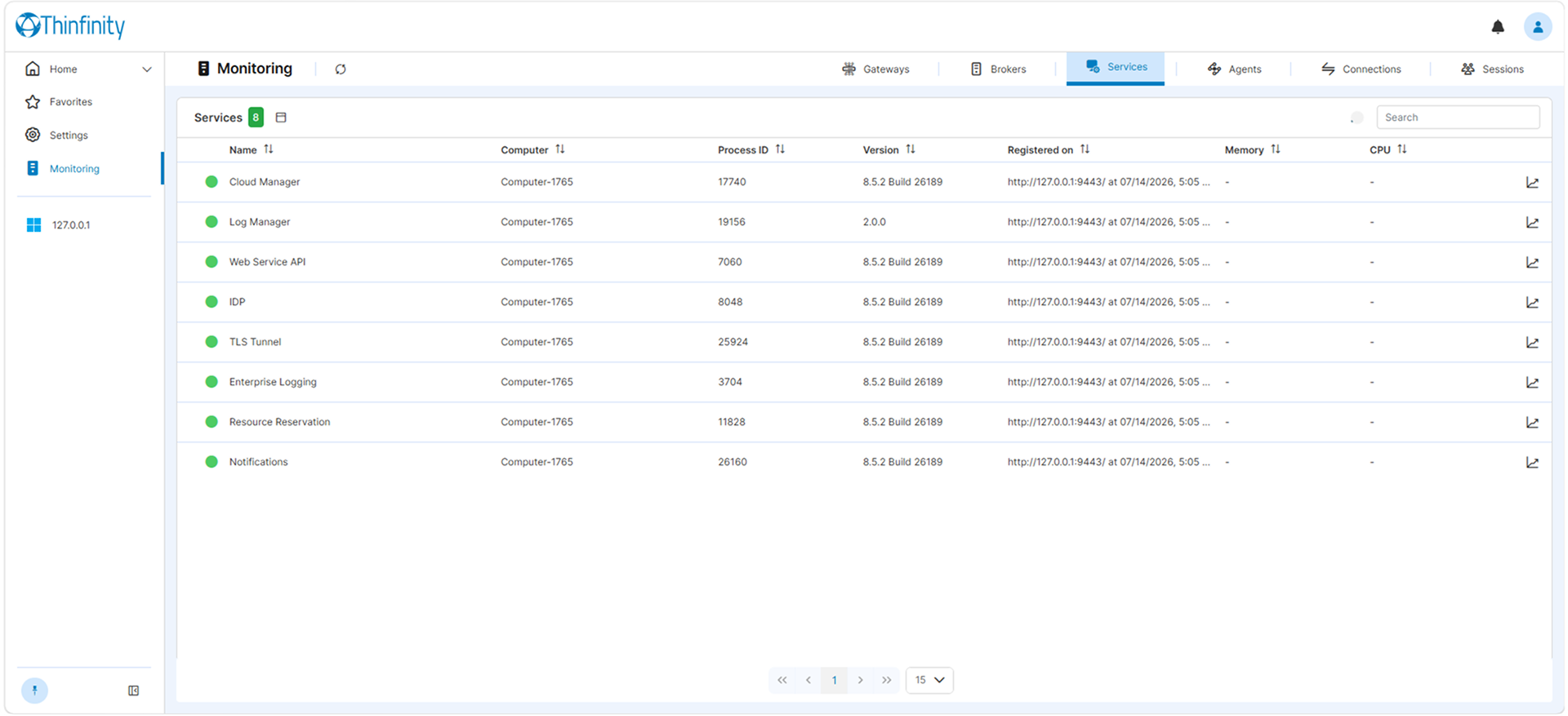
For each service, the list shows its name and status, the computer, the process ID, the version, when it registered, and its process memory and CPU.
The Agents tab tracks the Virtualization Agents that run inside VMs for the Agent ID connection mode.
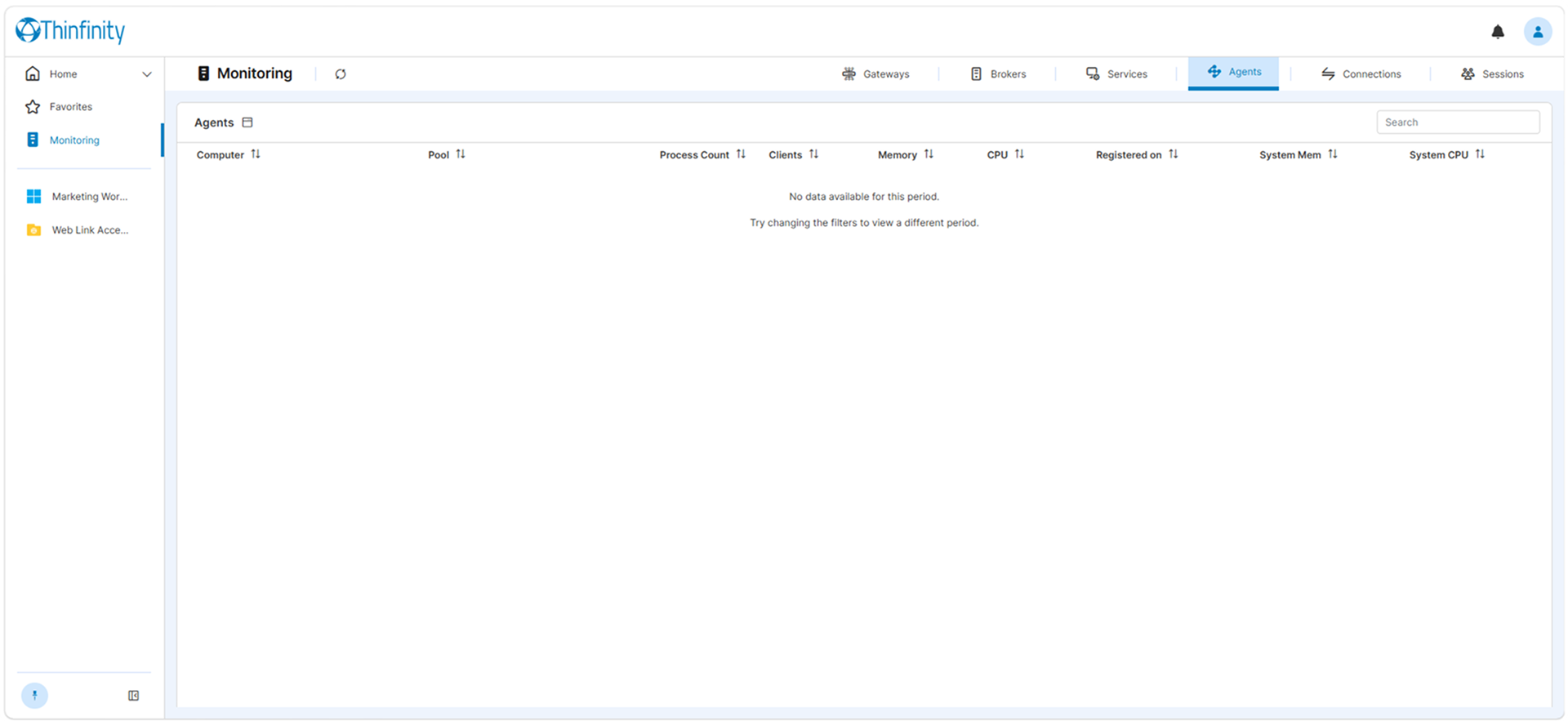
For each Agent, the list shows the computer, the pool, the process count, the number of connected clients, process memory and CPU, when it registered, and the host’s System Mem and System CPU. When no Agents have reported data for the selected period, the tab indicates that none is available and prompts you to adjust the time range.
The Connections tab shows the connections that are currently active, grouped by Access Profile.
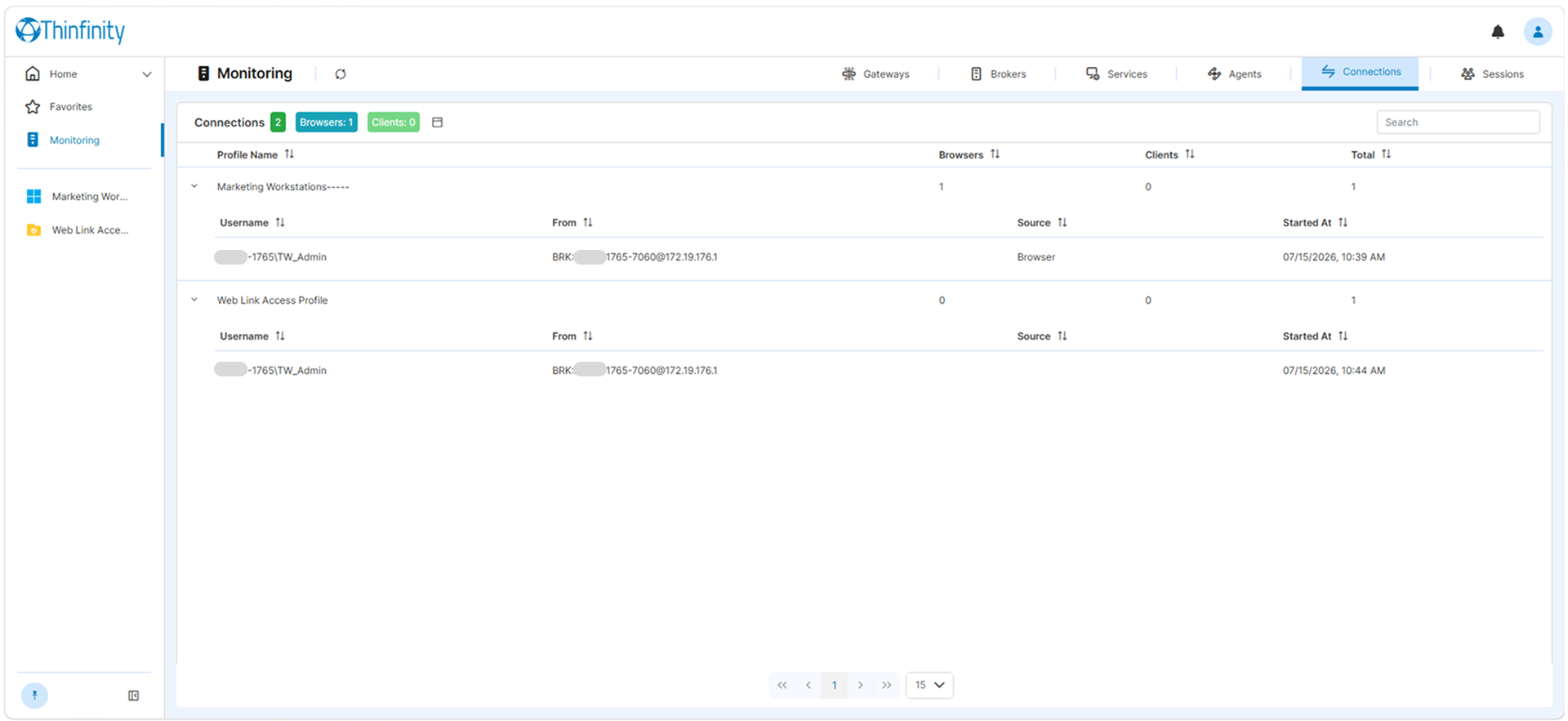
For each profile, the list shows the profile name, the number of browsers and clients, and the total. Expand a profile row to list the individual connections beneath it, each showing the username, the origin it connects from, the client type (for example, Browser), and the start time. When there are no active connections, the tab indicates so.
The Sessions tab lists the users currently logged on to Thinfinity® Workspace.
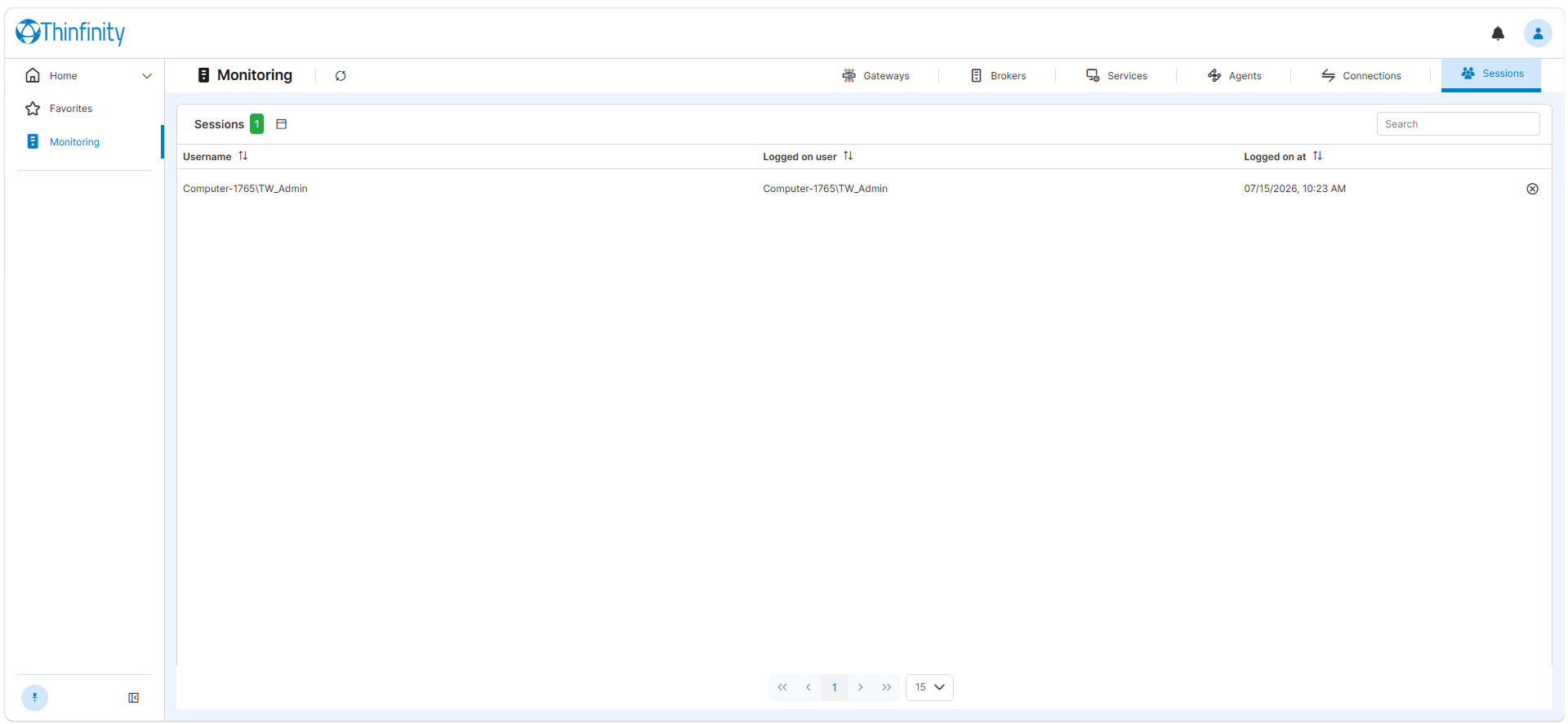
For each session, the list shows the username, the logged-on user, and the logon time, along with an action to disconnect the session.
Disconnecting a session requires the Manage Profiles permission in addition to Monitoring: viewing the Sessions tab needs only Monitoring, but a user must have both permissions to disconnect a session. See User Interface Permissions.
Metrics Dashboard
The Metrics Dashboard plots a component’s metrics over time. Open it from the icon at the end of a row on the Gateways, Brokers, Services, or Agents tab; select the expand icon to view it full screen.
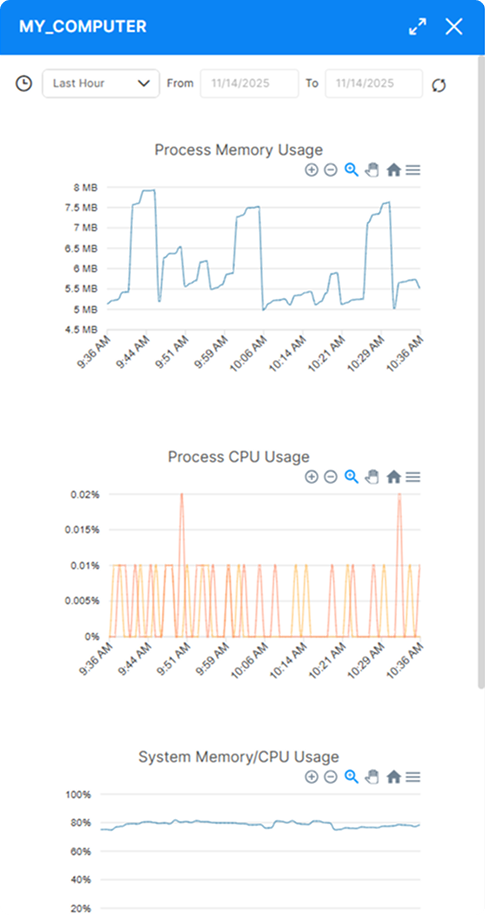
At the top, set the time range: choose a preset from the range dropdown (for example, Last Hour) or enter From and To dates, then refresh to reload the data.
The dashboard shows the following charts:
| Chart | Description |
|---|---|
| Process Memory Usage | Memory used by the component’s process over the selected range. |
| Process CPU Usage | CPU used by the component’s process over the selected range, separated into system and user time. |
| System Memory/CPU Usage | Memory and CPU usage of the host machine over the selected range. |
| Real-Time Metrics | Current host utilization, shown as System Memory Usage and System CPU Usage percentage gauges. |
Each XY chart provides its own tools to zoom in and out, zoom to a selected area, pan, and reset the view, plus a menu to download the chart as SVG, PNG, or CSV.
Use the mouse wheel to zoom in on the charts and adjust the data view.