
Actions
The Actions group of the connection toolbar holds session-level commands.
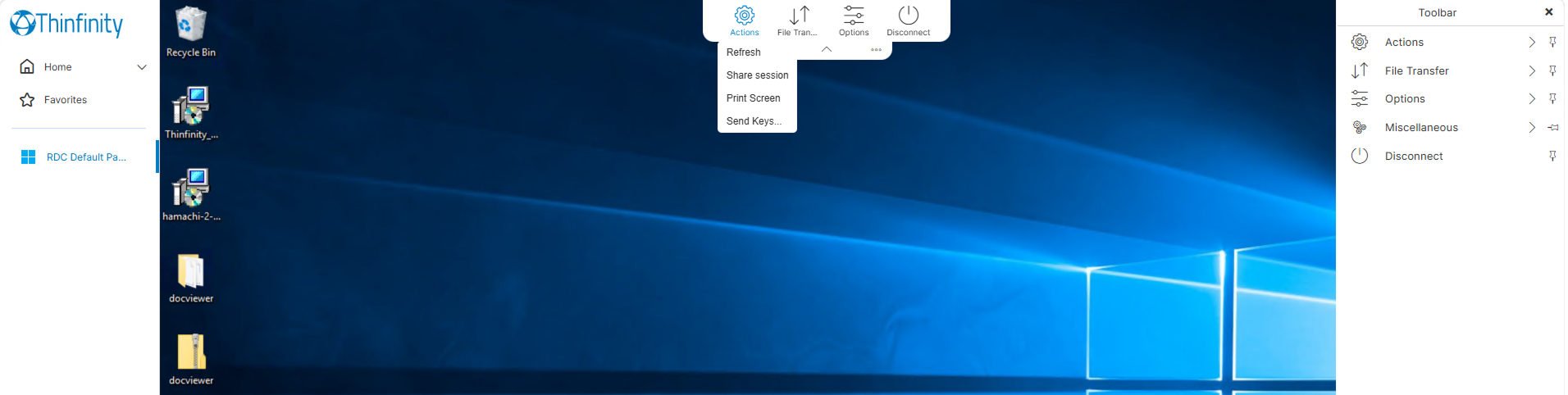
| Option | Description |
|---|---|
| Refresh | Redraws the session display. |
| Share session | Opens the Session sharing dialog, which issues the credentials another user needs to join the live session. Available to users who hold the Can Share Session permission. |
| Print Screen | Captures the session display and hands it to the browser’s print pipeline. See the Print Screen section below for details. |
| Send Keys… | Sends a key combination to the remote resource, including combinations the browser would otherwise intercept. Available to users who hold the Enable Send-Keys permission. See the Send Keys section below for the submenu contents. |
For the permissions that govern Share session and Send Keys…, see Permissions Tab.
Session Sharing
The Session sharing dialog provides two values, each with a copy control:
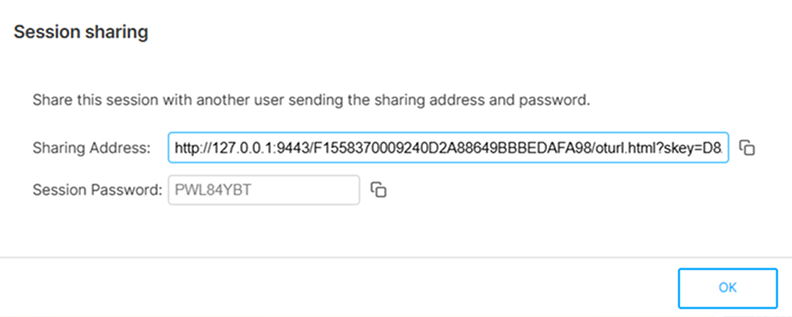
Sharing Address: a temporary URL that opens the shared session.
Session Password: the password the joining user must supply.
The sharing address remains valid for 30 minutes from the moment it is issued, and more than one person can join with it while it is valid. Closing the dialog does not invalidate the address — reopening it presents the same address and password. The address is invalidated when the sharing user’s session ends.
The address opens the same landing page as the one-time URLs used elsewhere in Thinfinity Workspace, but unlike a one-time URL it is not consumed by its first use.
For the one-time URL mechanism, see One-Time URLs (OTURL).
Anyone holding both the sharing address and the session password can join the live session — no Thinfinity Workspace login or permission is required, and the joining user receives keyboard and mouse control. Both values are readable and copyable from the dialog, so treat them as session credentials and transmit them over a channel appropriate to the sensitivity of the resource.
Print Screen
Print Screen captures the session display and hands it to the browser’s print pipeline.
Selecting it opens the Print Screen Preview dialog:
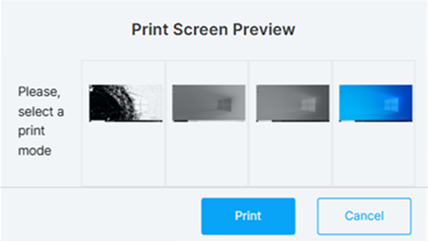
The dialog offers four rendering modes for the capture. The thumbnails have no tooltips or on-hover labels, so they are identified by position — from left to right:
| Mode | Output |
|---|---|
| 1 | Monochrome — a dithered black-and-white rendering, suited to low-ink or high-contrast output. |
| 2 | Grayscale, darker rendering. |
| 3 | Grayscale, lighter rendering. |
| 4 | Color — the capture in its original colors. |
Selecting Print hands the chosen rendering off to the browser; Cancel discards the capture.
The browser’s native print dialog then opens with the capture rendered as a page, headed Thinfinity Remote Workspace - Print Screen alongside the capture timestamp. From there the usual print destinations apply — a physical printer, or Save as PDF to write the capture to a file.
The Print Screen command is a session capture, not a document print. To print a document opened inside the session, use the application’s own print action, which routes through the printers configured for the session.
Send Keys
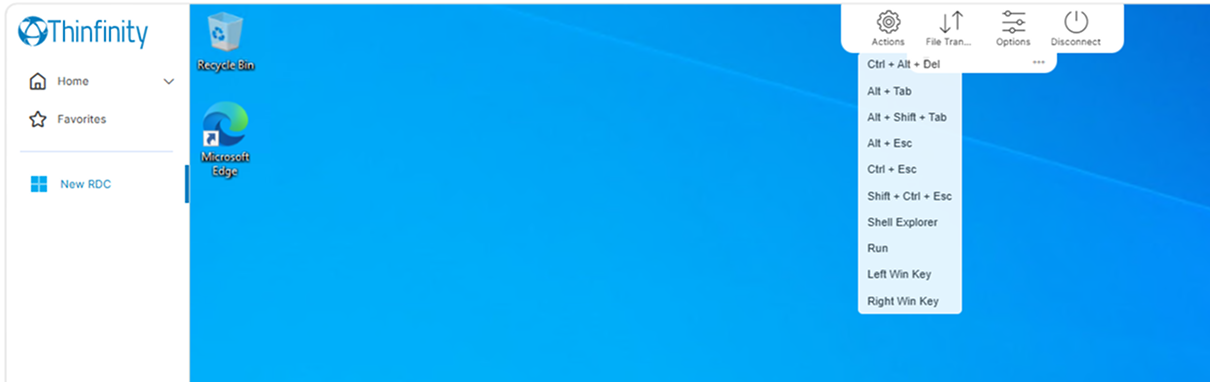
Send Keys… opens a submenu of key combinations and Windows shell actions that the browser would otherwise intercept, so they can be delivered to the remote resource. Available to users who hold the Enable Send-Keys permission.
| Option | Description |
|---|---|
| Ctrl + Alt + Del | Sends the Windows secure attention sequence, which on a Windows resource opens the security screen (Lock, Sign out, Task Manager, and related actions). |
| Alt + Tab | Cycles forward through the open windows in the remote session. |
| Alt + Shift + Tab | Cycles backward through the open windows in the remote session. |
| Alt + Esc | Cycles through the open windows in the order they were opened, without the switcher preview. |
| Ctrl + Esc | Opens the Start menu on the remote resource. |
| Shift + Ctrl + Esc | Opens Task Manager on the remote resource. |
| Shell Explorer | Launches Windows Explorer on the remote resource. |
| Run | Opens the Windows Run dialog on the remote resource. |
| Left Win Key | Sends a press of the left Windows key. |
| Right Win Key | Sends a press of the right Windows key. |