
OAuth 2.0 Settings
To access OAuth 2.0 configuration settings: in the main Thinfinity® Workspace page, select the user profile to access the user menu and select Settings. Next, navigate to Configuration>Authentication>Authentication Methods, select Add and choose OAuth 2.0.
The following options are available:
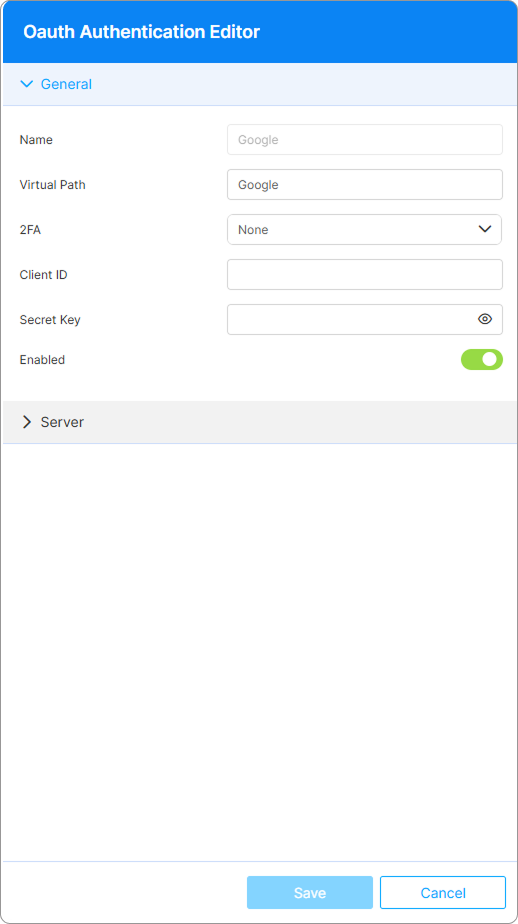
The General tab is available for all the supported ID providers and offers the following parameters:
| Option | Description |
|---|---|
| Name | The name is assigned by default for easy identification within the system, and represents the name of the selected authenticator, it cannot be edited. |
| Virtual Path | Virtual Path to the authentication method service. |
| 2FA Method | If 2FA methods have been enabled for the current installation, this field displays the enabled methods. For details, see Two-Factor Authentication. |
| Client ID | The Client ID generated by OAuth platform when setting up an identity provider, in our example Google. |
| Secret Key | The secret key generated by OAuth platform when setting up Google as identity provider. |
| Enabled | This option is selected by default when adding the authentication method. |
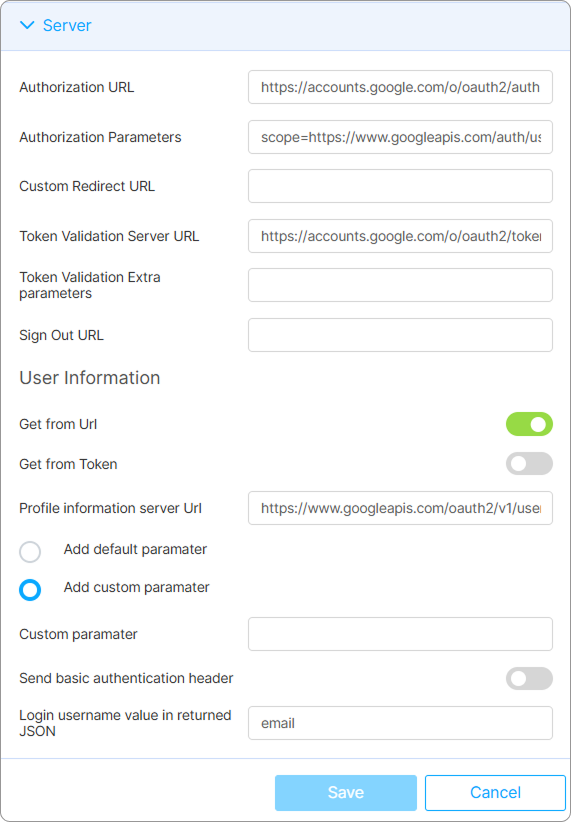
In the Server tab the following options are available:
| Option | Description |
|---|---|
| Authorization URL | This is the OAuth 2.0 server address where Thinfinity Workspace validates users. Completed by default with the info corresponding to the selected identity provider (Google in our example). |
| Authorization Parameters | Enter the required authorization parameters in the following format: key1=value1&key2=value2&... These will be sent to the authorization URL. Most OAuth 2.0 servers require a scope to define the user data Thinfinity Workspace needs for validation. |
| Custom redirect URL | Enter a specific URL that Thinfinity Workspace uses to redirect users back to its platform after they have successfully authenticated through the OAuth flow. |
| Token Validation Server URL | The server where the validation code is exchanged for an access token, which grants access to user information. The client ID and client secret entered in the General tab are sent to this server for authentication. |
| Token Validation extra parameters | Additional settings or options that can be configured during the token validation process in the OAuth implementation. |
| Sign-Out URL | Enter a specific endpoint that allows users to log out or sign out of their session. |
| Get from URL/Get from Token | This option is selected by default, and it indicates the source for the User information. |
| Profile information server URL | The token from the Token Validation Server is sent to the Information Server to retrieve user data. The response is a JSON object, parsed using the key specified in the Login username value at JSON profile field. |
| Add default parameter | This option is selected by default, and it indicates that the default parameters are added to the profile information. |
| Add custom parameter | To specify custom parameters, select this option and add the desired custom parameter in the associated field. |
| Send Basic Authentication header | By default, the complete Authentication Header is transmitted. Select this option to include only the Basic Authentication Header in the message. |
| Login username value in returned JSON | Specify the key in the JSON object returned by the Profile Information Server that represents the user’s login username. This value will be used for mapping in the Mappings tab. |
Reference
For step-by-step instructions on how to configure Single Sign On with different identity providers using OAuth see the Single Sign-On section in our Knowledge Base.