
Telnet SSH Terminal Core Settings
The following core settings are available for a Telnet SSH Terminal Access Profile:
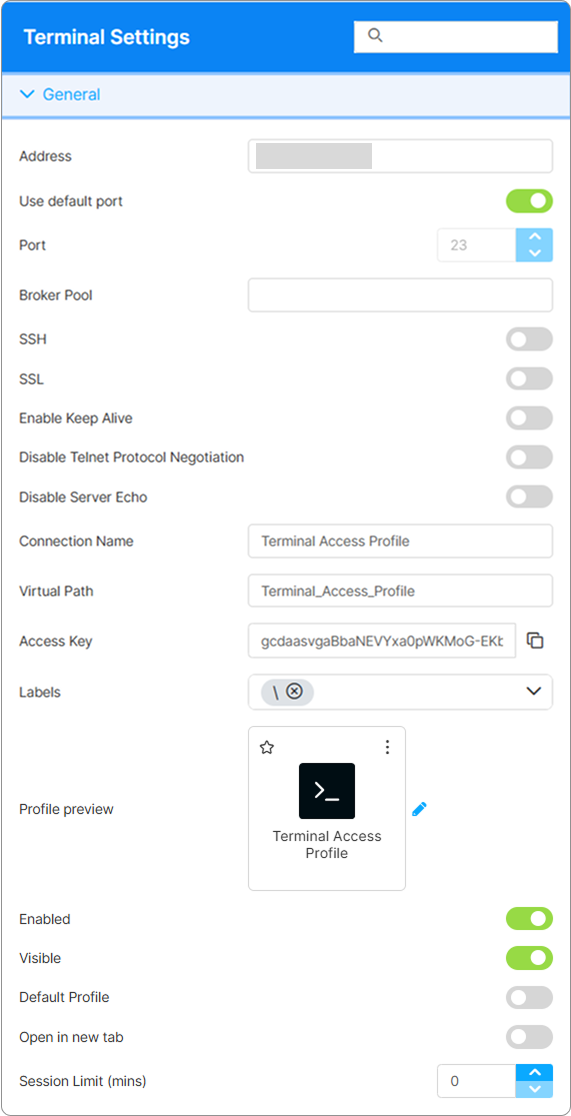
| Option | Description |
|---|---|
| Search field | The search field at the top of the Settings menu allows searching a specific parameter by its name. |
| Address | The IP address or hostname of the resource you want to connect to. |
| Use default port | This option is selected by default and allows the Access Profile to use the default port (which is displayed in the subsequent field). Alternatively, you can deselect this option and use the Port field to enter a custom port number |
| Port | By default, this field cannot be edited, and it shows the default port used for the connection. If Use default port is disabled, this field becomes available, and you can enter a custom port number. |
| Broker Pool | The broker pool that handles connections for this Access Profile. Leave blank to use the default pool (MAIN_POOL unless a different name is configured on the Broker tab). |
| SSH | Enables the SSH (Secure Shell) protocol for the host. Selecting this option will also enable an additional SSH tab in the Settings menu. |
| SSL | Enables the SSL (Secure Sockets Layer) protocol for the host. |
| Enable Keep Alive | Enables keep-alive mechanism, needed for some Telnet servers to prevent disconnections. |
| Disable Telnet Protocol Negotiation | Check this option if you want to omit the protocol negotiation when connecting. |
| Disable Server Echo | Check this option if you don’t want the server to echo every character it receives. |
| Connection Name | The friendly name shown on the Access Profile’s card in the home-page list and on the browser tab when the profile is open. |
| Virtual Path | By default, Thinfinity creates a unique URL address for the current access profile. If you want to customize it, make sure your address is unique and web compatible and that it has the following format: http(s)://ThinfinityDomain:port/VirtualPath/. You can then create a web shortcut for this specific Access Profile and bypass the Thinfinity® Workspace web interface. |
| Labels | Access Profiles can be organized into groups (labels) for which you can collectively manage the permissions settings. This field shows the names of the groups (or labels) that the current profile is a part of. For details, see Labels. |
| Profile preview | Use this button to customize the appearance of your Access Profile by choosing an image. Selecting the image will open the Customize Profile dialog window where you can select one of the available images or upload one from your computer. |
| Enabled | When on (default), the Access Profile is available. When off, direct URLs no longer route to it and the profile disappears from the home-page card list. |
| Visible | When on (default), the Access Profile appears on the home-page card list for users who have permission to it. When off, the card is hidden, but users with the direct URL can still open the profile. |
| Default Profile | When on, users who have this Access Profile log in and connect directly to it, skipping the home page. |
| Open in a new tab | When on, launching this Access Profile opens it in a new browser tab. When off (default), it opens in the current tab. |
| Session Limit (mins) | Maximum session duration in minutes of total connected time (regardless of activity). Users see a warning banner during the last 5 minutes; when the limit is reached, the session is hard-disconnected. Set to 0 to disable (default). |
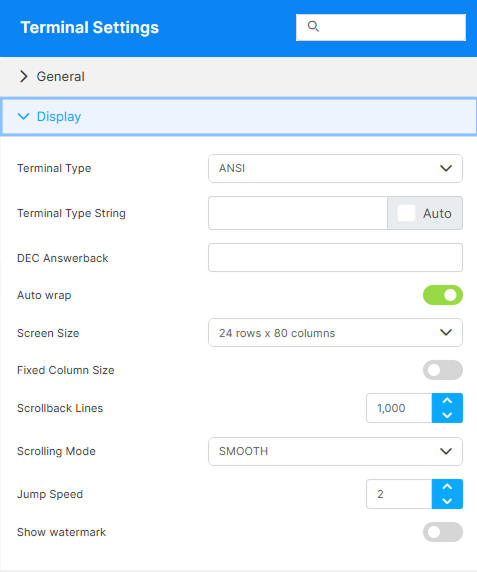
| Option | Description |
|---|---|
| Terminal Type | Specify the type of terminal to emulate (Which is not necessarily the same that is reported to the server). |
| Terminal Type String | Use the String field to specify to the server of a different type of terminal than the one emulated. Check the Auto checkbox to automatically detect the type of terminal. |
| DEC Answerback | Specify the DEC Answerback message control character. |
| Auto Wrap | Enable or disable text line wrapping when the terminal is resized. |
| Screen Size | Select any size from the options available in the dropdown list.Custom: Allows you to type in specific values. |
| Fixed Column Size | Displays a horizontal scrollbar instead of resizing the font. |
| Scrollback Lines | Specify the number of rows to retain in the buffer for scrolling using the vertical scrollbar. |
| Scrolling Mode | Smooth: Adjusts the scroll speed for a gradual transition.Jump: Specifies the speed of the jumps during scrolling. |
| Jump Speed | Specifies the speed of the jumps during scrolling. |
| Show watermark | Overlays a watermark on the terminal session that identifies the user, so a screenshot taken from the session can be tied back to the person who captured it. Intended for accountability in environments where session screenshots may be circulated. Disabled by default. |
| Watermark text | Available when Show watermark is enabled. The template rendered as the watermark. Free-form text and placeholders can be combined; only $(LOGIN_USER) (the session user’s account name) is substituted — other $(NAME) tokens are rendered literally. Default: $(LOGIN_USER). |
Reference
The watermark’s visual appearance (color, font, layout, and more) can be customized globally through common.settings.js. See Watermark Visual Customization.
Note that this tab is only available if you enable the SSH option from the General tab.
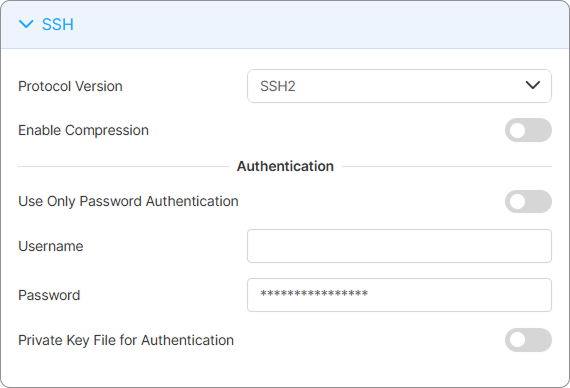
| Option | Description |
|---|---|
| Protocol Version | Choose between SSH1 and SSH2. |
| Fixed Column Size | Displays a horizontal scrollbar instead of resizing the font. |
| Use Only Password Authentication | Enable this option to set specific credentials. |
| Credentials: Username/ Password | Credentials to access to the host via the SSH protocol. |
| Private key file for authentication | Enables the use of a private key file. Selecting this option will enable an additional File name field. |
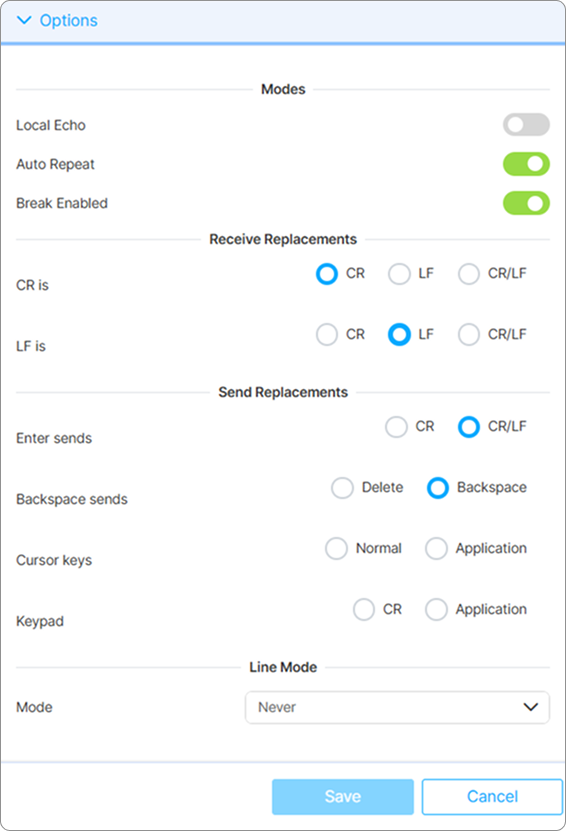
| Option | Description | |
|---|---|---|
| Local Echo | Enables local echoing of characters when the server does not provide character feedback. | |
| Auto Repeat | Enables the auto repeat feature for the keyboard. | |
| Break Enabled | Enable to use the break command. | |
| CR/LF is | Desired behavior for the Carriage Return (CR) and Line Feed (LF) commands. | |
| Enter sends | Desired behavior for the Enter key. | |
| Backspace sends | Desired behavior for the Backspace key. | |
| Cursor Key | How the cursor is interpreted. | |
| Keypad Key | How the keypad is interpreted. | |
| Line Mode | Each of these modes controls when and how input is sent to the server, and the choice depends on how interactive or buffered the communication needs to be |
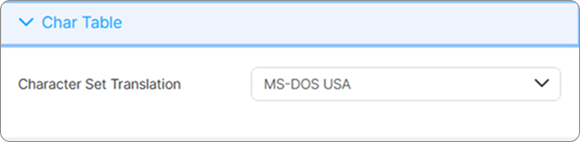
Character set translation, also known as character encoding conversion, is a process that converts text from one character encoding scheme to another. It ensures that the characters typed or displayed on the client are correctly interpreted by the server, and vice versa, even if they use different character sets.
Reference
For access control and user permissions, see Access Control Settings.