
VNC Core Settings
The following core settings are available for a VNC access profile.
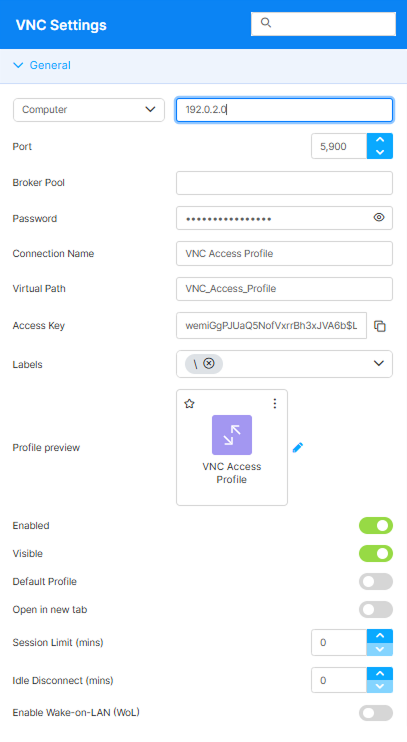
| Option name | Description |
|---|---|
| Search field | The search field at the top of the Settings menu allows searching a specific parameter by its name. |
| Connection target | The dropdown at the top of the General section selects what this Access Profile connects to. It carries no label of its own: it displays the option currently selected. The available options are Computer, Agent ID, Agent Pool, Managed VMs, and VDI/DaaS Models; the field to its right takes the corresponding value. For Computer, enter the IP address or hostname of the resource. For Agent ID, paste the target agent’s ID (shown in the agent’s Configuration Manager, typically in the format hostname@ip). For Agent Pool, enter the name of a registered pool. For Managed VMs and VDI/DaaS Models, the value field becomes a picker of the entities registered with Cloud Manager; see the Cloud Manager Manual for details on how those options work. The list of options is not fixed: Managed VMs and VDI/DaaS Models appear only when the Cloud Manager (VDI) service is available and you have the View Instances permission, and are not offered in a non-public workspace. |
| Use instance | This option is only available if Managed VMs is selected as the connection target. By default, it is not enabled, and it means that the current Access Profile will connect to any of the available VMs. If you enable this option, the Available instances field will become available, and you will be able to select a specific VM instance where to connect the Access Profile. |
| Available instances | This field is only available if you enable the Use Instance option. It displays a list of VM instances available in the selected Managed VM. |
| Use Staging | This option is only available if VDI/DaaS Models is selected as the connection target. It enables the use of different versions of the selected VDI/DaaS model. For details on working with VDI/DaaS models and staging, see the Cloud Manager Manual. |
| Stop After Disconnect | This field is available when Managed VMs or VDI/DaaS Models is selected as the connection target. Set a fixed number of minutes for the VM to keep running after disconnecting from it. |
| Port | Indicate the network port used to listen for incoming connections from VNC client (Default is 5900). |
| Broker Pool | The broker pool that handles connections for this Access Profile. Leave blank to use the default pool (MAIN_POOL unless a different name is configured on the Broker tab). |
| Password | Set a password for the profile. |
| Connection Name | The friendly name shown on the Access Profile’s card in the home-page list and on the browser tab when the profile is open. |
| Virtual Path | By default, Thinfinity creates a unique URL address for the current access profile. If you want to customize it, make sure your address is unique and web compatible and that it has the following format: http(s)://ThinfinityDomain:port/VirtualPath/. You can then create a web shortcut for this specific access profile and bypass the Thinfinity® Workspace web interface. |
| Access Key | A unique, read-only identifier that the Thinfinity Workspace REST API and external integrations use to reference this Access Profile. It is generated automatically when the profile is created and is not a password or authentication secret. Use the copy button to copy it. |
| Labels | Access profiles can be organized into groups (labels) for which you can collectively manage the permissions settings. This field shows the names of the groups (or labels) that the current profile is a part of. For details, see Label. |
| Profile preview | Use this button to customize the appearance of your Access Profile by choosing an image. Selecting the image will open the Customize Profile dialog window where you can select one of the available images or upload one from your computer. |
| Enabled | When on (default), the Access Profile is available. When off, direct URLs no longer route to it and the profile disappears from the home-page card list. |
| Visible | When on (default), the Access Profile appears on the home-page card list for users who have permission to it. When off, the card is hidden, but users with the direct URL can still open the profile. |
| Default Profile | When on, users who have this Access Profile log in and connect directly to it, skipping the home page. |
| Open in new tab | When on, launching this Access Profile opens it in a new browser tab. When off (default), it opens in the current tab. |
| Session Limit (mins) | Maximum session duration in minutes of total connected time (regardless of activity). Users see a warning banner during the last 5 minutes; when the limit is reached, the session is hard-disconnected. Set to 0 to disable (default). Only available when Computer, Agent ID, or Agent Pool is selected as the connection target. |
| Idle Disconnect (mins) | Disconnects the session after the specified number of minutes without user activity, up to 1440. Set it to 0 to disable the inactivity cut-off. Only available when Computer, Agent ID, or Agent Pool is selected as the connection target. |
| Enable Wake-on-LAN (WoL) | Sends a Wake-on-LAN magic packet to the target computer before connecting, so a device that is powered off or in a low-power state (sleep or hibernate) can be turned on remotely. Only available when Computer is selected as the connection target; not shown for Agent ID, Agent Pool, Managed VMs, or VDI/DaaS Models. Disabled by default. |
| MAC Address | The hardware (MAC) address of the target computer’s network adapter, used to address the Wake-on-LAN magic packet. Only available when Enable Wake-on-LAN (WoL) is enabled. If left empty, Thinfinity Workspace uses the MAC address it cached from a previous successful connection; entering it explicitly is recommended so wake-up works on the first connection. Use the format XX-XX-XX-XX-XX-XX; several addresses can be separated by semicolons. |
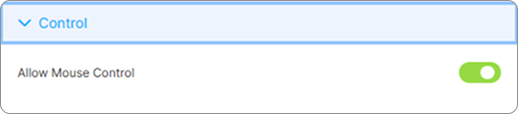
Allows or disallows control over the mouse.
Wake-on-LAN Requirements
For Wake-on-LAN to wake the target, enable it in the target’s BIOS/UEFI firmware and network adapter, and keep the target on the same subnet as the Thinfinity Workspace server that connects to it — the magic packet is broadcast and is not routed across subnets. Enter the target’s MAC address (or leave it empty only if the machine has connected before). Wake-on-LAN does not apply to Managed VMs or VDI/DaaS Models, which are powered on by Cloud Manager; use Stop After Disconnect for those.
For details on options related to customizing the user experience, see VNC User Experience Settings.
For access control and user permissions, see Access Control Settings.