
License Tab
The License tab serves as a centralized hub for product licensing and versioning information. Administrators can use this tab to view details about the current software license, ensuring compliance with licensing agreements and verifying that the system operates with the correct feature set. It also helps confirm that Thinfinity® Workspace is properly licensed and up to date, supporting the required features.
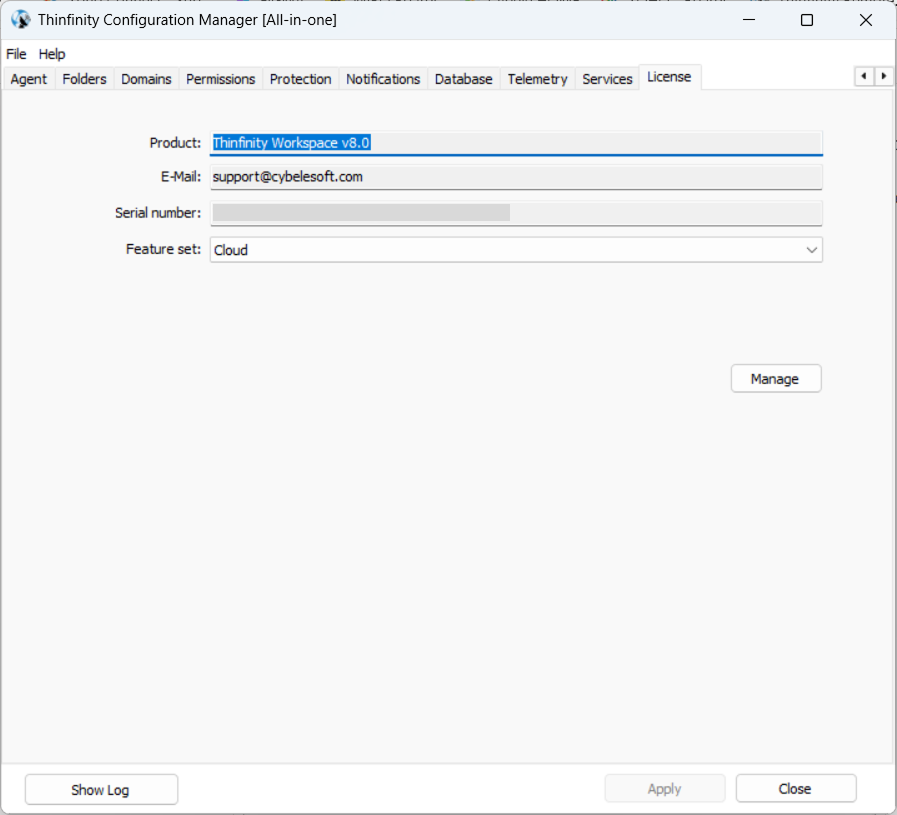
| Option | Description |
|---|---|
| Product | Shows the currently installed version of Thinfinity Workspace. |
| The email address associated with the license, typically linked to the organization or individual that holds the license. | |
| Serial Number | The unique identifier for the product license, used for validating and activating the software. |
| Feature Set | Specifies the level of the license, which can be Standard, Cloud, or Enterprise. Each feature set offers different capabilities, with Standard providing basic functionality, Cloud offering cloud-related features, and Enterprise including advanced, large-scale functionalities. |
| Manage | Offers access to the License Server Manager. |
The License Server Manager offers the following options.
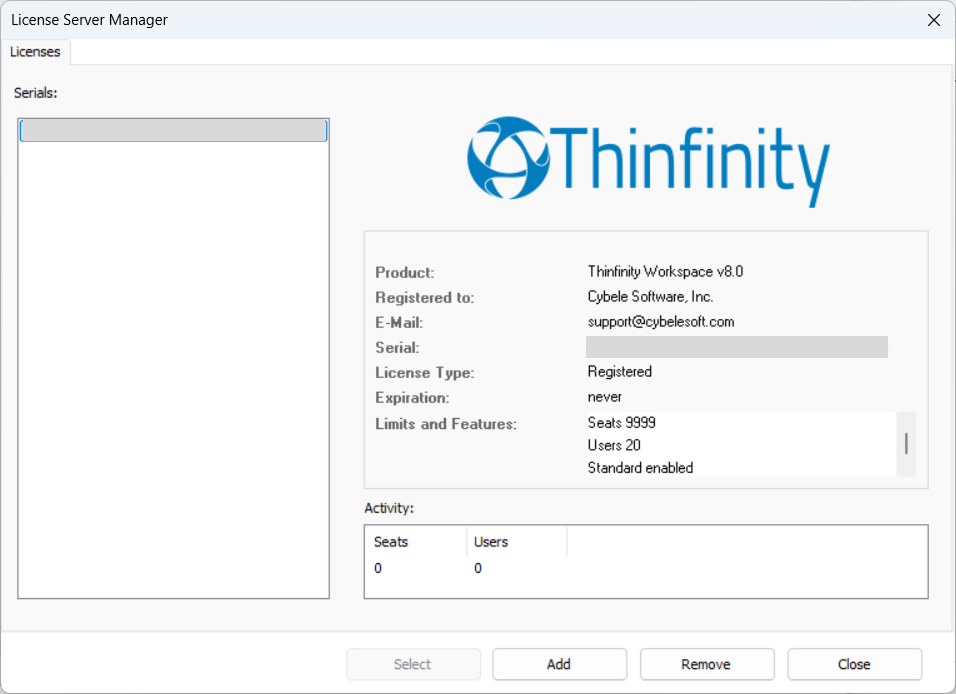
| Option | Description |
|---|---|
| Serials | List of available licenses. |
| Select | If you registered several serials on this server, this button allows you to select the key you wish to use. |
| Add | Offers access to the Product Activation wizard and allows you to add a new license or activate an existing one. |
| Remove | Deactivates the license on this machine. This will allow you to use the license somewhere else, or to re-use the license after reinstalling Windows. |
| Close | Closes the License Server Manager. |
| Activity | Shows in real time the number of users consuming a license. |
Reference
For details on how to activate licenses and other operations, see Using the License Server Manager.