
RBI App Settings
An RBI App Access Profile lets users browse the web through Remote Browser Isolation (RBI): the browser runs in a container on a remote Kubernetes cluster and is streamed to the user, rather than running on their device. This keeps untrusted web content, scripts, and downloads away from the endpoint. The isolated browser is defined by a Kubernetes Model from Cloud Manager; the profile editor binds the profile to that model and sets the controls for the streamed session.
For details on how to create an RBI App Access Profile, see RBI App.
To access an RBI App Access Profile’s settings: from the user menu select Settings then Access Profiles, and in the Public Profiles tab, select the Edit icon of the Access Profile you want to edit. The editor opens as the RBI Settings panel.
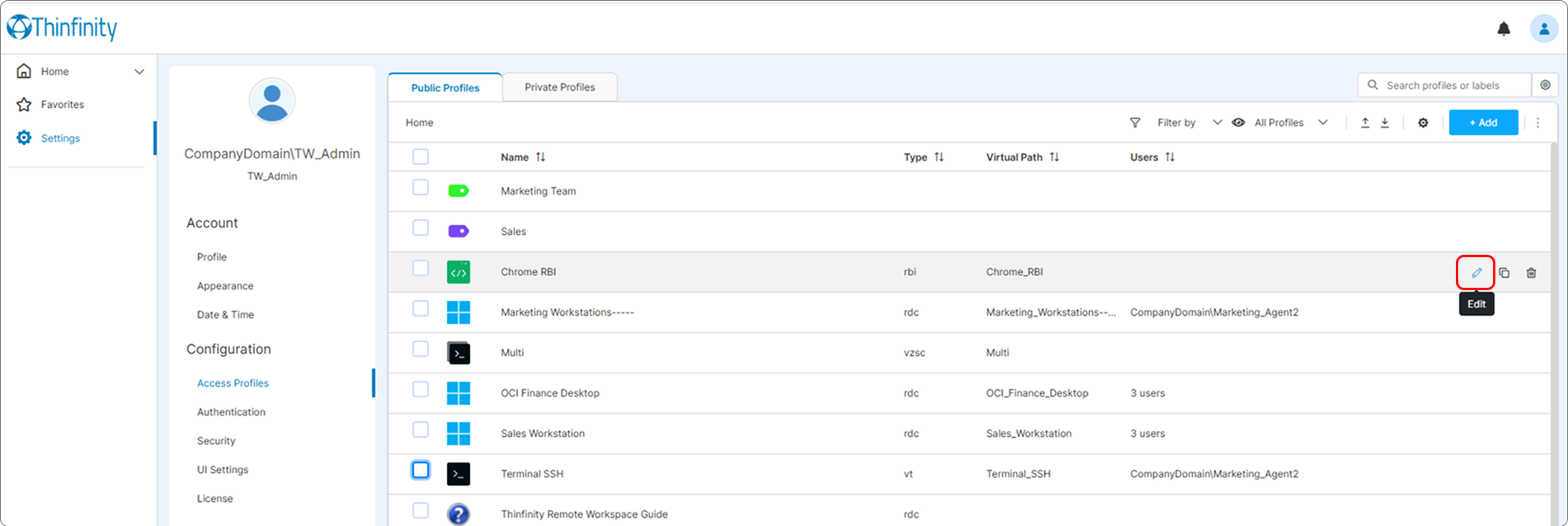
The RBI Settings editor groups its parameters into collapsible sections: General, Display, Resources, Access Hours, Permissions, Restrictions, and Resource Reservation.
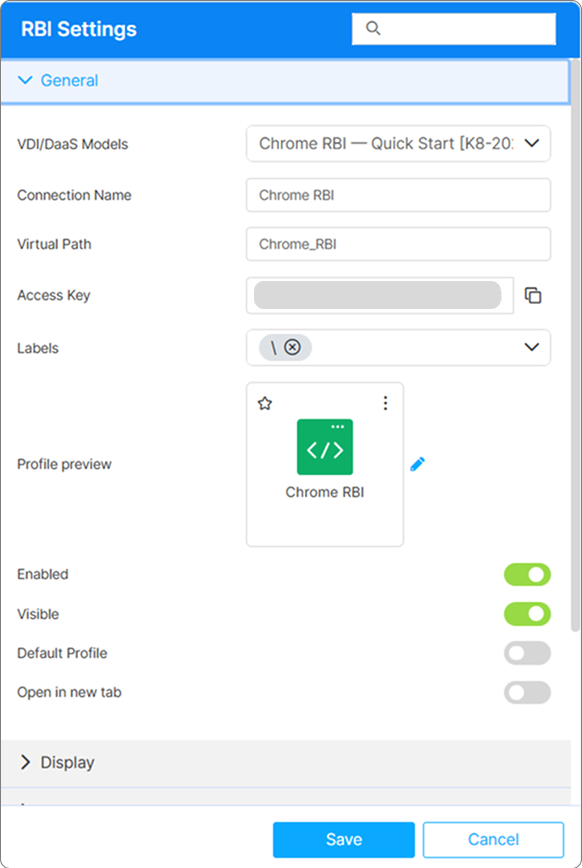
General
The General section binds the profile to its Kubernetes Model and sets the profile’s identity and visibility.
| Field | Description |
|---|---|
| Connection target | The dropdown at the top of the General section selects what this Access Profile publishes. It carries no label of its own: it displays the option currently selected. For an RBI App, the target is a Cloud Manager Kubernetes Model (selected via the VDI/DaaS Models option); the picker to the right lists the registered Kubernetes Models. The chosen model defines the isolated browser this profile publishes. |
| Connection Name | The name of the Access Profile. |
| Virtual path | By default, Thinfinity creates a unique URL address for the current access profile. If you want to customize it, make sure your address is unique and web compatible and that it has the following format: http(s)://ThinfinityDomain:port/VirtualPath/. You can then create a web shortcut for this specific access profile and bypass the Thinfinity Workspace web interface. |
| Access Key | A unique, read-only identifier that a REST API and external integrations use to reference this Access Profile. It is generated automatically when the profile is created and is not a password or authentication secret. Use the copy button to copy it. |
| Labels | Access profiles can be organized into groups (labels) for which you can collectively manage the permissions settings. This field shows the names of the groups (or labels) that the current profile is a part of. For details, see Label. |
| Profile Preview | Use this button to customize the appearance of your Access Profile by choosing an image. Selecting the image will open the Customize Profile dialog window where you can select one of the available images or upload one from your computer. |
| Enabled | This option is selected by default, and it indicates that the access profile is active and ready to be used. To disable the profile, uncheck this option. |
| Visible | This option is selected by default, and it indicates that the access profile is currently visible. To hide it, uncheck this option. |
| Default Profile | When selected, Thinfinity Workspace will skip the home page and connect directly to this Access Profile. |
| Open in new tab | Opens the Access Profile in a new browser tab. |
Display
The Display section controls the visual quality of the streamed browser.
| Field | Default | Description |
|---|---|---|
| Quality | Optimum | Image quality of the streamed session — Low, Optimum, or High — trading visual fidelity against bandwidth. |
| High DPI | Off | Increases rendering density for sharper text and UI on high-resolution displays. |
Resources
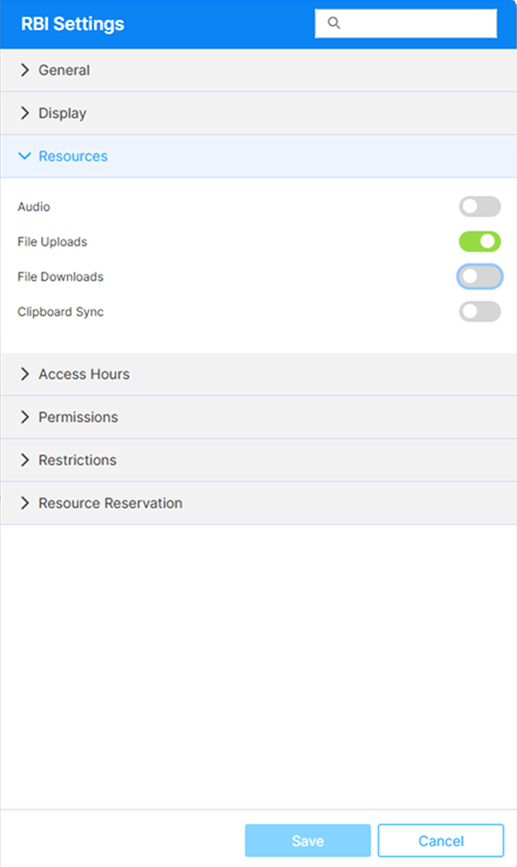
The Resources section governs which session channels are available to the user. All are off by default, so each is opt-in.
| Field | Default | Description |
|---|---|---|
| Audio | Off | Streams the isolated browser’s audio to the user’s device. |
| File Uploads | Off | Lets users upload files from their device into the isolated session. |
| File Downloads | Off | Lets users save files downloaded inside the isolated browser to their local device. Each download prompts the user to accept or decline. |
| Clipboard Sync | Off | Synchronizes clipboard text between the isolated browser and the user’s device. |
Access Hours, Permissions, Restrictions, and Resource Reservation are common to all Access Profiles. For details, see Access Profile Security Settings.