
Audit Log
The Audit Log feature is only available if enabled for a user or for a group of users.
For details on how to enable a feature, see User Interface Permissions and Permissions Tab.
The Audit Log feature allows administrators to track user activity across the platform for enhanced security and compliance. These logs capture detailed information about user access, session activity, and any changes made within the system, ensuring comprehensive visibility into platform usage.
Each event in the log includes information such as the time it occurred, the component or feature being used, the source of the action, and the specific activity performed.
Additionally, it records who initiated the action, their IP address, the outcome (e.g., success, failure, deletion, or creation), and an accompanying message that provides context on the event status.
To access the Audit Log add-on, select the user profile icon and then select Audit Log.
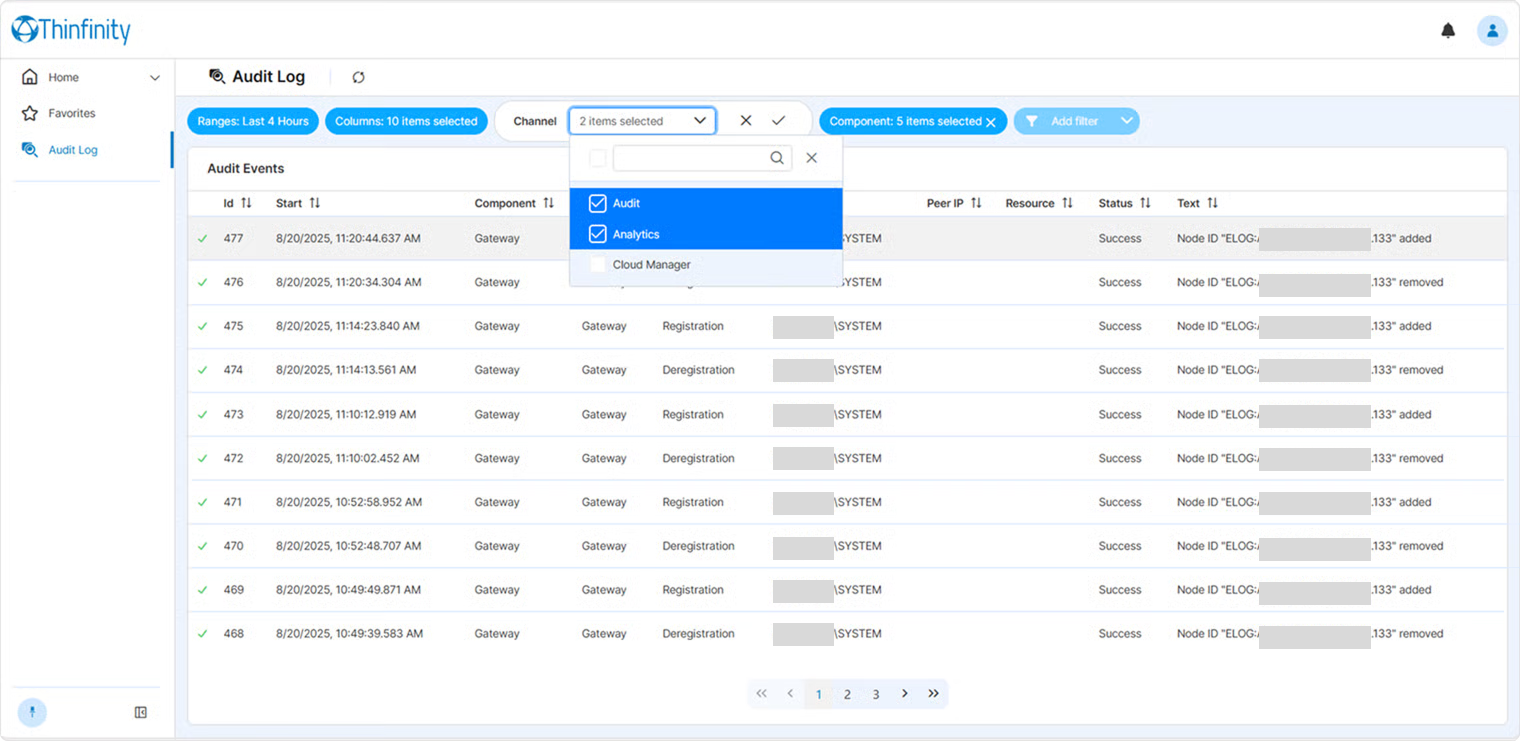
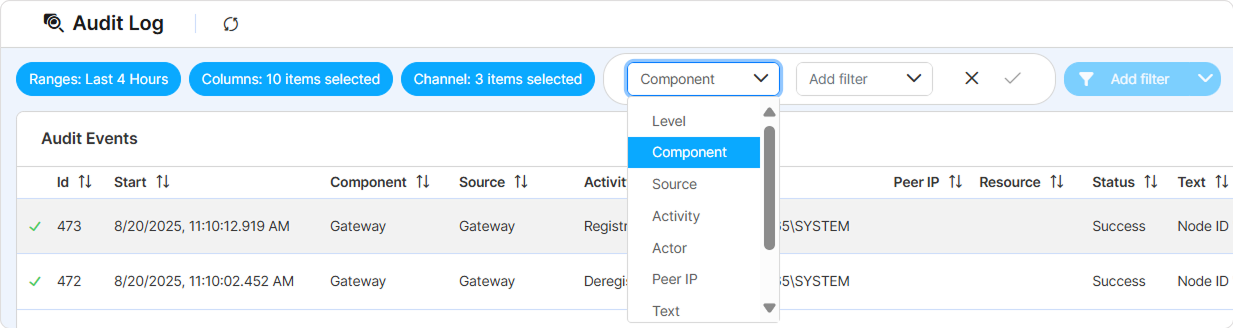
The Filters toolbar at the top of the page offers filters and sorting features to customize the displayed logs such as time range, number of visible columns, sections (Audit, Analytics, and VDI), and custom filters. Select a button from the toolbar to display the available options.
The event table is paginated: the selector in the table footer sets how many events are shown per page — 10, 20, 50, or 100. The same selector is available wherever the platform opens this table, such as the per-instance View Log dialog in Cloud Manager.
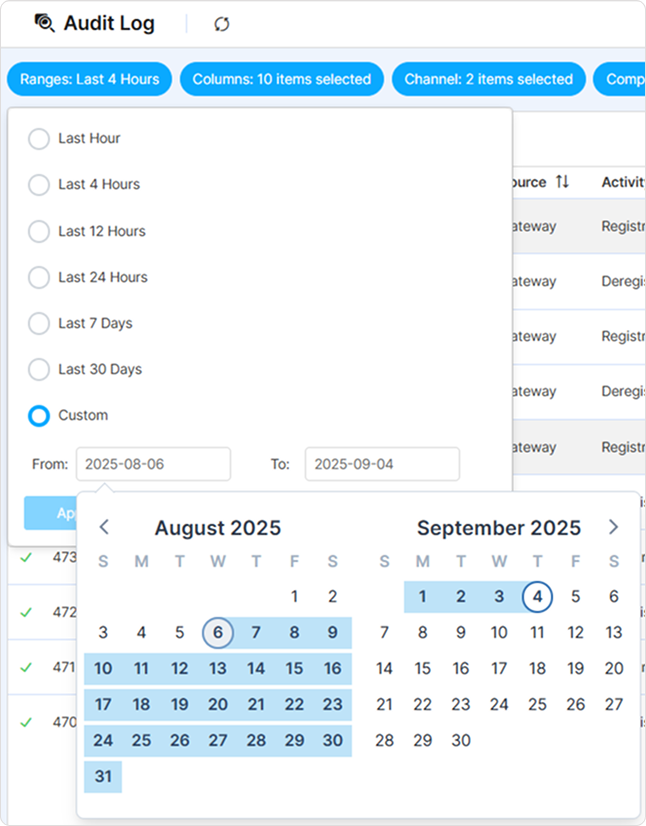
Use one of the available date ranges or define a custom one.
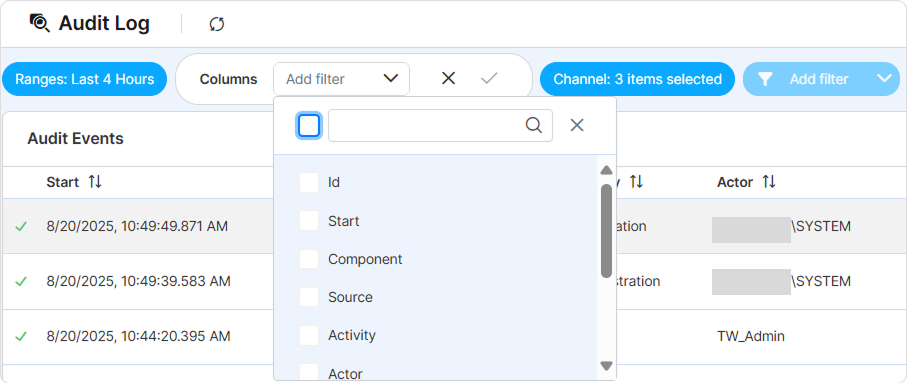
Select this button to display a list of all the columns that can be displayed. Use the available options to select the columns you want to display, then select the OK button.
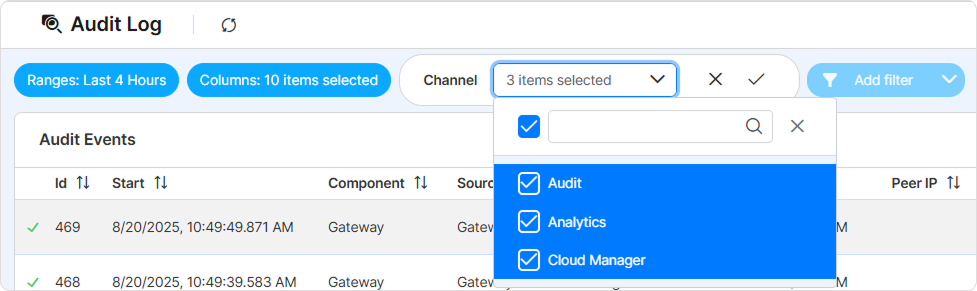
Use this button to select the source of the data. Select it to display the available channels.
Selecting this button displays additional filtering options. Choose the filters and the corresponding options from the associated field, then select the OK button.
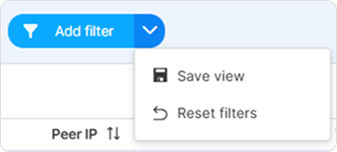
Selecting the arrow button of the Add filter button will display two options: Save view and Reset filters.
The table below describes each filter and shows representative options. The Component, Source, and Activity dropdowns group a large catalog of operational origins — the examples below are a few per category, not a full enumeration. Open the dropdown in the UI for the complete, current list.
The Component filter is designed as a single umbrella over every operational origin in the platform — the core infrastructure, add-ons, services, and protocol libraries alike. Gathering them under one dropdown is deliberate: an administrator filtering an audit trail typically wants to narrow by “where did this happen” without having to pick the conceptual category first. The grouping below is a reading aid, not a division enforced by the UI.
| Filter | Available options |
|---|---|
| Level | OK, Warning, Error |
| Component | Representative options grouped by category — core components: Gateway, Broker, Configuration Manager; session types: Remote Desktop, Thinfinity VNC, WebApp Gateway; add-ons: Cloud Manager, Resource Reservation; identity: Remote AD, Identity Provider; protocol libraries: RDP Library, VirtualUI Library, VNC Library; infrastructure services: TLS Tunnel, ACME. |
| Source | A narrower origin within a Component. Representative options grouped by category — infrastructure: Broker, Gateway, Web Server, Rest API; session connectors: RDP Connector, VUI Connector, ThinVNC Connector; authentication: Authentication Methods, Remote AD, IP Security; features: Access Profile, Web Dav, Deployment Planner; add-ons / external: Cloud API, ACME, WAF. |
| Activity | Representative options grouped by category — session: Log In/Log out, Connection/Disconnection, File Transfer; configuration: Configuration, Parameter Settings; users and permissions: New User Added, Password Change, Permissions; Resource Reservation: Reservation Created, Reservation Expired; ACME: ACME Registration, ACME Revocation; security: Blacklisting, WAF Block. |
| Actor | (manual entry) |
| Peer IP | (manual entry) |
| Text | (manual entry) |
| Status | Info, Start, Progress, Success, Failed, Queued, Created, Changed, Updated, Deleted, Closed, Idle, Resolving, Connecting, Access Granted, Retrying |
| Resource | (manual entry) |