
Mappings Tab
The Mappings tab allows administrators to link external identities from various authentication systems (like Google, Azure AD, or SAML) to specific local or domain users and groups within their existing infrastructure. While Directory Services define the “who,” the Mappings tab defines “how” those users are handled when they arrive from an external source.
To access mappings configuration settings, navigate to Configuration Manager>Authentication>Mappings.
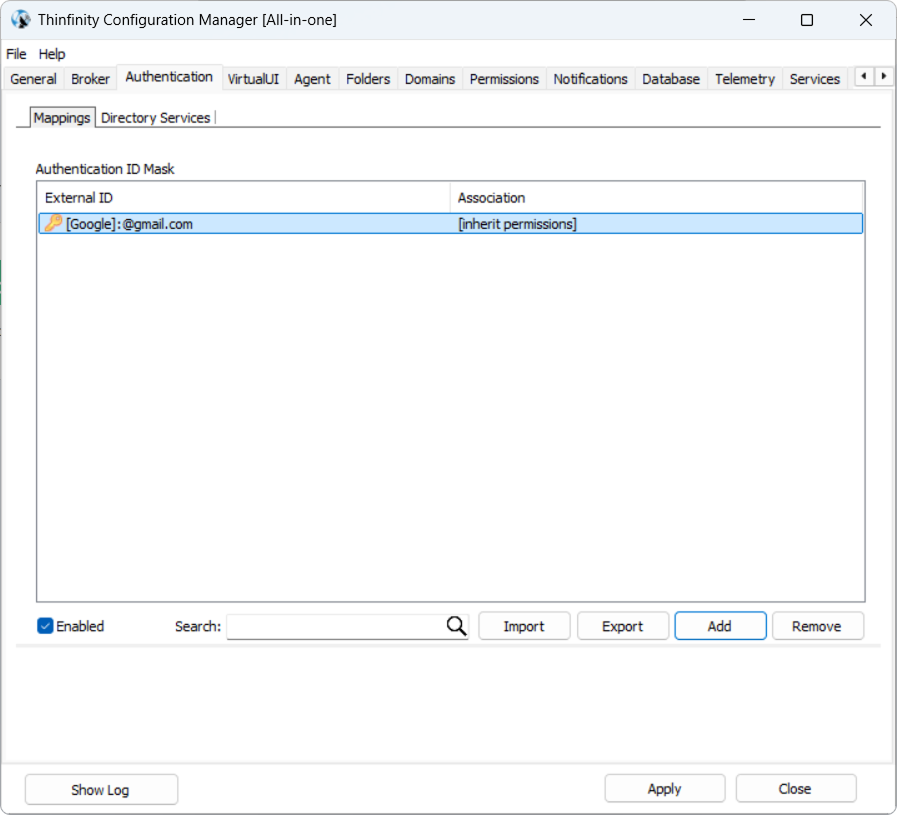
A list of already defined identity mappings is displayed.
| Option | Description |
|---|---|
| Enabled | This option is selected by default for any newly added mapping. Deselect to disable an identity mapping in the list. |
| Search | Allows looking up an identity mapping. |
| Import | Use this to upload a JSON file to replace the current user mapping configuration. VERY IMPORTANT! This action will completely overwrite the existing configuration with no rollback option. Please make sure to export the current configuration first to ensure a backup is available. |
| Export | Allows generating a JSON file containing the current user mapping configuration. Note however that for security reasons, user passwords are not included in the exported file. |
| Add | Select to add a new identity mapping/association. See the paragraphs below for details. |
| Remove | Select to delete the selected association(s). |
Selecting Add displays the following dialog window.
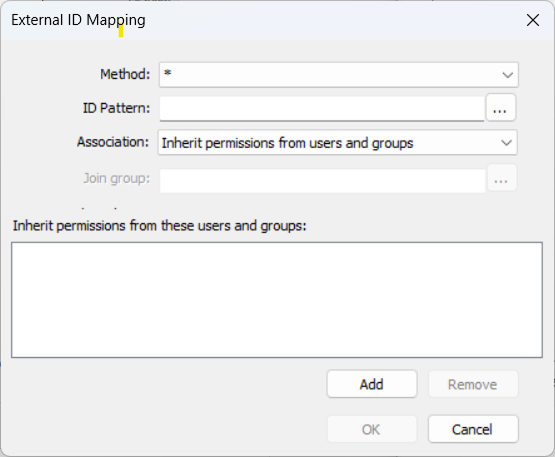
The following options are available.
| Option | Description |
|---|---|
| Method | This field displays a list of external authentication methods defined in the system. |
| ID Pattern | Select the three dots button to specify and test an ID pattern. |
| Association | The fields and options available in the External ID Mapping dialog change according to the selection made from this field. Association options define how an external identity (SSO) is linked to a local or domain identity and what level of access they are granted upon login. |
| Inherit permissions from users and groups: The default selection. The external identity is not assigned a Windows account of its own; instead, it acts as an existing local or domain account listed below. At logon the broker takes the first entry in that list as the effective Windows identity. See the row below for the picker’s behavior. | |
| Ask for credentials to associate: When a user logs in via SSO, they are prompted to manually specify which local or domain credentials their account should be associated with. | |
| Associate existing username: Maps the verified SSO user directly to a specific, existing local or domain user (name resolved via the Username field, with optional regex substitution against the IdP login). | |
| Create username if it doesn’t exist and associate: Resolves the same as Associate existing username, then creates the local account if it does not exist, using the configured password mode. See the Mapping Association Options section below for details. | |
| Inherit permissions from these users and groups | Lists the local or domain users and/or groups the external identity is linked to when Association is set to Inherit permissions from users and groups. Two behaviors apply. First, the first entry in the list becomes the effective Windows identity at the remote target (this is what Windows sees at logon), so list the account whose OS-level identity the session should assume first — the entry at the top is taken as-is, whether it is a user or a group. Second, for Thinfinity Workspace’s own authorization — access to Access Profiles, Labels, and UI permissions — every entry in this list counts, and the session gets the union of the permissions they grant. Each entry is matched against each ACL entry on the resource: by name when both are of the same kind (user against user, group against group), and by actual directory membership when one is a group and the other is not. So a user listed here also gains the permissions granted to any group it belongs to, and a group listed here also gains the permissions granted to its individual members — the session is treated as that group for Thinfinity authorization, whether or not the first-listed account is one of its members. |
| Add | Adds users and/or groups to the list. |
| Remove | Allows removing an entry from the list. |
Mappings Association Options
When Ask for credentials to associate option is selected from the Association field the External ID Mapping dialog window is displayed as in the following image.
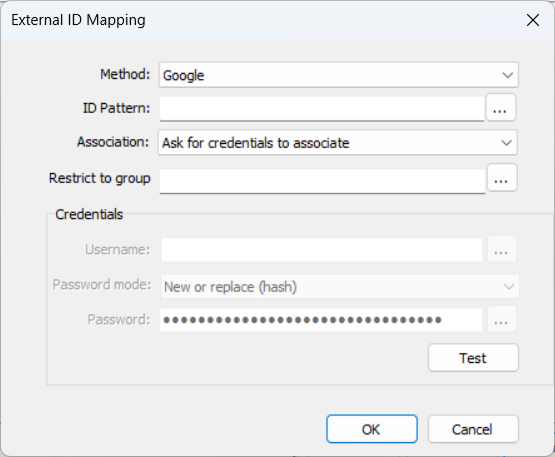
If Ask for credentials to associate is selected, when the user tries to log in with the selected authentication method they will be prompted to specify which credentials their account will be associated with. Subsequently, all Access Profiles where the user will have access will then utilize this association when configured with the Use authenticated credentials setting.
The following additional options will be available in the External ID Mapping dialog window:
| Option | Description |
|---|---|
| Restrict to group / Join group | A single field whose label — and meaning — depend on the Association selected. With Ask for credentials to associate or Associate existing username it reads Restrict to group and limits this ID mapping to members of the group entered. With Create username if it doesn’t exist and associate it reads Join group and names the group the newly created account is added to. The field is disabled with Inherit permissions from users and groups. Select the associated three dots button to display the Find Users or Groups dialog. |
| Username | This field only becomes available if either Associate existing username or Create username if it doesn’t exist and associate is selected from Association field. Associate existing username option allows mapping the configured SSO user to the permissions of specific local or domain user. Create username if it doesn’t exist and associate option allows mapping users from external identity providers to local or domain users on the host machine, even if these users don’t already exist in the host environment. Thinfinity Workspace captures the external ID of any verified user logging in from an external domain and automatically generates a corresponding local account on the host machine. This new account will inherit permissions predefined by the administrator. Use the three dots button to find one of the usernames defined in the currently selected Directory Service(s). |
| Password mode | Use this field to select the password mode. Available options: No password, Ask, Existing, New or replace (fixed), and New or replace (hash). |
| Password salt | Only available if New or replace (hash) option is selected from the previous field. A random bit of data added to a password before it is processed through a hashing algorithm. |
| Password | Shows the generated password. |
| Test | Verifies the stored credentials. |