
Database Tab
By default, Thinfinity® Workspace uses a local database to store and retrieve data. The Database tab offers access to the local database configuration settings.
Do not use the built-in local database for production.
The default local database (Absolute Database) is a convenience for evaluation and single-server test setups only. Production environments — including presales demos with real customer data — must use an external database. MySQL is preferred; PostgreSQL, SQL Server, and MariaDB are also supported.
For separation of concerns and easier maintenance, we recommend two databases:
- One for profiles and configuration (access profiles, RBAC, authentication mappings).
- One for analytics and audit log.
See Database Requirements for supported versions and connectivity details.
The Database tab is displayed as in the following image.
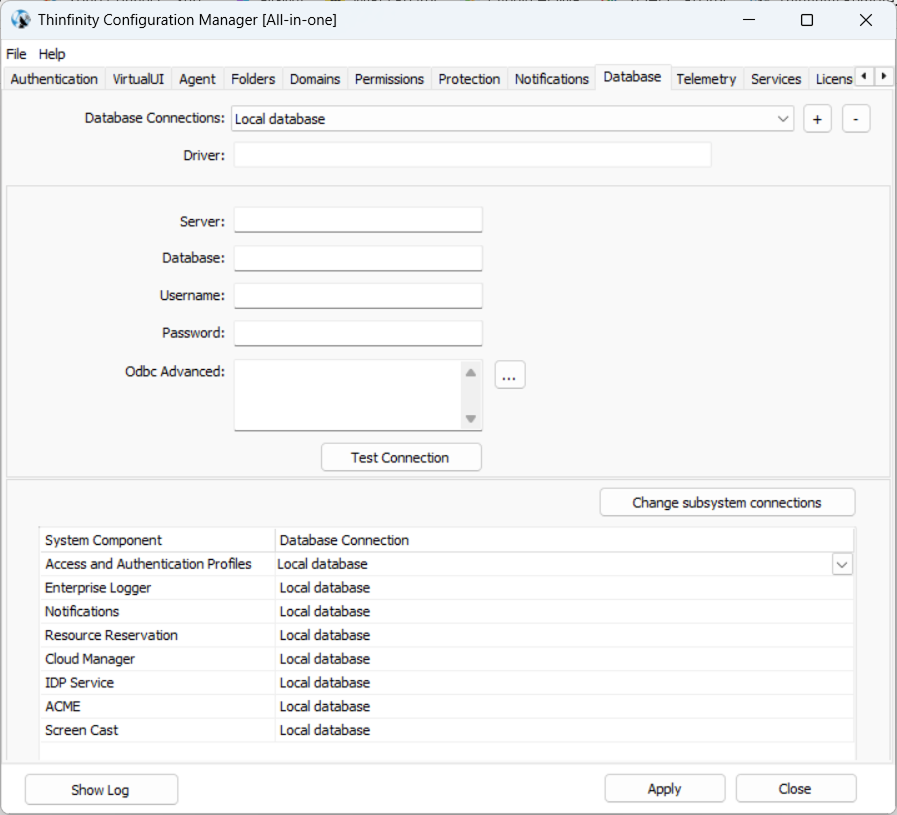
The following options are available.
| Option | Description |
|---|---|
| Database Connections | This field shows a list of currently available database connections. Select the + button to define a new database connection. Select the - button to delete the selected database connection. |
| Driver | Shows the type of database driver used to establish the connection to the database (e.g., MySQL, PostgreSQL, SQL Server, etc.) |
| Server Name | Hostname or IP address of the database server. |
| Database Name | Specify the name of the specific database on the server that Thinfinity Workspace should connect to. |
| Username/Password | Provide the Database Username and Password for database authentication. |
| ODBC Advanced | Select the three-dot button to add advanced ODBC options. |
| Trusted Connection | Allows the application to use Windows Authentication instead of traditional username/password authentication. |
| Test Connection | Use this button to test the connection to the database. |
| System Components list | By default, each system service and add-on is connected to a dedicated local database. To switch to an alternative database, create a new connection using the fields in the upper part of the dialog and then select it from the drop-down list associated with a service or add-on. Alternatively, you can use the Change subsystem connections to switch all components to the latest DB defined. |