
UI Settings
The UI settings page allows customizing global parameters related to the user interface of the Thinfinity® Workspace installation.
To access the UI settings: in the main Thinfinity Workspace page, select the user profile to access the user menu and select Settings then, navigate to Configuration>UI Settings.
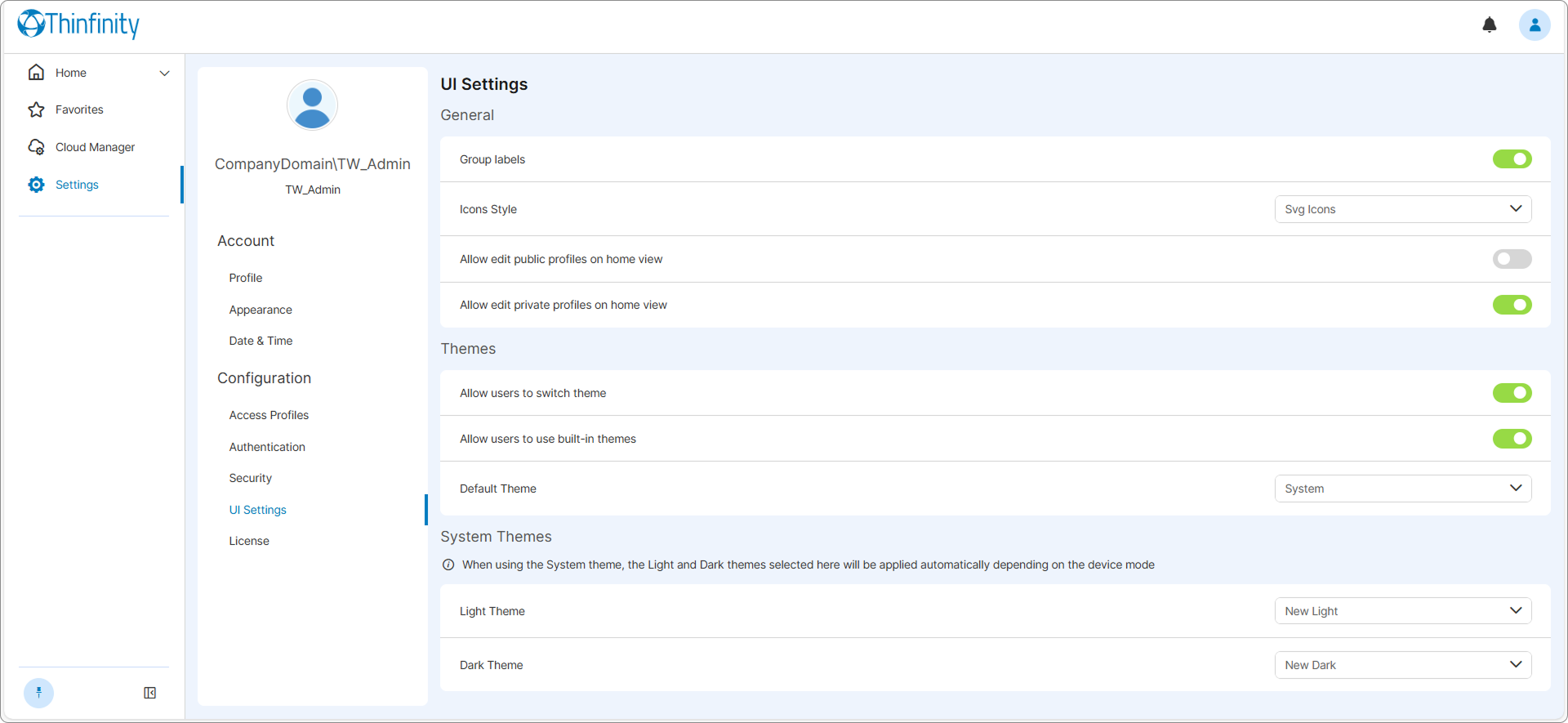
In the General section the following parameters are available.
| Option | Description |
|---|---|
| Group labels | Selected by default. When enabled, Labels are grouped separately at the top of the home page, apart from the Access Profiles, and the resource-type filters (Desktops, Applications, and so on) are available. When disabled, Labels are listed together with the Access Profiles in the main grid, and the filters are no longer shown. |
| Icons Style | Choose between legacy and SVG icons for the Access Profiles. |
| Allow managing public profiles in the home page | By default, Access Profiles can only be managed from the Access Profiles section in the Configuration area of the Settings menu. When this option is enabled, they can also be managed from the home page: the New Profile button becomes available for creating profiles, and an Access Profile’s contextual menu gains an Edit option that opens its Settings. |
| Allow managing private profiles in the home page | By default, Private Access Profiles can be managed from the Thinfinity Workspace home page. Disable this option if you want to manage the Private Access Profiles exclusively from the Private Profiles tab in the Access Profiles section in the Configuration area of the Settings menu. For details, see The Private Profiles Tab. |
In the Themes section the following parameters are available.
| Option | Description |
|---|---|
| Allow users to switch theme | This option is selected by default, and it allows users to select themes from the Appearance section of their profile menu. For details on themes, see Appearance. |
| Allow users to use built-in themes | This option is available only when Allow users to switch theme is enabled, and is hidden when it is disabled. Selected by default, it allows users to select one of the Thinfinity Workspace built-in themes that come with your installation. If this option is not selected, users will only have available the system themes and the custom themes that they can define. |
| Default Theme | Choose a default theme for your Thinfinity Workspace. |
In the System Themes area you choose the built-in themes applied when the System theme is in effect. The selected Light and Dark themes are applied automatically according to the device’s light or dark mode.
| Option | Description |
|---|---|
| Light Theme | The built-in theme applied in light mode when the System theme is in effect. Choose from the available light built-in themes. |
| Dark Theme | The built-in theme applied in dark mode when the System theme is in effect. Choose from the available dark built-in themes. |
To create custom themes and apply your own branding (logo, favicon, and colors), see Customizing Theme Settings.