
Identity Mappings Settings
Identity mappings settings allow you to map external identities to existing Thinfinty® Workspace users.
To access Identity Mappings settings: in the main Thinfinity Workspace page, select the user profile to access the user menu and select Settings. Next, navigate to Configuration>Authentication>Identity Mappings.
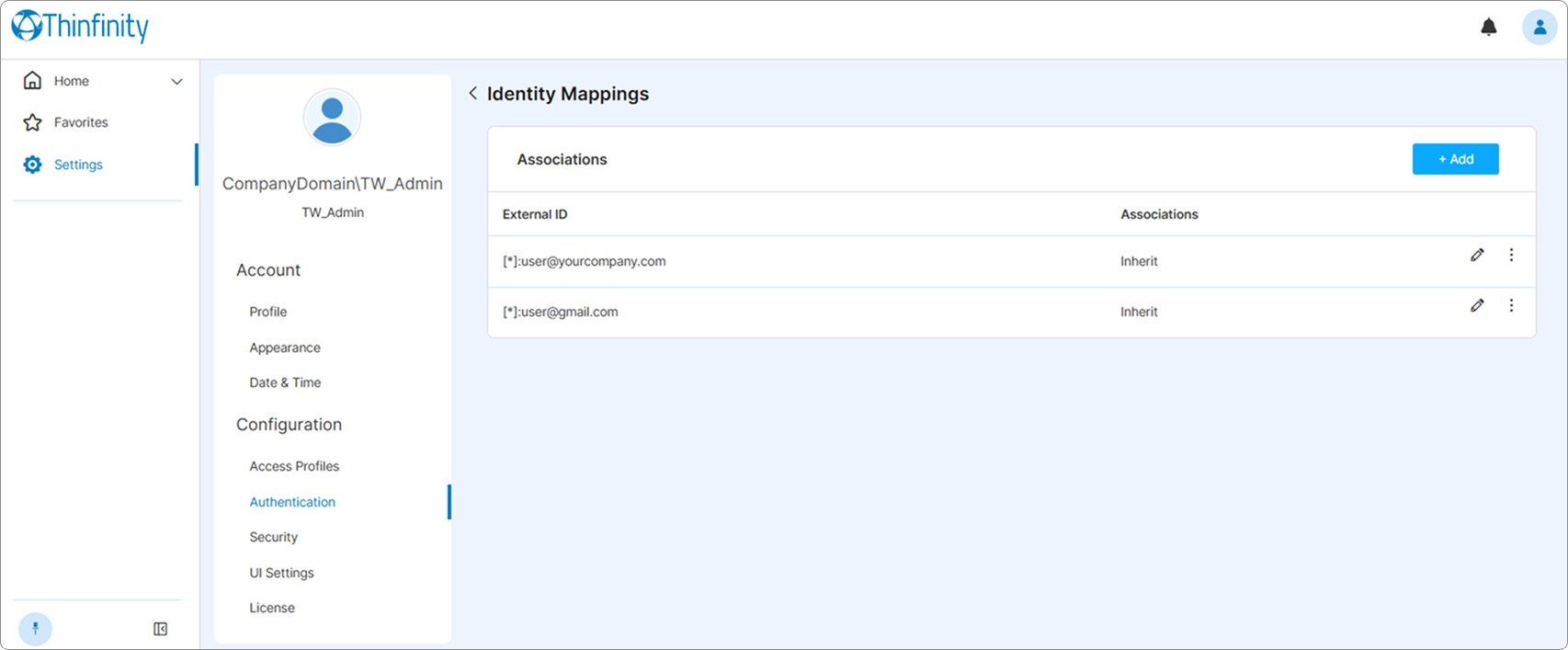
A list of identity mappings already defined is presented. Selecting Add allows defining a new association. The following parameters can be configured:
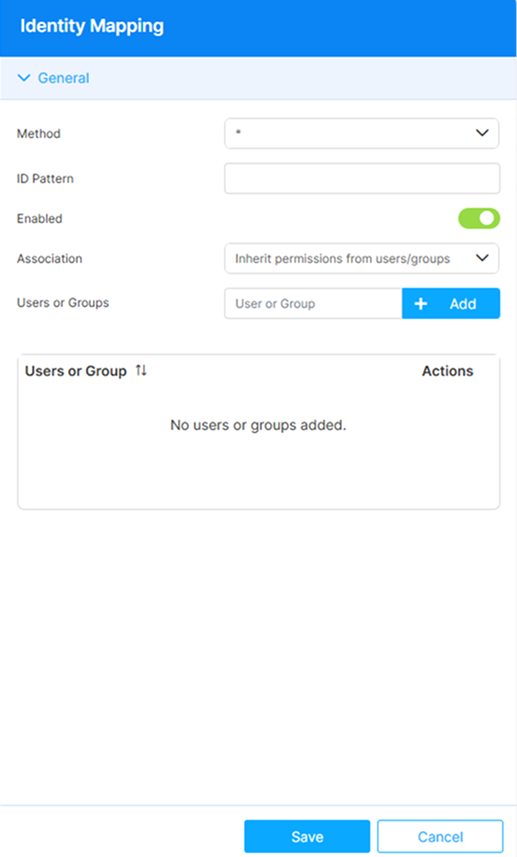
| Option | Description |
|---|---|
| Method | Select one of the Identity Providers (methods) configured in the Authentication Methods tab. |
| ID Pattern | Enter the ID pattern associated to selected Identity Provider. |
| Enabled | This option is selected by default when adding the authentication method. |
| Association | Select how you want to manage the credentials mapping: Inherit permissions from users/groups, Ask for credentials to associate, Associate existing username, or Create username if it doesn’t exist and associate. See the Mappings Tab reference for what each option does at logon. |
| Users or Groups | Select the Thinfinity Workspace users and/or groups the external identity is linked to when Inherit permissions from users/groups is selected in Association. The first entry in the list becomes the effective Windows identity at the remote target, so list the account whose OS-level identity the session should assume first. For Thinfinity’s own authorization — Access Profiles, Labels, and UI permissions — every entry in this list counts, and the session gets the union of the permissions they grant. See the Mappings Tab reference for how each entry is matched against those ACLs. |
| Credentials area Username | The user name that you want to associate with the Identity selected from the Method field. |
| Password mode | Choose one of the available options: No password, Ask, Existing, New or replaced (fixed) and New or replaced (hash). |
| Password | This field shows: - the current password when the Existing option is selected. - the generated password when New or replaced (fixed) or New or replaced (fixed) options are selected. |