
Multi Terminal Settings
The Multi Terminal Access Profile allows opening multiple terminal sessions within a single remote desktop session. This profile type is ideal for environments where several users need to work simultaneously but without interfering with each other’s sessions. Each user is provided with a dedicated virtual terminal, enabling them to have isolated and secure access to system resources.
For details on how to create this type of Access Profile, see Creating a Multi Terminal Access Profile.
To access a Multi Terminal Access Profile settings: From the user menu select Settings then Access Profiles and in the Public Profiles tab, select the Edit icon of the Access Profile you want to edit.
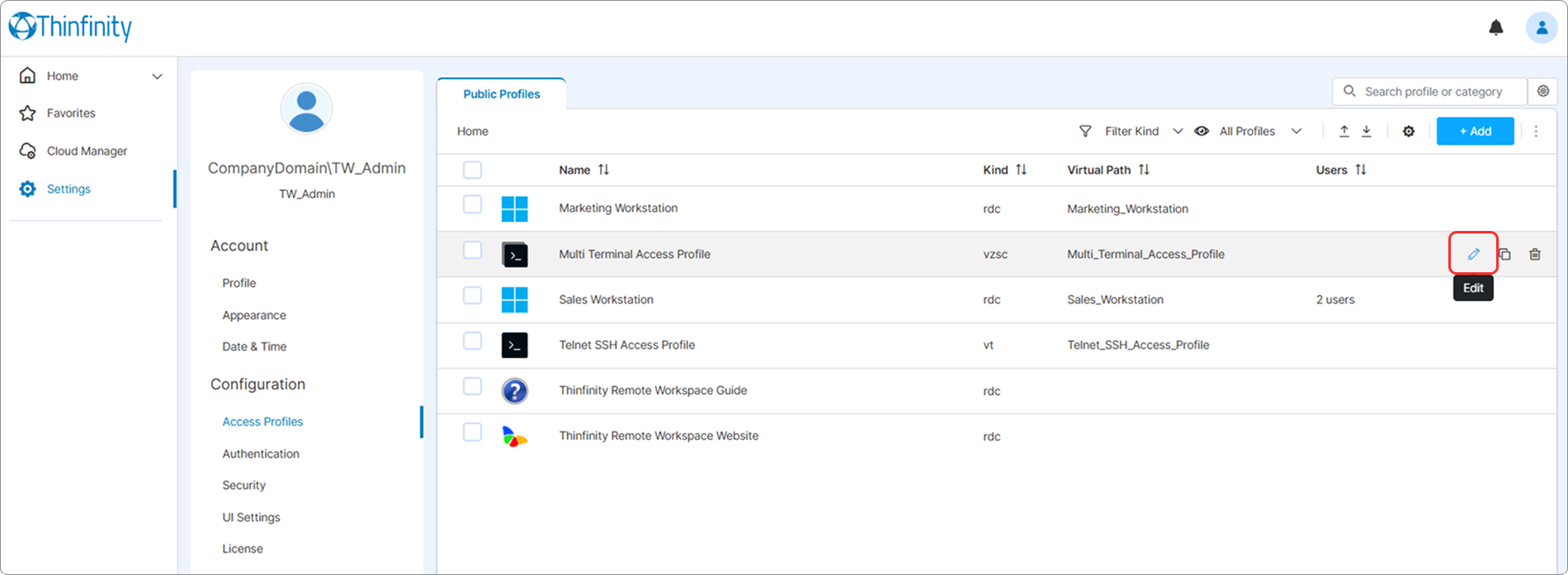
The following options are available in the Multi Terminal Settings menu:
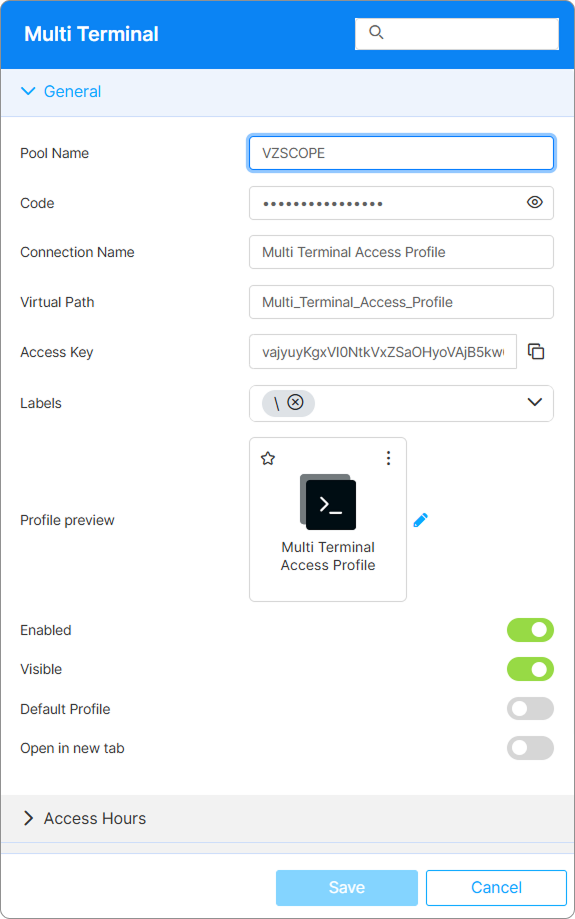
| Option | Description |
|---|---|
| Search field | The search field at the top of the Settings menu allows searching a specific parameter by its name. |
| Pool Name | Enter the value shown in the Pool Name field in z/Scope tab of the Configuration Manager. For details, see z/Scope Classic Tab. |
| Code | Enter the value shown in the Access Code field in z/Scope tab of the Configuration Manager. |
| Connection Name | The friendly name shown on the Access Profile’s card in the home-page list and on the browser tab when the profile is open. |
| Virtual Path | By default, Thinfinity creates a unique URL address for the current access profile. If you want to customize it, make sure your address is unique and web compatible and that it has the following format: http(s)://ThinfinityDomain:port/VirtualPath/. You can then create a web shortcut for this specific access profile and bypass the Thinfinity Workspace web interface. |
| Labels | Access profiles can be organized into groups (labels) for which you can collectively manage the permissions settings. This field shows the names of the groups (or labels) that the current profile is a part of. For details, see Labels. |
| Profile preview | Use this button to customize the appearance of your Access Profile by choosing an image. Selecting the image will open the Customize Profile dialog window where you can select one of the available images or upload one from your computer. |
| Enable | This option is selected by default, and it indicates that the access profile is active and ready to be used. To disable the profile, uncheck this option. |
| Visible | When on (default), the Access Profile appears on the home-page card list for users who have permission to it. When off, the card is hidden, but users with the direct URL can still open the profile. |
| Default Profile | When on, users who have this Access Profile log in and connect directly to it, skipping the home page. |
| Open in a new tab | When on, launching this Access Profile opens it in a new browser tab. When off (default), it opens in the current tab. |
For details on access control and user permissions, see Access Control Settings.