
Accessing Thinfinity Workspace
After installing Thinfinity® Workspace, to access the dashboard or the home page you can use:
Thinfinity Workspace Configuration Manager
From the list of installed programs select Thinfinity Workspace Configuration Manager.
In the General tab select the desired binding and select Browse.
The login page is displayed.
Enter your credentials to access the Thinfinity Workspace dashboard or homepage.
Your Preferred Browser
To access the Thinfinity Workspace web-based interface you can use any of the modern web browsers such as Google Chrome, Microsoft Edge, Mozilla Firefox, or Safari. Enter the URL of your Thinfinity Workspace.
When using an All-in-one setup on your local computer for evaluation purposes, Thinfinity Workspace is accessible from the local machine using the localhost address:
http://127.0.0.1:9443
9443 is the default port used by Thinfinity Workspace. You can change this port if needed, but it is strongly recommended to configure SSL/TLS certificates to securely access through HTTPS.
If you are using a distributed architecture, enter the URL of the server where you installed Thinfinity Workspace using the format:
https://[serverIP]:9443
The Thinfinity Workspace login page is displayed and you are prompted for account credentials. Make sure to log in using Domain User credentials.
Progressive Web App (PWA)
Thinfinity Workspace can be installed as a Progressive Web App from any browser that supports installing web apps — in practice, the Chromium-based browsers (Chrome, Edge, Brave). The installed app runs in its own window with its own icon, so users get a near-native experience without an administrator having to distribute a separate client installer.
Install the PWA from the browser’s address-bar install icon on your Workspace URL. The documented, step-by-step procedure covers a Windows PC with a Chromium-based browser: see the KB article How to install Thinfinity Workspace PWA on a Windows PC.
The Desktop Client
Thinfinity Workspace Desktop Client for Windows relies on a pre-existing Thinfinity Workspace installation and environment. It uses the Thinfinity Gateway to natively open RDC connections through the Remote Desktop Connection application and SSH connections via Putty.
After downloading and installing Thinfinity Workspace Desktop Client, select it from your Windows programs list.
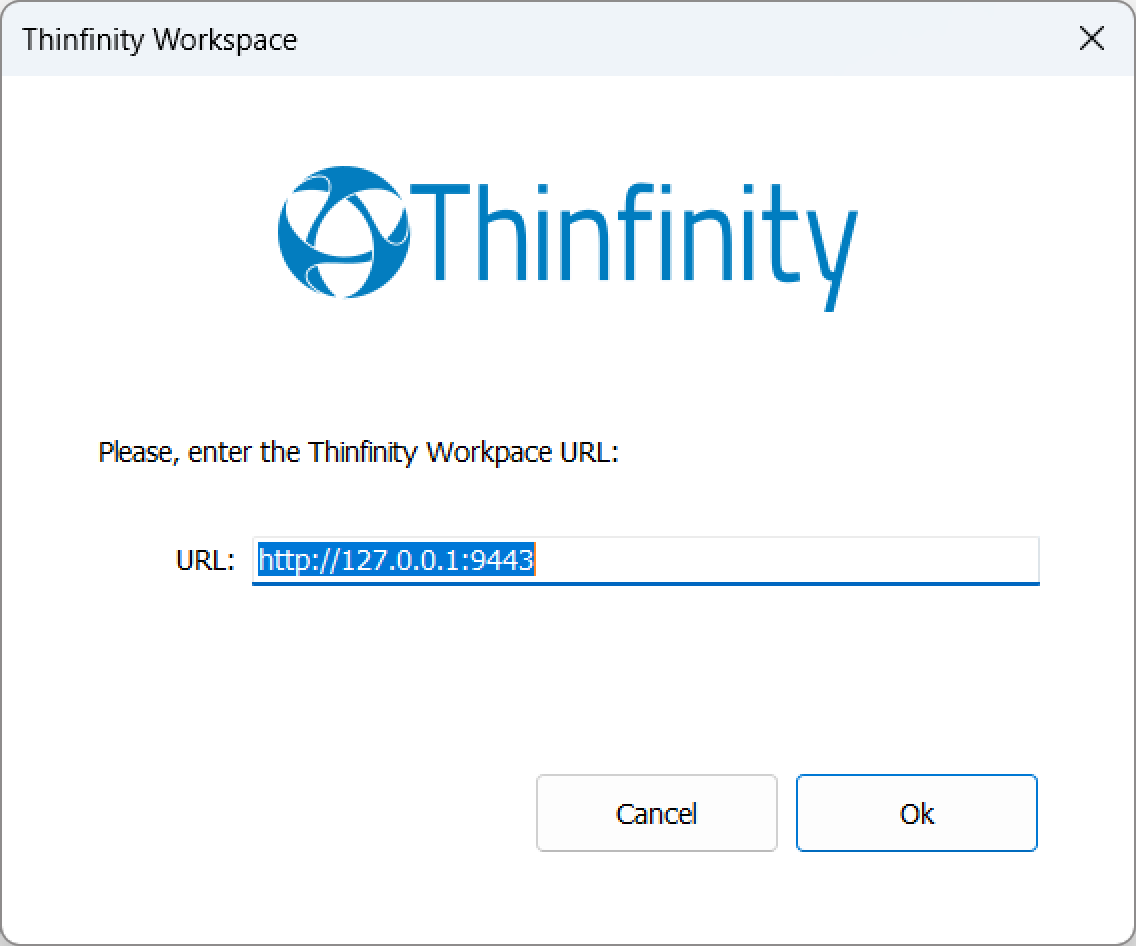
Configure the Workspace Gateway URL: The first time you open the Desktop Client you will need to enter the Gateway URL. Make sure to use the correct format as shown in the image then select OK.
Authenticate to Thinfinity Workspace environment: Enter the validated credential set corresponding to the system or domain administrator account, then select Sign In to initiate user authentication and session establishment.
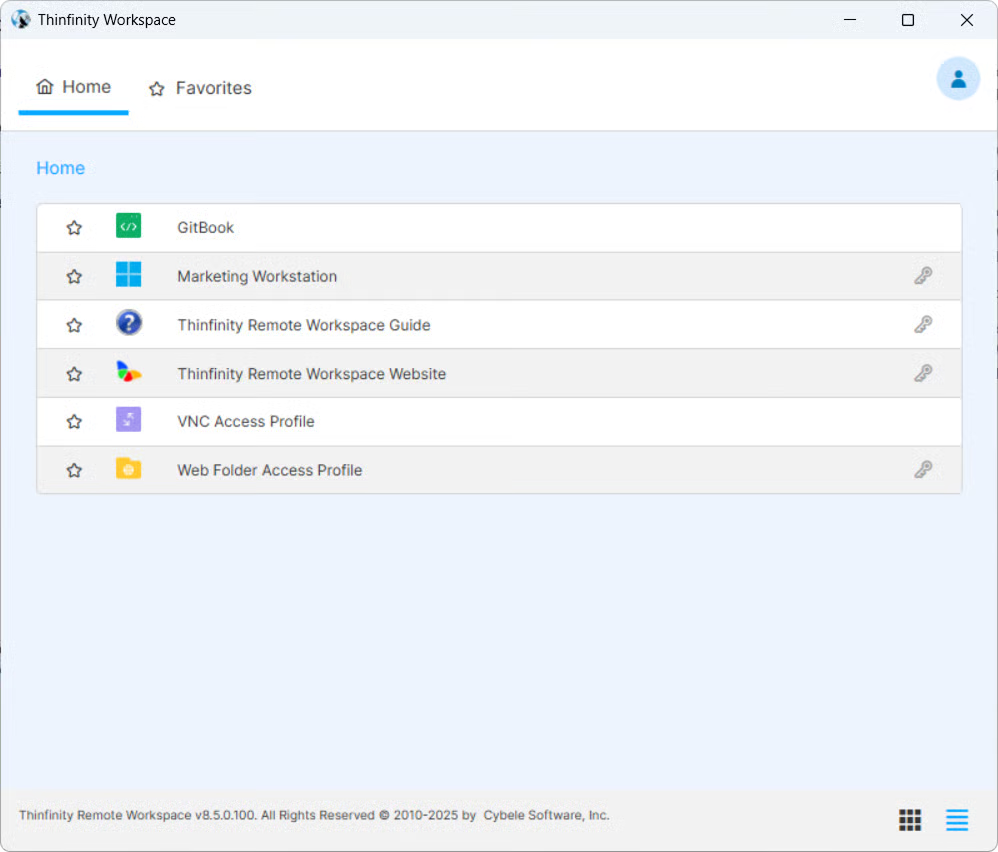
Explore the Thinfinity Workspace Desktop Client Home Screen: Once signed in, you’ll see all your Access Profiles ready for use in the Thinfinity Workspace Desktop Client.
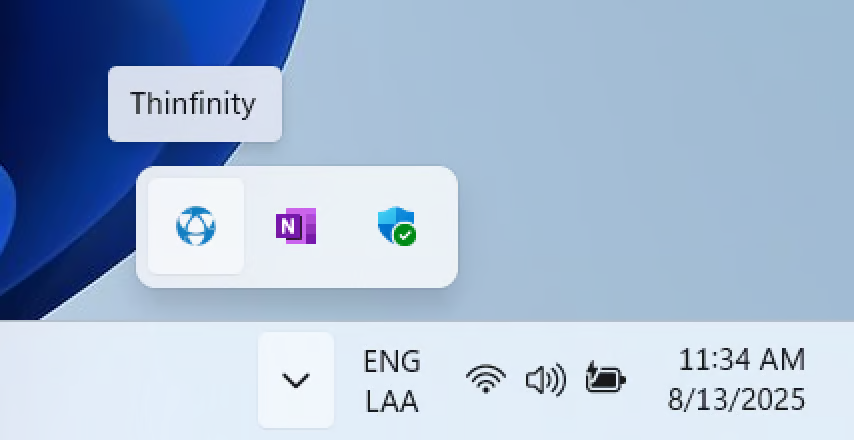
If you close the Thinfinity Workspace Desktop Client window, you can reopen it by selecting Show hidden icons in the Windows taskbar (lower-right corner) and selecting the Thinfinity icon.
For details on the user interface elements, see the next section.