
Threat Prevention
See also
These settings are also configurable from the Configuration Manager. See Protection Tab.
This functionality allows managing security-related configurations and setting up protections that ensure secure access and usage of Thinfinity® Workspace environment.
To access the Threat Prevention settings: in the main Thinfinity Workspace page, select the user profile to access the user menu and select Settings. Next, navigate to Configuration>Security>Threat Prevention.
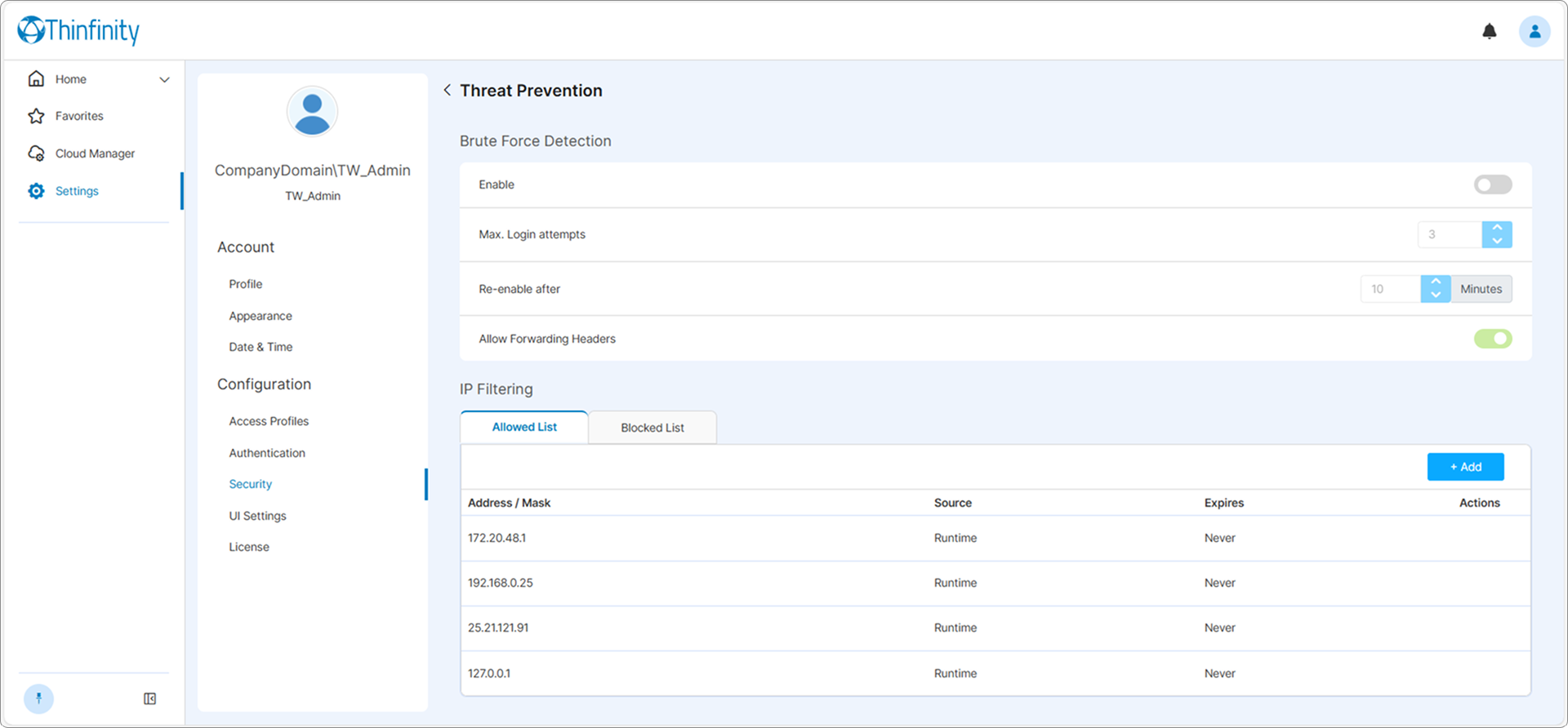
In the Brute Force Detection area, the following options are available:
| Option | Description |
|---|---|
| Enable | Allows enabling the Brute Force Protection feature. |
| Max. Login attempts | By default, the maximum number of allowed login attempts is 3, change if applicable. |
| Re-enable after | The time interval after which the login page is again available. The default value is 10 minutes, modify if applicable. |
| Allow Forwarding Headers | This option is selected by default and it enables the use of forwarding headers (such as X-Forwarded-For) to track the original IP address of a client when requests pass through a proxy or load balancer. |
In the IP filtering area, the following options are available:
| Option | Description |
|---|---|
| Allow list | Allows administrators to specify trusted IP addresses or ranges that are explicitly permitted access to Thinfinity Workspace. |
| Deny list | Allows administrators to block specific IP addresses or ranges from accessing Thinfinity Workspace. |
Selecting Add allows adding a new IP on the Allow or Deny lists.