
Desktop Client Connection Toolbar
The Thinfinity® Workspace Desktop Client injects a session-level control into the running RDP session for at-a-glance connection-quality monitoring. A signal-bars icon appears in the title bar (caption) of the session window and — when the session runs in full-screen mode — in the full-screen connection bar. The icon serves two roles at once: it reflects the current connection quality (its filled bars and color follow the live state), and it acts as the toggle for the Connection Statistics overlay panel.
Signal-Bars Icon
The icon behaves as follows:
- Live quality indicator — the number of filled bars and their color reflect the current connection quality, so degradations are visible without opening the panel.
- Statistics toggle — selecting the icon opens the Connection Statistics panel. The icon stays visually pressed while the panel is visible; selecting it again dismisses the panel.
The connection-quality level is reported by the underlying Remote Desktop control through the IMsTscAxEvents::OnNetworkStatusChanged event. The level maps to five states, each with its own label, color, and number of filled bars:
| State | Filled bars | Color |
|---|---|---|
| Measuring… | none (clock glyph) | Grey |
| Poor | 1 | Red |
| Fair | 2 | Amber |
| Good | 3 | Green |
| Excellent | 4 | Green |
Before the first measurement — and whenever the level is unknown — the icon shows a clock glyph in place of the bars and the label reads Measuring…. There is no separate “Disconnected” state, and Good and Excellent share the same green, differing only by the number of filled bars.
Live connection-quality reporting — and the System Messages described below — is available in RDP sessions. In VNC sessions the icon is present but does not update: it stays in the Measuring… state.
It is available in two places:
- Session window title bar — visible whenever the session is running.
- Full-screen connection bar — visible when the profile is running in full-screen mode.
Connection Statistics Panel
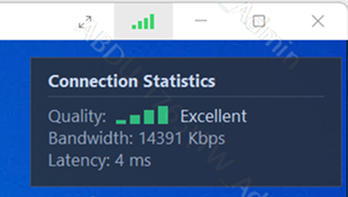
Selecting the signal-bars icon opens the Connection Statistics panel — a semi-transparent dark overlay anchored at the top-right of the session area. The panel reports three real-time metrics:
| Field | Description |
|---|---|
| Quality | The overall connection quality, shown as a signal-bars icon paired with a descriptive label (for example, Excellent). |
| Bandwidth | The current session bandwidth, in Kbps. |
| Latency | The current session round-trip latency, in milliseconds. |
The panel remains on top of the session while visible and is dismissed by selecting the signal-bars icon again.
System Messages
The Desktop Client also surfaces system messages emitted by the Remote Desktop client (via the IMsTscAxEvents::OnServiceMessageReceived event). An active message appears inside the Connection Statistics panel, under a System Messages heading at the foot of the panel; only the most recent message is shown, wrapped to at most two lines. When there is no active message, the panel omits the section entirely.
See Also
- Connection Metrics — the equivalent connection-quality reporting surface for the Thinfinity Workspace web client, exposed from the Miscellaneous group of the connection toolbar (Gateway Latency, Agent Latency, Speed Test, Test History, Export Data).
- Thinfinity Workspace Desktop Client — conceptual overview of the Desktop Client.