
Configuring Thinfinity Agent for VirtualUI
In Thinfinity Workspace, agent deployment requires a separate installation package, as it is not included within the main software bundle. The agent can be installed in two modes: as a Workspace agent or as a VirtualUI agent. In this article we describe the configuration of the VirtualUI agent.
Installing this package sets the machine’s installation role to VirtualUI Agent automatically — it is not a role you pick from the Role dropdown of the Services Tab, which only lists the roles of the main Workspace installer.
After you finish the installation wizard and the agent is deployed, the following configuration must be performed.
Set the Network ID Parameter
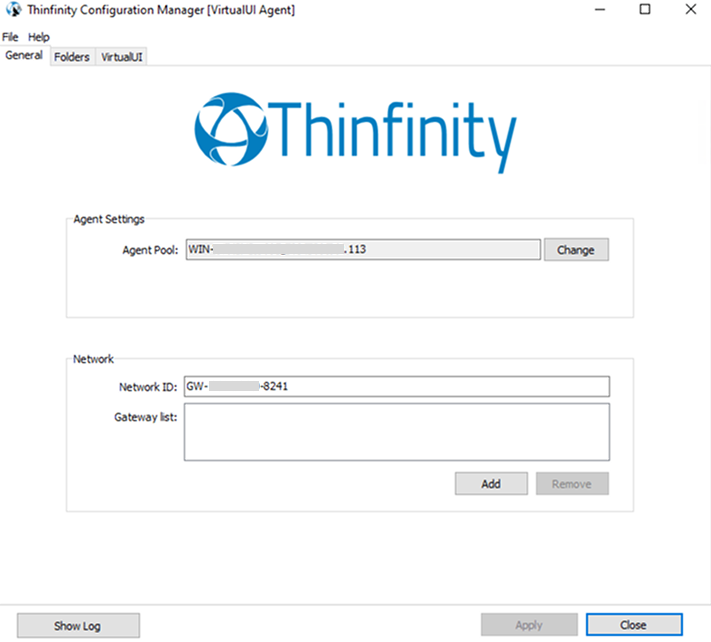
Run the Thinfinity Workspace Configuration Manager to begin setup. In the General tab, go to the Network section and enter the same Network ID you used before in the Gateway Configuration.
Commit Changes
Submit changes by selecting Apply.
In VirtualUI mode, the identifier field is shown as Agent Pool: the identifier of the agent pool this machine registers under. It is generated automatically and, if needed, can be manually modified to a custom alphanumeric string.
The Configuration Manager on the Agent exposes a Folders tab, which can be used to redirect the machine’s Temporary Folder to a network share — for example, to centralize session recordings from Agent-hosted sessions alongside those produced by primary and secondary brokers. For the full list of file types stored in the Temporary Folder and the remaining Temporary Folder options, see Folders Tab. For details on the options available in the rest of the tabs, see VirtualUI and Telemetry.