
Web Application Gateway (WAG) Settings
A Web Application Gateway (WAG) Access Profile allows users to access intranet web applications through Thinfinity® Workspace.
For details on how to create a Remote Intranet Web App Access Profile, see Remote Intranet Web App.
To access a Remote Intranet Web App Access Profile settings: From the user menu select Settings then Access Profiles and in the Public Profiles tab, select the Edit icon of the Access Profile you want to edit.
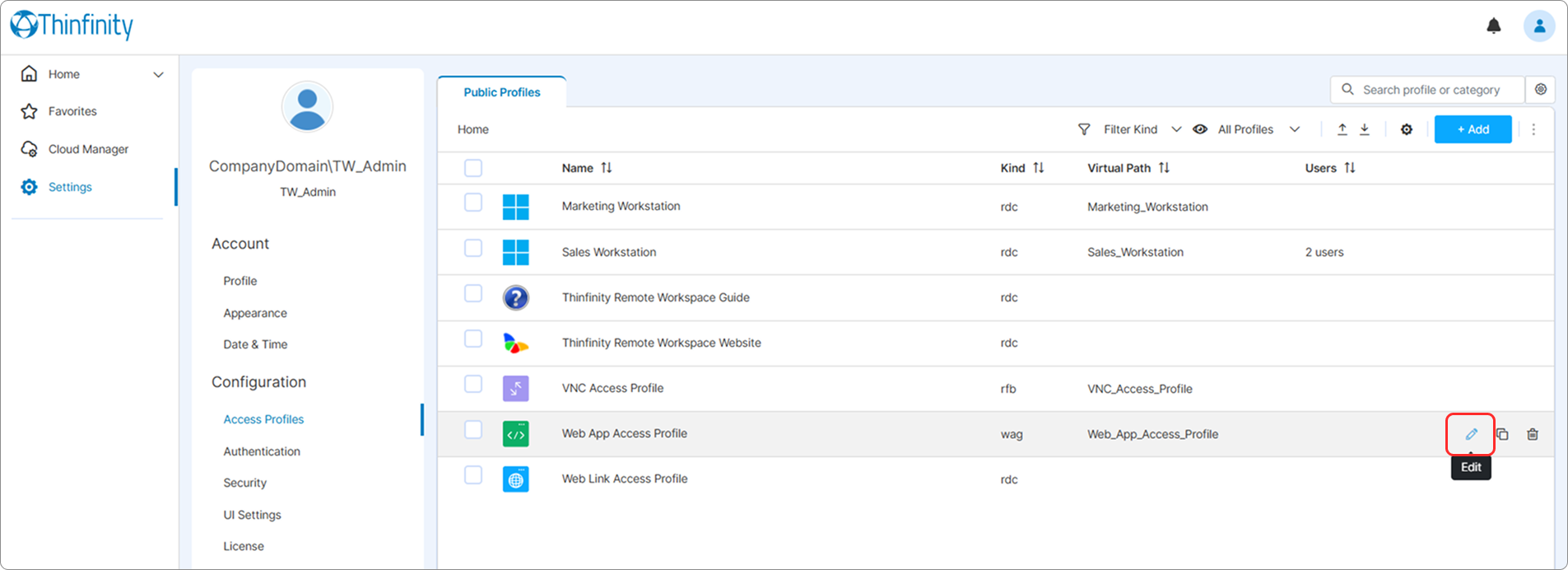
Selecting Edit will display several options for customizing your Remote Intranet Web App Access Profile. Below are detailed descriptions of all available options in each tab:
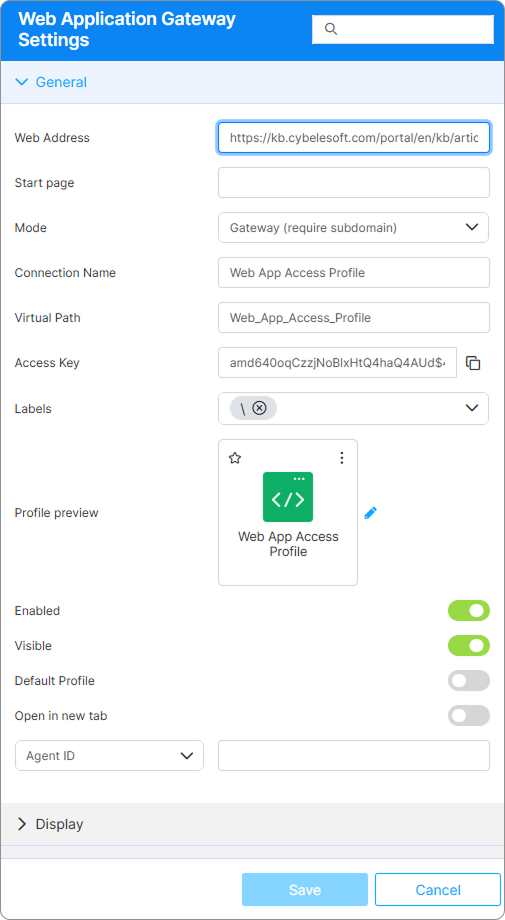
| Option | Description |
|---|---|
| Search field | The search field at the top of the WAG Settings menu allows searching a specific parameter by its name. |
| Web Address | Displays the web address of the App where the profile grants access. |
| Start Page | Displays the selected start page of the target Web App. |
| Mode | This field displays the running mode for the Web Application Gateway profile. Available modes: • Gateway (requires subdomain) - requires the creation of a subdomain, replaces the subdomain and it is necessary to implement a host or DNS redirection in order to make it function. • Reverse proxy with link replacement - preserves the original Virtual Path generated for the Access Profile and content is not replaced but dynamically generated: not by using a subdomain but instead by replacing links found within the HTML content. • Reverse proxy - classic port forwarding. This parameter is configured when the profile is created but can be changed at any moment. |
| Connection Name | The friendly name shown on the Access Profile’s card in the home-page list and on the browser tab when the profile is open. |
| Virtual path | By default, Thinfinity creates a unique URL address for the current Access Profile. If you want to customize it, make sure your address is unique and web compatible and that it has the following format: http(s)://ThinfinityDomain:port/VirtualPath/. You can then create a web shortcut for this specific access profile and bypass the Thinfinity Workspace web interface. |
| Labels | Access Profiles can be organized into groups (labels) for which you can collectively manage the permissions settings. This field shows the names of the groups (or labels) that the current profile is a part of. For details, see Labels. |
| Profile preview | Use this button to customize the appearance of your Access Profile by choosing an image. Selecting the image will open the Customize Profile dialog window where you can select one of the available images or upload one from your computer. |
| Enabled | When on (default), the Access Profile is available. When off, direct URLs no longer route to it and the profile disappears from the home-page card list. |
| Visible | When on (default), the Access Profile appears on the home-page card list for users who have permission to it. When off, the card is hidden, but users with the direct URL can still open the profile. |
| Default Profile | When on, users who have this Access Profile log in and connect directly to it, skipping the home page. |
| Open in a new tab | When on, launching this Access Profile opens it in a new browser tab. When off (default), it opens in the current tab. |
| Agent ID | Routes the connection through a specific Virtualization Agent — the component installed on the host that bridges the Broker with the target resource. Enter the Agent ID of the agent on the machine that serves the web app. Use this when the target is reached through an agent (for example, a host behind NAT or without a directly reachable address) rather than by a direct address. |
| Agent Pool | Routes the connection through a named Agent Pool (a group of Virtualization Agents) instead of a single agent: any available agent in the pool can serve the connection, which distributes load and adds redundancy. Enter the Agent Pool name. |
| Broker | Specifies which Broker handles the connection and routes it to the target resource. Brokers also perform authentication/authorization and load-balance sessions across back-end hosts. Leave the default unless your deployment defines more than one Broker to choose from. |
Specify a filename for a custom headers file without including the full path to the file.
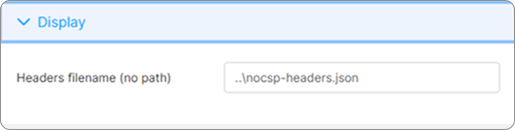
The headers file also controls the keep-alive script that the WAG injects into the pages it serves. If the target site is built on document types not covered by the default configuration — such as PHP or JSP — see Keeping WAG Sessions Active.
Allows you to specify a list of domain names that are allowed to access your Web App environment.
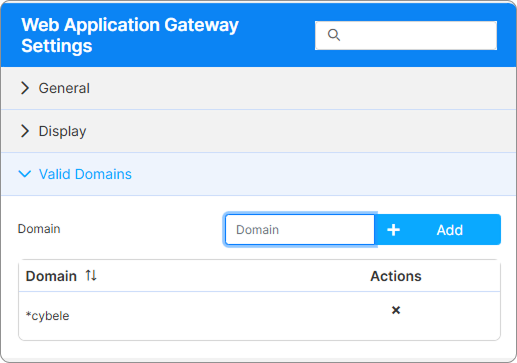
This tab is only available for the Gateway and Reverse Proxy with Link Replacing modes.
For details on the options available in the access and permissions tabs, see Access Control Settings. For background on the Agent ID, Agent Pool, and Broker routing options, see Gateways, Brokers, and Virtualization Agents.